Business Phones and Networks.
6 | P a g e
Call Forward
If you ever need to forward your calls to another phone or your mobile, this can be
done with the Call Forward feature –
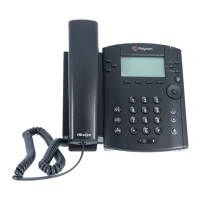
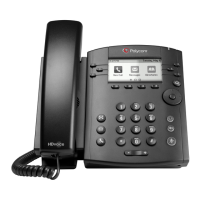
- First, you will need to press the button labelled “More”. [1] (Refer to image
above.)
- Then you will need to press the button labelled “Forward”. [2] (Refer to image
above.)
- You’ll then find yourself on another screen that says “Always”, “No Answer” and
“Busy”.
- Once you have selected the condition you want it to forward on, click the
button labelled “Select”. [1] (Refer to image above.)
- Then you can enter the extension or number you want your calls to be
forwarded to.
- Once entered, you can then click the button labelled “Enable”. [1] (Refer to
image above.)
- To turn it off, simply follow the same steps. However in the final step you will see
disable, which you’ll need to select. [1]. (Refer to image above.)


 To Next Page