Need help?
Do you have a question about the Primera LX1000e and is the answer not in the manual?
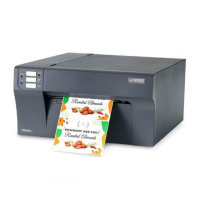
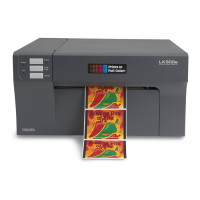
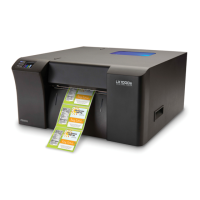
This document describes the LX2000e and LX1000e Color Label Printers, which are thermal inkjet printers designed for producing color labels. These printers are capable of printing razor-sharp text and barcodes, vibrant colors, and stunning photo-realistic photographs directly onto rolls of labels, card stock, and other approved media.
The LX2000e and LX1000e are color label printers that utilize pigment ink for high-quality output. They are designed to print custom labels for various applications, offering flexibility in media types and sensing methods. The printers can be connected via Hi-Speed USB 2.0, built-in Wired Ethernet 10/100 Base-TX (RJ45), or built-in wireless 802.11b/g/n networking (for LX2000e only).
Print Method: Thermal inkjet; Pigment ink Print Resolutions: Up to 4800 dpi Print Speeds:
Getting Started: The manual provides a step-by-step guide for setting up the printer, including choosing a good location, unpacking and inspecting the unit, and identifying its parts. Users are advised to place the printer on a flat surface with adequate air circulation and to avoid direct sunlight, excessive dust, or mechanical vibration.
Label Stock: The printer supports a wide variety of label stock, including die-cut, thru-hole, and reflective/black mark sensing methods. It's crucial to use custom-made label stock ordered from Primera for optimal performance. The manual details label sensing methods, roll specifications, and provides a table for Max and Min values in inches and millimeters for various label dimensions.
Installing Label Stock: Instructions are provided for installing both internal and external label stock. This involves opening the top cover, lowering the roll guide, removing any shipping tape, and correctly positioning the label roll to prevent media jams. The movable throat guide needs to be adjusted to the label stock width.
Adjusting Label Stock TOF (Top of Form) Sensor: This feature allows users to adjust the sensor position for standard square/rectangular die-cut labels or thru-hole stock. For circular labels, the TOF sensor needs to correspond with the very top of the label where the circles are closest together.
Setting the Stock Sensor Mode: The printer offers three sensor modes: Reflective, Die Cut, and Continuous.
Setting the Output/Cut Mode: This feature allows users to define how the printer handles labels after printing. Options include cutting after no activity, after a specified number of labels, every label, or after a button press.
Adjusting Print Alignment: Print alignment is crucial for quality, especially after a print head change. The Status Monitor allows adjustments for Top of Form (TOF), Tear Off Position, Cutter Offset, and Left Margin Offset to ensure accurate printing on labels.
Status Monitor: The PTStatus or Status Monitor is a utility for monitoring ink levels, maintenance, alignment, cost calculation, and other functions. It displays ink levels, print head life, and allows access to various settings and utilities.
Printing from a PC (BarTender): The printer comes with BarTender UltraLite Primera Edition. The manual guides users through creating a new label document, selecting printer settings, defining label dimensions, adding backgrounds, and embedding pictures. It also covers adding text, barcodes, and graphics to a BarTender label.
Printing from Other Programs: Instructions are provided for printing from Adobe Acrobat Reader and other graphics software programs, emphasizing the importance of matching page size to label size and adjusting print preferences for optimal output.
Printing from a Mac: The manual details how to install the software, add the printer, and use the LX2000e Utility for managing ink levels, alignment offsets, and stock sensor modes. It also covers printing from Adobe Reader and other applications on a Mac.
Monitoring Ink Levels: The Status Monitor displays ink levels for Cyan, Magenta, Yellow, and Black cartridges, as well as the overall print head life. This helps users track ink consumption and plan for cartridge replacement.
Replacing Ink Cartridges / Low Ink Warning: The printer provides a low ink warning when ink levels drop to 20% or less. The manual gives step-by-step instructions for replacing ink cartridges, including opening the cover, pressing inward on the cartridge, pulling it out, and inserting a new one.
Alignment Print: An alignment print is recommended after every 10,000 prints or after a print head change to maintain print quality. The process involves loading alignment paper and following on-screen prompts.
Cleaning the Maintenance Station: The maintenance station, located on the right side of the print area, includes a rubber cartridge nozzle cap and an elastic squeegee. These parts should be cleaned with rubbing alcohol and a paper towel to prevent ink buildup.
Cleaning the Print Head: If print quality issues arise (reduced print quality, missing colors, clogged nozzles), the manual recommends securing ink cartridges, cleaning copper contacts on the print head carrier and print head, and running an automatic print head cleaning print via PTStatus2000. It advises against touching the print head nozzles directly.
Preventing Clogged Nozzles: To prevent clogging, users are advised to keep the LX2000e plugged in and turned on for periodic maintenance, never store a used print head outside the printer without proper sealing, and use the printer regularly.
Replacing the Print Head: Instructions are provided for replacing the print head, which involves opening the cover, locating and flipping the locking latch, pulling out the old print head, installing a new one, and lowering the latch.
Vacuum Tube Maintenance Kit and Ink Pad Replacement: The LX2000e features a vacuum system to prevent ink overspray. Maintenance involves cleaning the vacuum tube using a clear tube from the kit and replacing the ink pad saturation tray. This maintenance is recommended every 10,000 prints.
Troubleshooting Print Quality Problems: The manual lists common factors affecting print quality, such as quality settings, print head cleanliness, ink cartridge issues, and print head alignment. It provides solutions for each problem, including adjusting quality settings, cleaning the print head, changing cartridges, and realigning the print head. It also covers color matching, image size/shape, image file format, and media type settings.
 General
| Brand | Primera |
|---|---|
| Model | LX1000e |
| Category | Label Maker |
| Language | English |

 To Next Page