©2022 Pro-Vision Solutions, LLC. Page 37 of 56
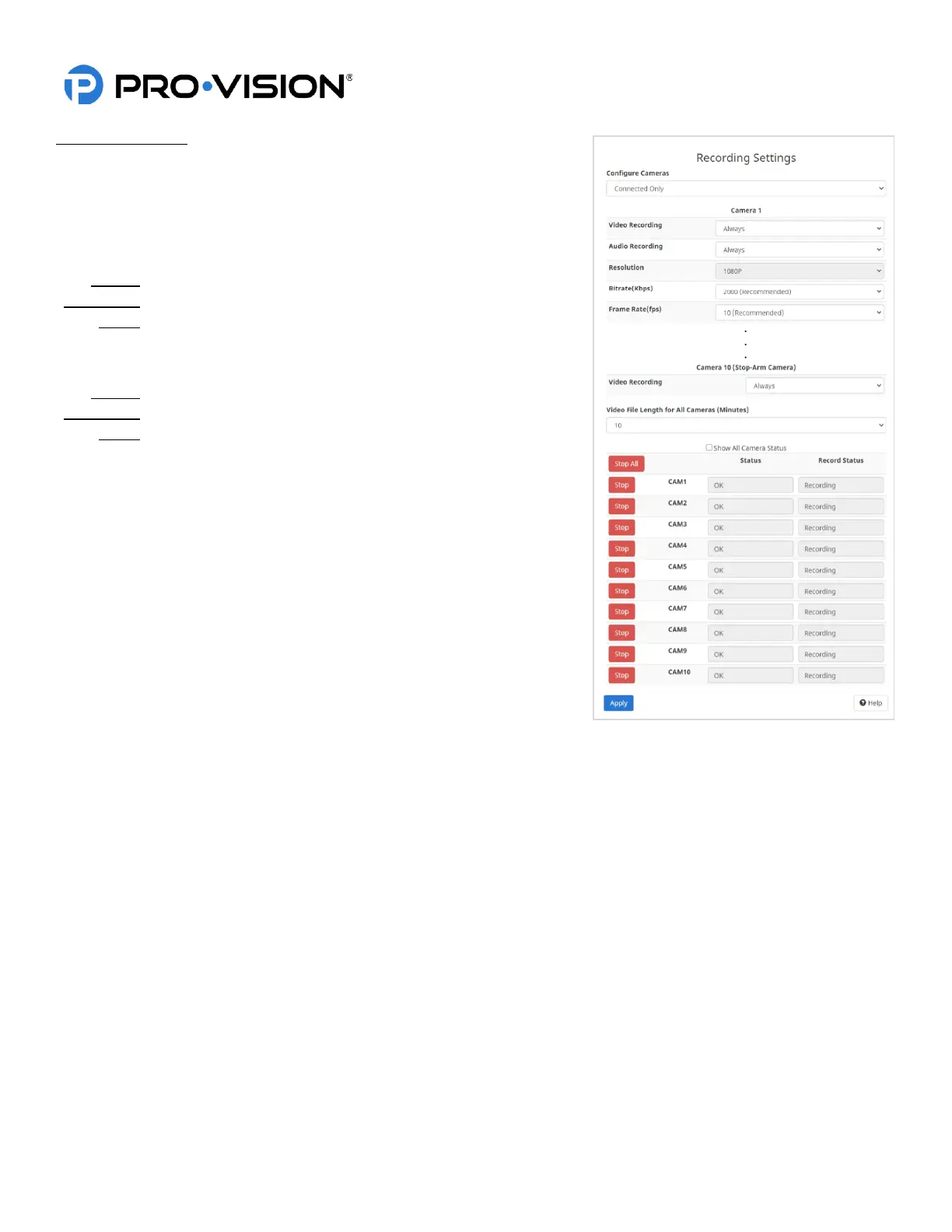
Recording Settings
Configure Cameras:
Select the method of configuring cameras, if you unsure, select “All at
Once” to configure all cameras with the same settings.
Video Recording:
Select when the camera(s) will be recording.
Always Record video whenever the unit is on.
Event Only Record video only when triggered by an event.
Never Never record video, camera will only be used for observation.
Audio Recording:
Select when the camera(s) will be record audio.
Always Record audio whenever the unit is on.
Event Only Record audio only when triggered by an event.
Never Never record audio.
Resolution:
The recording resolution for each camera determines the overall number of
pixels recorded, the larger the number the better the image clarity. 1080P is
highest, 540P lowest.
Bitrate:
The bitrate is the amount of data used per second for video recording.
Higher bitrates will provide the highest picture quality but will also provide
the lowest amount of stored video. Lower bitrates will reduce the quality of
the video but increase the amount of storage capacity on the disk. Bitrate
affects the sharpness, color definition and overall clarity of the image. Low
bitrates will provide images without less accurate colors and pixilation of the
image.
Frame Rate:
The framerate is the number of images (frames) captured per second of video. A higher number will provide a smoother
video but will reduce the overall image quality if the bitrate is not changed; if the bitrate is increased it will lower the
amount of video that can fit on the disk. Lower frame rates will allow for more recorded video and better image clarity, but
the video will appear “choppier”. The default framerate is 10fps and it is only recommended to increase the framerate for
exterior camera views and only if the video is unsatisfactory.
Video File Length:
This setting will determine the maximum length for each video file, the default setting is 10 minutes, so each hour would
create 6 video files.
Camera Status:
Shows current state of each camera. If the display indicates “OK” that means the camera is connected and working
properly. If it displays “No Signal,” the camera communication has not been established or is not working properly.
Record Status:
Indicates if the camera is currently recording by displaying “Recording” or displaying “Idle” (not recording).
Start All and Start/Stop:
Allows the control of the camera recording state, typically used to temporarily start/stop recording for testing purposes.
OSD:
OSD is the On-Screen Display of data overlay on the video, unchecking this box will the video overlays.


 To Next Page
 Loading...