©2022 Pro-Vision Solutions, LLC. Page 41 of 56
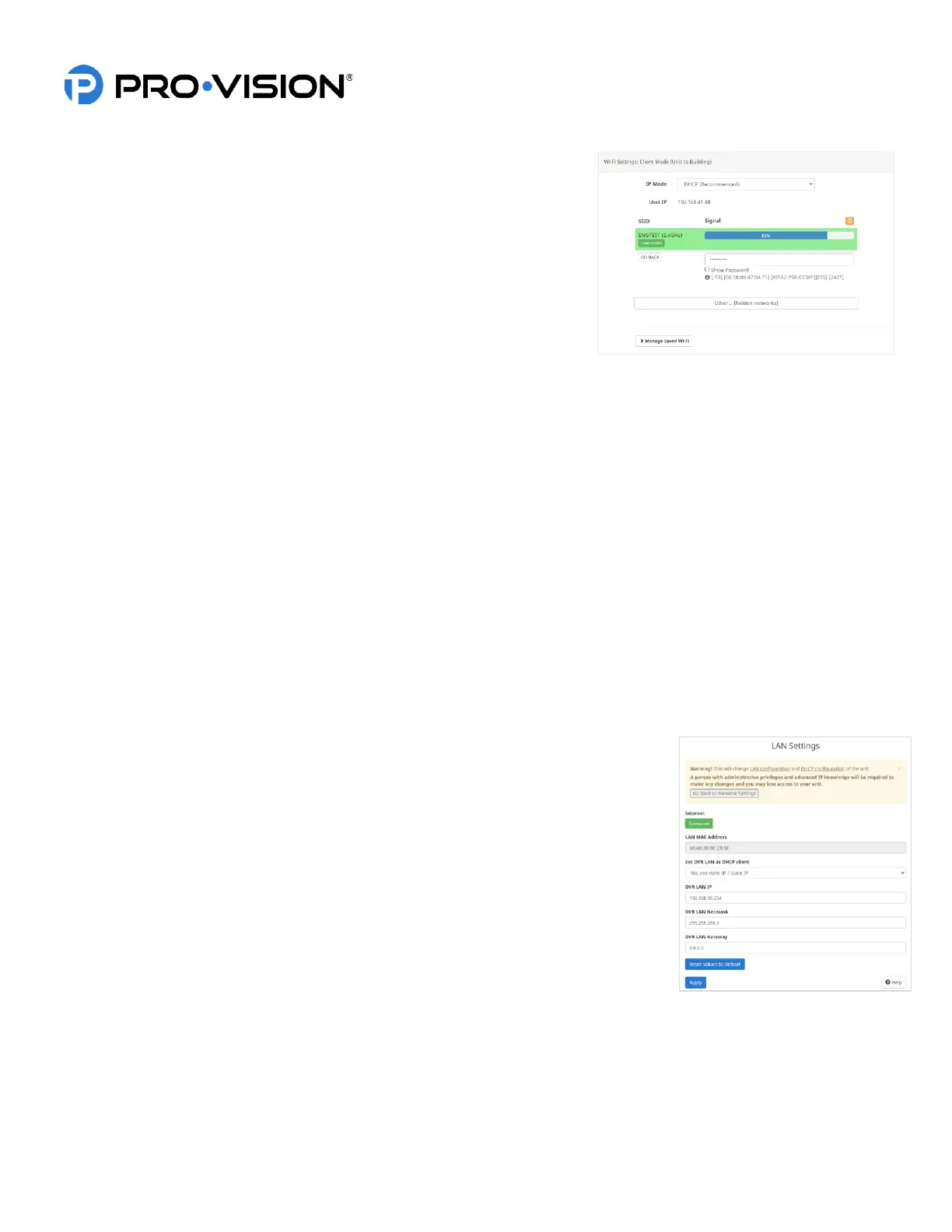
Wi-Fi Settings: Client Mode:
When the DVR is in Wi-Fi Client mode, a list of available Wi-Fi networks
displays. Select a network, enter the password, and then click the “Apply”
button at the bottom of the page. The DVR connects and display its
connected IP and signal strength.
Wi-Fi Client mode supports only WPA2 Personal (AES or TKIP) and WPA2
Enterprise (PEAP) network security types.
IP Mode:
Allows the user to select the IP mode for the connection (Static or DHCP).
It is recommended to leave it at DHCP.
Unit IP:
If connected, the IP address of the DVR unit will display.
SSID:
This is the name of the building Wi-Fi AP that the DVR will connect to. A green indicator button below the SSID shows
the connectivity status (connected or not connected).
Signal (Strength):
Displays the receiving signal strength in a percentage.
Go Back:
This shows all available network connections.
Password:
This is the password of the building Wi-Fi AP. Passwords are typically case sensitive (upper and lowercase letters).
Other (hidden networks):
This shows any additional, available networks. Requires an SSID, Username, and Password to access.
Manage Saved Wi-Fi:
This displays the Wi-Fi networks previously entered for the DVR connection. Wi-Fi networks can be added or removed.
LAN Settings:
Click “Change LAN Settings” to configure advanced network settings. These settings
should only be changed by someone with advanced technical knowledge as this action
can cause loss of communication with the DVR.
LAN MAC Address:
This the location of the networked device.
Set DVR LAN as DHCP Client:
Select to use an assigned IP/DHCP (connect to router/switch) or a static IP/Static IP.
DVR LAN IP:
This is the LAN IP Address of the DVR unit. It should not be changed unless attempting
to connect the LAN port of the DVR directly to another routing device.
DVR LAN Netmask:
This is the subnet mask of the DVR unit’s LAN IP.
DVR LAN Gateway:
If the DVR unit is to be connected to the internet through LAN, this must set to the IP of the gateway/router.
Reset Values to Default:
This will return the DVR to its original configuration.


 To Next Page
 Loading...