©2022 Pro-Vision Solutions, LLC. Page 44 of 56
Motion Settings
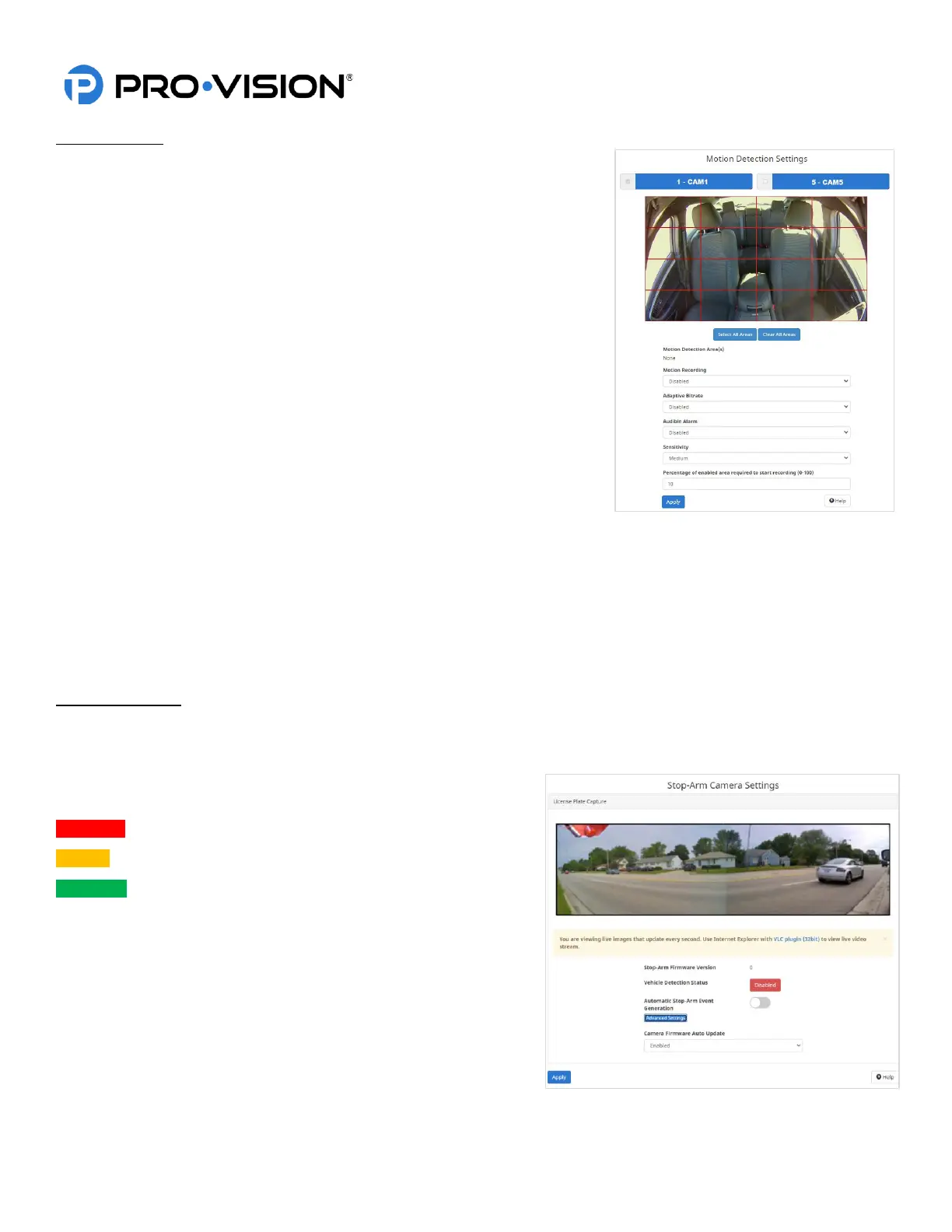
Motion-triggered recording is used when motion within a specific
camera view or region within a camera view is needed to trigger the
recording. This should only be enabled for interior cameras. The
DVR and cameras need to be powered ON for motion detection to function.
Motion detection can only be enabled on the analog camera inputs of the DVR
(Cameras 1-4).
Click on a button along the top of the menu to choose a specific camera to
adjust settings. Changes made on this page are for selected camera only.
Please note that images are displayed on these pages are not live, but rather a
still image grabbed at the time of loading the page.
Motion Areas:
Click on image in the desired areas to detect motion.
Motion Recording:
Enable this function to use the motion detection to trigger Alarm recording on
the DVR.
Adaptive Bitrate:
This allows the DVR to conserve data by reducing file size when there is little
movement, disabling this feature provides the best picture quality but the
smallest file sizes.
Audible Alarm:
Motion activity causes the DVR to produce a loud beeping if this is enabled.
Sensitivity:
This is the amount of motion required to trigger.
Percentage:
This is the size of the object(s) that triggers motion. The larger the percentage, the larger the moving objects.
Stop-Arm Camera
If a DVR-824 Stop-Arm camera is connected to the DVR unit, the “Stop-Arm Camera” settings page will appear in the
DVR unit’s web menu under “Advanced” settings.
Vehicle Detection Status: Shows the current status of the
detection feature.
Disabled Feature is disabled.
Ready Feature is enabled and ready to use.
Detected Trigger is active, and a vehicle or object has passed the
stop-arm camera.
Automatic Stop-Arm Event Generation: The switch will enable the
automatic event generation. Slide this switch to the right to enable
the detection feature.
Stop-Arm Trigger Connection: Select the desired trigger that is
connected to the stop-arm open trigger signal. The event detection
feature will only be looking for events when this trigger signal is
present.
Testing:


 To Next Page
 Loading...