Specications
The display range of temperature ... 41˚F to 95˚F (5˚C to 35˚C)
The control range of temperature.... 44˚F to 90˚F (7˚C to 32˚C)
Load Rating............................................... 1 amp per terminal, 1.5 amp
maximum all terminals combined
Swing (cycle rate or dierential) ...... Heating is adjustable from 0.2˚ to 2.0˚
Cooling is adjustable from 0.2˚ to 2.0˚
Power source ...........................................18 to 30 VAC, NEC Class II, 50/60 Hz
for hardwire
Battery power from 2 AA Alkaline
batteries
Operating ambient ............................... 32˚F to +105˚F (0˚C to +41˚C)
Operating humidity .............................. 90% non-condensing maximum
Dimensions of thermostat ................. 4.7” W x 4.3” H x 1.1” D
Frequency ................................................ 916 MHz
Base module
Load rating ............................................... 1 amp per terminal, 1.5 amp
maximum all terminals combined
Power source ........................................... 18 to 30 VAC, NEC class II, 50/60 Hz
Operating ambient ............................... 32°F to +150°F (0° to +65°C)
Operating humidity .............................. 90% non-condensing maximum
Specications
FeaturesProgramming
1. Select HEAT or COOL with the SYSTEM key.
Note: You have to program heat and cool each separately.
2. Press the MENU button (If menu does not appear rst, press
RUN SCHED).
3. Press SET SCHED. Note: Monday is displayed and the
WAKE/OCC1 icon is shown. You are now programming the
WAKE/OCC1 time period for that day.
4. Use the or key to make your time
selection for that day’s WAKE/OCC1 time period.
Note: If you want the fan to run continuously during this time
period, select ON with the FAN key.
5. Then use the or key to make your setpoint selection for
that day’s WAKE/OCC1 period.
6. Press Next Step.
7. Repeat steps 4 through 6 for that day’s LEAVE/UNOCC1
time period, for that day’s RETURN/OCC2 time period,
and for that day’s SLEEP/UNOCC2 time period.
To customize your 7 day Program schedule, follow these steps:
Monday:
Repeat steps 4 through 6 for the remaining days of the week.
A Note About Auto Changeover:
In Auto you have the ability to switch between Auto Heat or Auto Cool
by pressing the system key. This can be done once the current mode has
reached its setpoint. For example: if in Auto Heat, the heat setpoint must
be satised before the thermostat will allow you to switch to Auto Cool.
You can switch out of Auto by holding down the SYSTEM key. To get
back into Auto, you must toggle the system key to Auto.
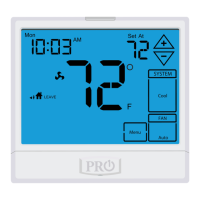
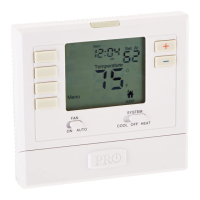
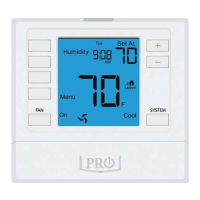
Temporary Hold: The thermostat will display HOLD and Run Sched-
ule on the bottom of the screen when you press the or
key. If you do nothing, the temperature will remain at this setpoint
temporarily for 4 hours. The program setpoint will then replace the
temporary setpoint.
Permanent Hold: With a temporary hold set, If you press the HOLD
key at the bottom of your screen, you will see HOLD appear next to
the setpoint temperature in the display. The thermostat will now
permanently stay at this setpoint and can be adjusted using the
or keys.
To Return To Program: Press the Run Schedule key at the bottom of
the screen to exit temporary and permanent holds.
Temporary & Permanent Hold Feature
Filter Change Reminder
If your installing contractor has congured the thermostat to re-
mind you when the air lter needs changed, you will seea reminder
in the display when your air lter needs changed. the reminder will
be shown in the display after your system has run long enough to
require an air lter change.
Resetting the lter change reminder: When the reminder is
displayed, you should change your air lter and reset the reminder by
holding down the “Clean” key on the left side of the thermostat for 3
seconds.


 To Previous Page