18
PROCESSING MENU
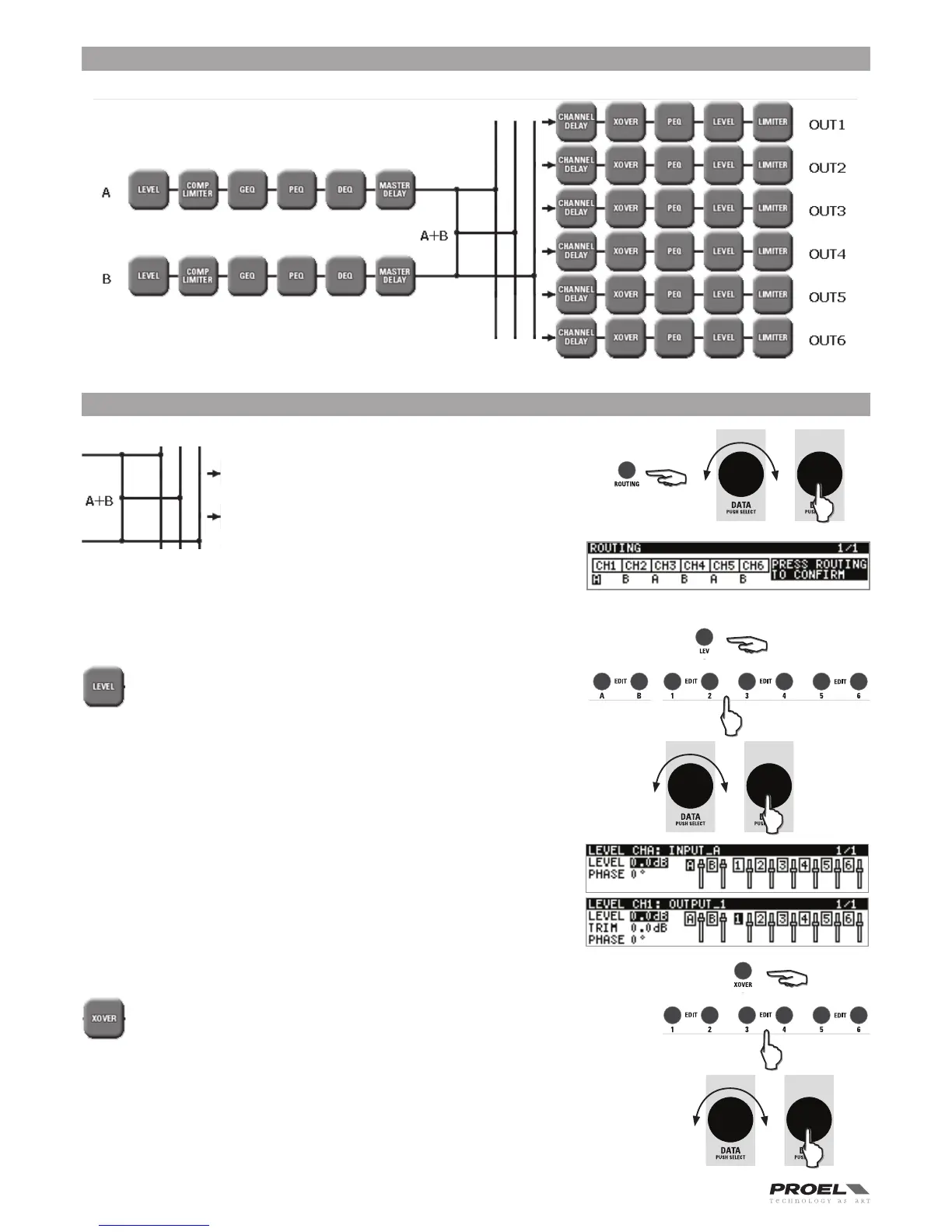
The following diagram shows the internal processing structure of the PC260.
Using the PROCESSING menu in conjuction with EDIT and PG UP/PG DW buttons, all the above sections can be edited.
EDITING processing menu parameters
ROUTING - signal routing
This page is where each output channel is assigned to
an input channel A or B or to the sum of A+B channels.
Press the ROUTING button to access, then push the
DATA knob to select the output to edit and rotate the
knob to select the value. Confirm all data pressing
ROUTING again, or press ESC to exit without changing
the routing
LEVEL - levels and phase polarity
The LEV section is used to adjust input and output levels. Press the
LEVEL button and the EDIT button of the channel you want to edit. Push
the DATA knob to select the parameter to edit and rotate the knob to
adjust it:
The LEVEL value can vary from -30dB to +6dB for the input channels
and from -30dB to +15dB for the output channels.
The TRIM value is present only in the output channels and can be set between
-6dB to +6dB. This parameter can be adjusted also if the PC260 unit is in
PARTIAL lock status.
The PHASE value can be set between 0° (normal polarity) or 180° (reversed
polarity).
XOVER - crossover filters
The PC260’s crossover is an advanced frequency division process that is
accomplished by applying a variety of high-pass and low-pass filters to a
predetermined set of crossover points.
Speaker systems are generally made up of several drivers that are dedicated to a
specific range of frequencies, which results in an efficient reproduction of the audio
spectrum and a smooth sound. The PC260 crossover routes frequencies to the appropriate
drivers to accurately reproduce the sound. The crossover network can also be used to
ensure that low-frequency energy is not accidentally routed to the mid-range or tweeter
drivers that may result in potential damage.
Available PC260 crossover parameters are Type and Frequency. To access the Xover section,
press the XOVER button and then the EDIT button of the output you want to edit. Push the
DATA knob to select the parameter to edit and rotate the knob to adjust it:


 To Next Page