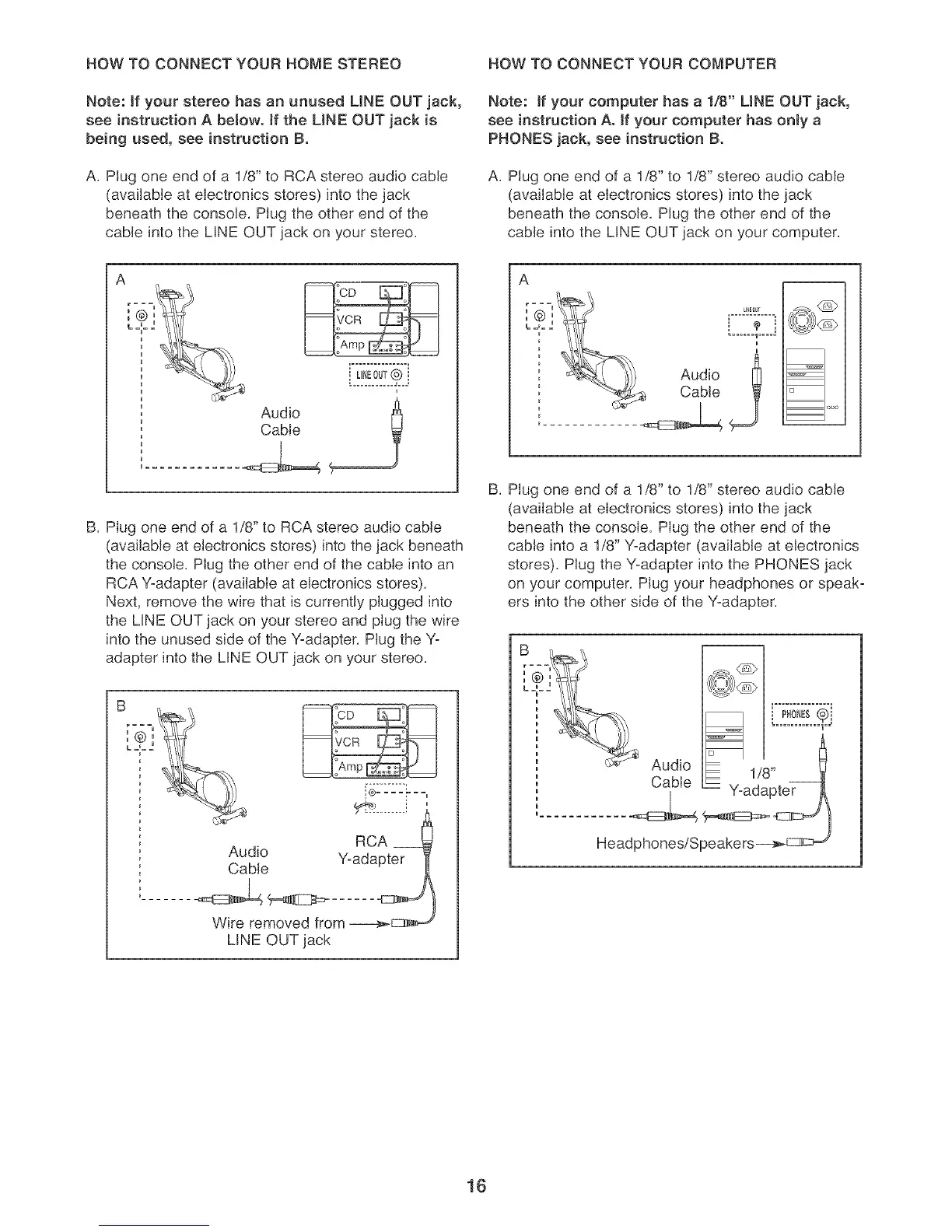
HOW TO CONNECT YOUR HOME STEREO HOW TO CONNECT YOUR COMPUTER
Note: if your stereo has an unused LiNE OUT jack,
see instruction A below, if the LiNE OUT jack is
being used, see instruction B.
A. Plug one end of a 1/8" to RCA stereo audio cable
(available at electronics stores) into the jack
beneath the console, Plug the other end of the
cable into the LINE OUT jack on your stereo,
Note: if your computer has a 1/8" LiNE OUT jack,
see instruction Ao if your computer has only a
PHONES jack, see instruction B.
A. Plug one end of a 1/8" to 1/8" stereo audio cable
(available at electronics stores) into the jack
beneath the console, Plug the other end of the
cable into the LINE OUT jack on your computer,
.=........... J_==.
Audio l
Cable
B. Plug one end of a 1/8" to RCA stereo audio cable
(available at electronics stores) into the jack beneath
the console, Plug the other end of the cable into an
RCA Y-adapter (available at electronics stores),
Next, remove the wire that is currently plugged into
the LINE OUT jack on your stereo and plug the wire
into the unused side of the Y-adapter. Plug the Y-
adapter into the LINE OUT jack on your stereo,
A
i............ i
i I,ii i '!:
i
_1 moo
B, Plug one end of a 1/8" to 1/8" stereo audio cable
(available at electronics stores) into the jack
beneath the console, Plug the other end of the
cable into a 1/8" Y-adapter (available at electronics
stores), Plug the Y-adapter into the PHONES jack
on your computer, Plug your headphones or speak-
ers into the other side of the Y-adapter,
RCA
Audio Y-adapter
Cable
Wire removed from ----_
LINE OUT jack
16









 To Next Page