English - 26 -
TV, EXT-1, EXT-2, EXT-2 S, FAV, S-VIDEO, HDMI,
YPBPR
and PC.
Note: You can mark desired source options by press-
ing
“OK” button. Therefore, when “
AV
” button is
pressed, only the marked source options will be avail-
able.
PC Mode
Installation
• Power off both Computer and Display before making
any connections.
• Set your PC’s resolution correctly before connect-
ing to the TV. See the table on Appendix page.
• Use 15-pin display cable to connect a PC to the LCD
TV.
Note: PC menu will not be active for TV sets without a
PC input.
Menu System in PC mode
Sound Menu/Feature Menu
The items in these menus are described at Sound &
Feature Menu
explained in “Menu System”.
PC Picture Menu
By pressing
button, select the second icon. PC
Picture menu appears on the screen.
Brightness, Contrast and Colour Temperature adjust-
ments in this menu are identical to adjustments de-
fined in TV picture menu in “MENU SYSTEM”.
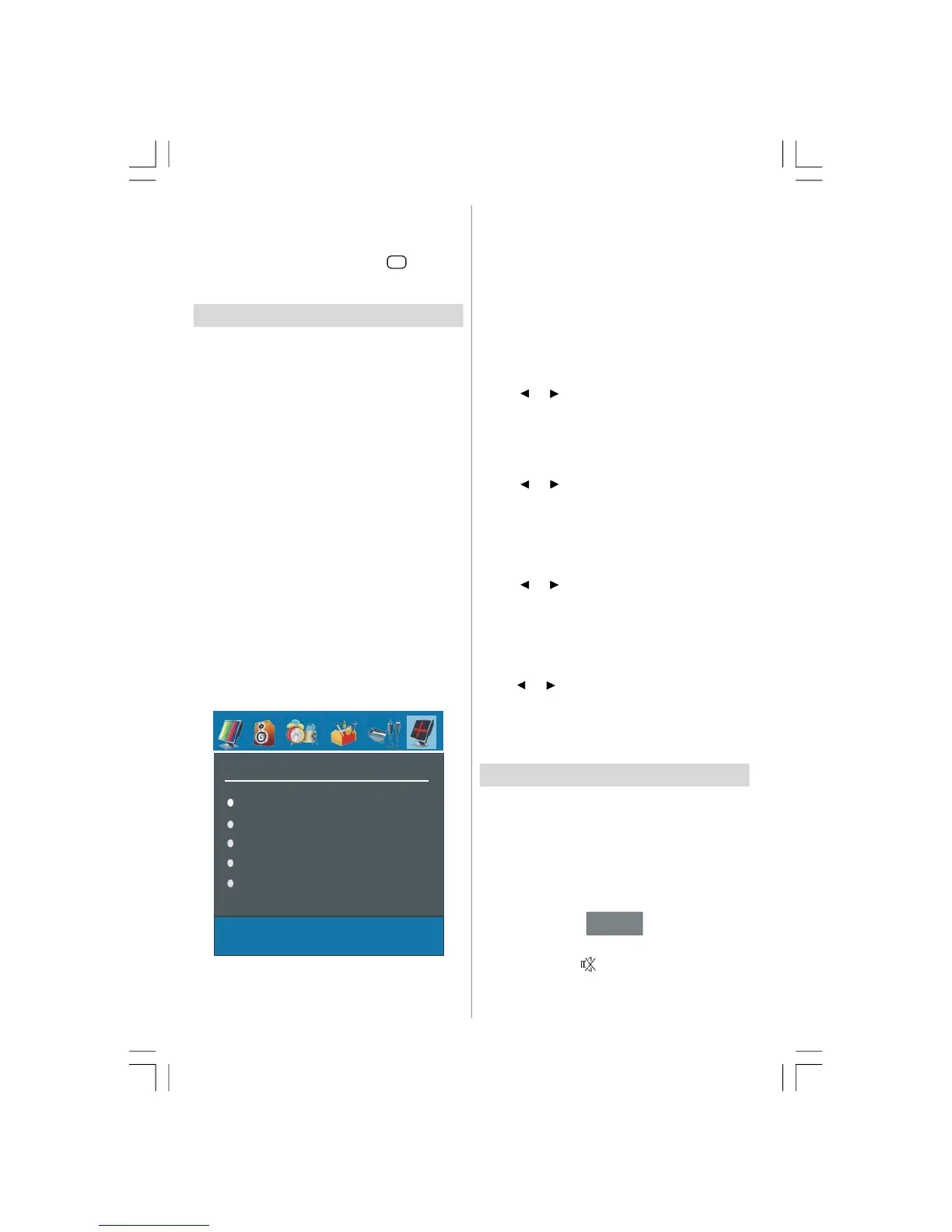
PC POSITION Menu
By pressing
button, select the sixth icon. PC
POSITION menu appears on the screen.
H Position
V Position
Phase
Dot Clock
Autoposition
If you shift the picture horizontally or vertically to an
unwanted position, use this item to put the picture into
correct place automatically.
• Select Autoposition item by using
buttons.
Press or “OK” button.
Warning: Auto position adjustment recommended to
be done with the full screen image for the proper
adjustment.
H (Horizontal) Position
This item shifts the image horizontally to right hand
side or left hand side of the screen.
• Select H Position item by using
button.
• Use “
” / “ ” button to adjust the value.
V (Vertical) Position
This item shifts the image vertically towards the top or
bottom of the screen.
• Select V Position item by using
button.
• Use “
” / “ ” button to adjust the value.
Phase
Depending on the resolution and scan frequency that
you input to the TV Set, you may see a hazy or noisy
picture on the screen. In such a case you can use
this item to get a clear picture by trial and error method.
• Use “
” / “ ” button to adjust the value.
Dot Clock
Dot Clock adjustments correct interference that ap-
pear as vertical banding in dot intensive presenta-
tions like spreadsheets or paragraphs or text in smaller
fonts.
• Use “
” / “ ” button to adjust the value.
Sound in PC mode
• Connect the PC’s Audio output to the TV’s PC Audio
In
socket with an audio cable.
Other Features
TV Status
Programme Number, Programme Name,
Sound Indicator
and Zoom Mode are displayed
on the screen when a new programme is entered.
Mute Indicator
It is placed in the upper side of the screen when
enabled.
Mute
To cancel mute, there are two alternatives; the first
one is pressing the
button and the second one is
increasing the volume level.
02-ENG-32735W-1055UK-32 INCH MB32-(WO PIP)(SUBW)-50116142.p65 14.09.2007, 09:5526


 To Next Page