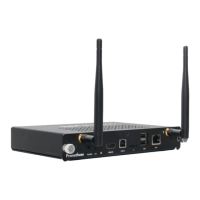
First steps
AnyissueswithClassFlowConnectcanbesolvedquicklyby
following the advice in this section. For additional tips and
troubleshooting information, visit Promethean Support at
prometheankb.comor support.prometheanworld.com.
Ifyourdeviceisnotresponding,rstcheckthefollowing:
•
The cables between the ClassFlow Connect and your
display/projectorarecorrectlyandrmlyinplace.
•
The power cables for ClassFlow Connect and your display/
projectoraresecurelyconnectedtoaworkingpower
source.
•
Your display/projector is turned on and set to the correct
input.
•
Your interactive display/projector is connected to the top-
rightUSBportonthebackoftheClassFlowConnectdevice.
•
The ClassFlow Connect device is connected to the correct
networkandhasanissuedIPaddress.Youcanrefreshitfrom
theClassFlowConnectdesktop.
•
YournetworkandInternetconnectionsareonandworking
properly.
•
The devices for mirroring are on the same subnet as your
ClassFlow Connect device.
If you still are having trouble, try resetting all your equipment.
Makesureyourdisplay/projectoristurnedonbeforerestarting
the ClassFlow Connect.
Troubleshoot
16 ClassFlow Connect Installation & User Guide


 To Next Page