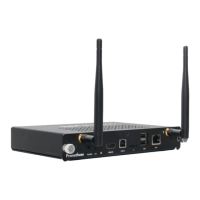
Connect
Installing your device
IMPORTANT NOTE: Before installing your device, carefully read
the following information.
Positioning your ClassFlow Connect device
Since Miracast functionality requires peer-to-peer connection
betweenyourshareddevice(s)andtheClassFlowConnect,
carefully select a location that does not restrict this connection.
Mounting the ClassFlow Connect within 4 feet of a Promethean
ActivPanel or any other device emitting infrared interference is
NOTrecommended.Miracastperformancewillbesignicantly
degraded if the device is positioned directly below or next
totheActivPanel,becausetheinfraredbezelplaneofthe
ActivPanel will cast emissions over the ClassFlow Connect’s WiFi
antenna.
Your ClassFlow Connect has an internal wireless antenna which
maybeimpactedbyotherradiofrequency(RF)interference.
PleasetakecaretoisolatetheClassFlowConnectfromanyRF
emitting devices to limit/reduce interference.
Step 1: Mounting your ClassFlow Connect device (optional)
Your ClassFlow Connect device can be easily installed using the
suppliedmountingbracket.
1. Secure the wall mount in position using the 4 screws
provided.
2.Align the ClassFlow Connect mounting holes to the mount
attachment pegs. Attach the ClassFlow Connect to the
mount and gently press down to secure it to the mount.
ClassFlow Connect Installation & User Guide 9


 To Next Page