Troubleshoot
My device can connect using the ScreenSender and AirPlay
tablets, but is not working with Miracast.
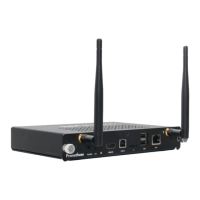
ChecktomakesureyourWiFiantennaisattachedandnot
damaged.
ChecktomakesurewirelessisenabledinyourNetworks
settings.EvenifWiFiisnotconnectedtoanetwork,itmuststillbe
enabled to allow Miracast functionality.
ChecktomakesureyourdeviceisnotnearaRFemissions
source, such as within 4 feet of a router or ActivPanel.
Service and support
We hope this guide, along with the on-screen instructions
and the Promethean Support site, provides you with all the
information you need to use your device.
NOTE: A later version of this guide may be available on the
Promethean Support site.
If you need to contact us, please have your serial number
handy and a concise but detailed description of your issue. Your
serial number can be found on the bottom of your ClassFlow
Connect device.
Technical Support numbers can be found at
prometheankb.comor support.prometheanworld.com.
ClassFlowConnectInstallation&UserGuide19


 To Next Page