19
N. INSERT SCREEN
3
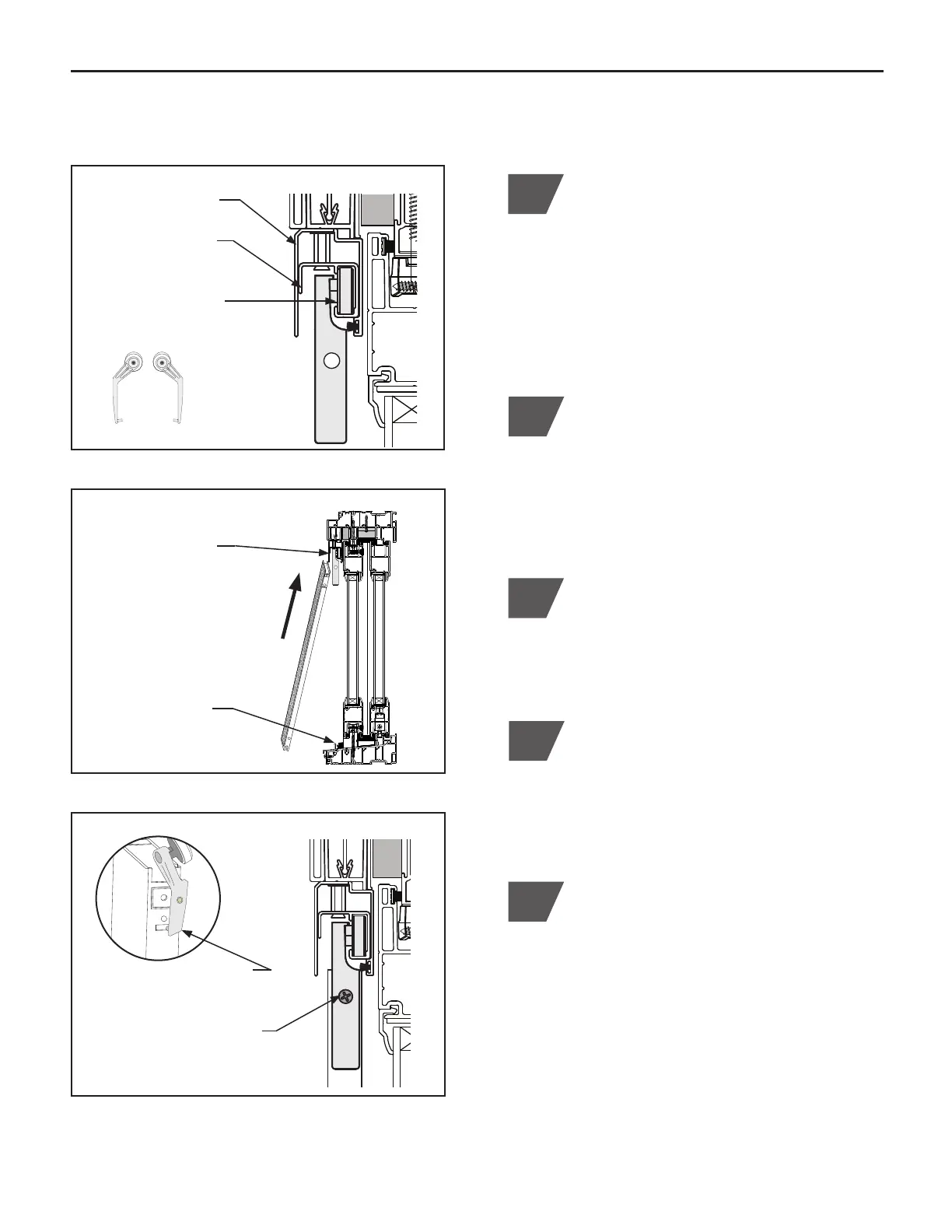
Lift screen into the top screen track
assembly and between wheel brackets.
Place screen with the weather strip to the
interior side. (Figure N.2)
4
Lift and position bottom of screen onto
screen glide rail. (Figure N.2)
5
Insert the left and right wheel bracket tabs
into groove located at the top of screen
frame. (Figure N.3)
Install each wheel bracket using a #2
Phillips head screwdriver to install (1)
#6-32 x
7
⁄8" Phillips flat head screw
(Pack #10). (Figure N.3)
NOTE: DO NOT use excessive torque on
the bracket screws.
1
Insert Left and Right screen wheel brackets
into the inner track of the top screen track
assembly (Pack #10). Brackets are labeled
and identified by outside looking in. Insert
rollers into the open space located at the
ends of the inner screen track and the jamb.
BE SURE each wheel bracket is positioned
correctly. (Figure N.1)
Insert Left and Right
wheel brackets into
end of inner track
2
(Figure N.1)
(Figure N.2)
(Figure N.3)
Screen Track Section
Outer screen cover
Inner screen track
Section View
Lift screen into the
top of track, between
wheel brackets
*Be sure screen
weather strip is to the
interior side
Position bottom of
screen onto glide rail
Screen Track Section
Insert wheel bracket tab
into screen groove
Install each wheel bracket
with (1) #6 x
7
⁄8" screw



 To Next Page