OPERATION PRO-VISION® Video Systems
DVR-906M SYSTEM GUIDE
63 provisionusa.com
Viewing Cameras on a Smart Device
The DVR can be accessed using an Ethernet cable to a laptop or desktop PC, or it can be accessed
wirelessly using a laptop, tablet or smartphone device (with Wi-Fi AP Mode enabled).
1. Follow the connections steps
in Connecting to the DVR
section of this guide.
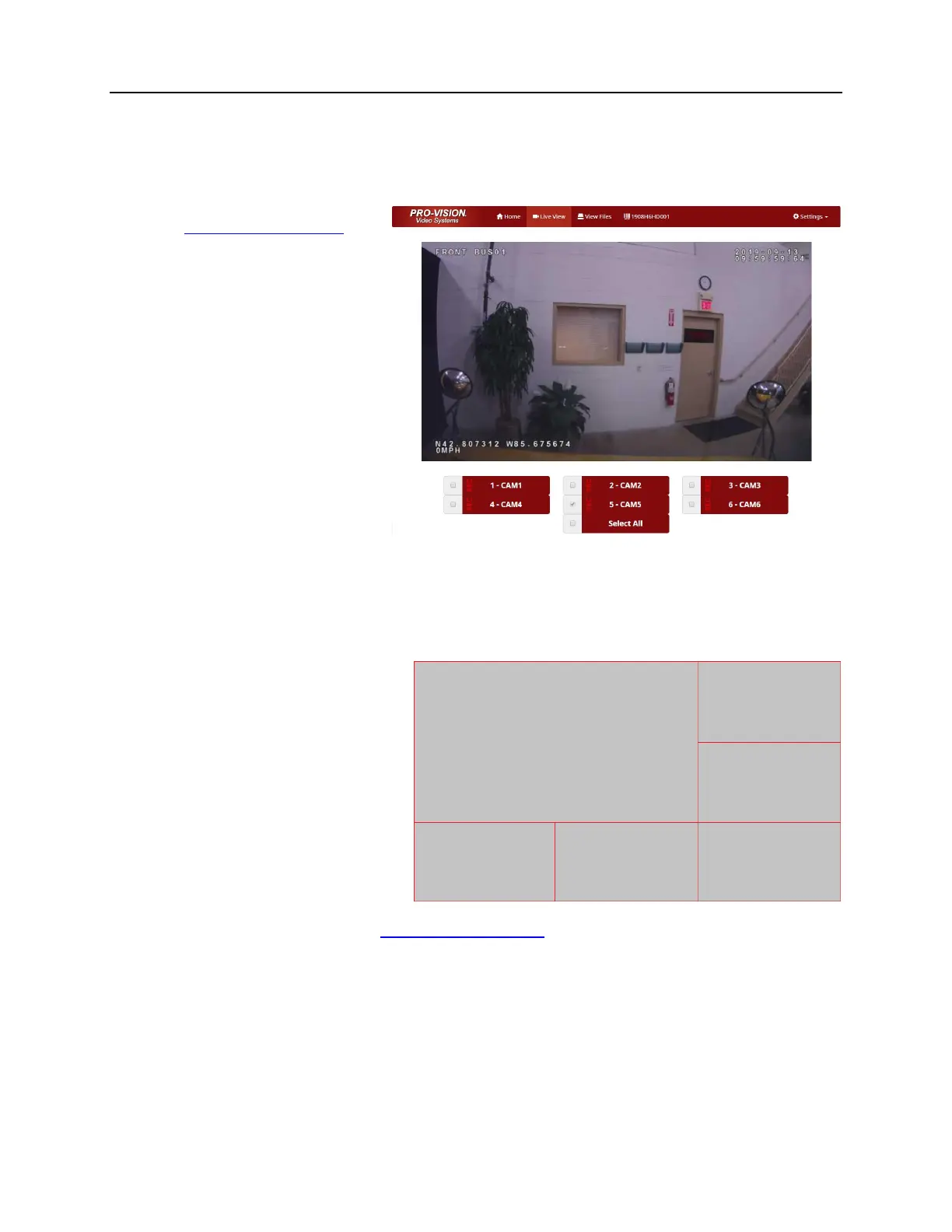
2. The “Home” page will open,
then choose “Live View” from
the top of the page.
“REC” will display in red next to the
camera number for cameras that are
currently recording.
“ALM REC” will display in yellow next
to the camera number for cameras
that are currently alarm recording
Select the camera you wish to view by
clicking the red camera box; to select
multiple cameras click the
checkbox(s) next to the red camera box.
Viewing Cameras on a Display
Cameras can be viewed live on a monitor display. There are two video outputs on the rear of the DVR:
1. SD A/V Output:
Using the included A/V Output
cable, connect the yellow RCA
composite video output to a video
input on your display.
2. HD A/V Output:
Using a PRO-VISION HD Display
Output cable (purchased
separately), connect to a VGA
port on your display.
Refer to the connection diagram in the Installation Quick Guide at the beginning of this document for
connection details.
Each of the six cameras will display in a split screen configuration as show above right.



 To Next Page