OPERATION PRO-VISION® Video Systems
DVR-906M SYSTEM GUIDE
64 provisionusa.com
View Files on Web
The DVR can be accessed using an Ethernet cable to a laptop or desktop PC, or it can be accessed
wirelessly using a laptop, tablet or smartphone device (with Wi-Fi AP Mode enabled).
4. Follow the connections steps in Connecting to the DVR section of this guide.
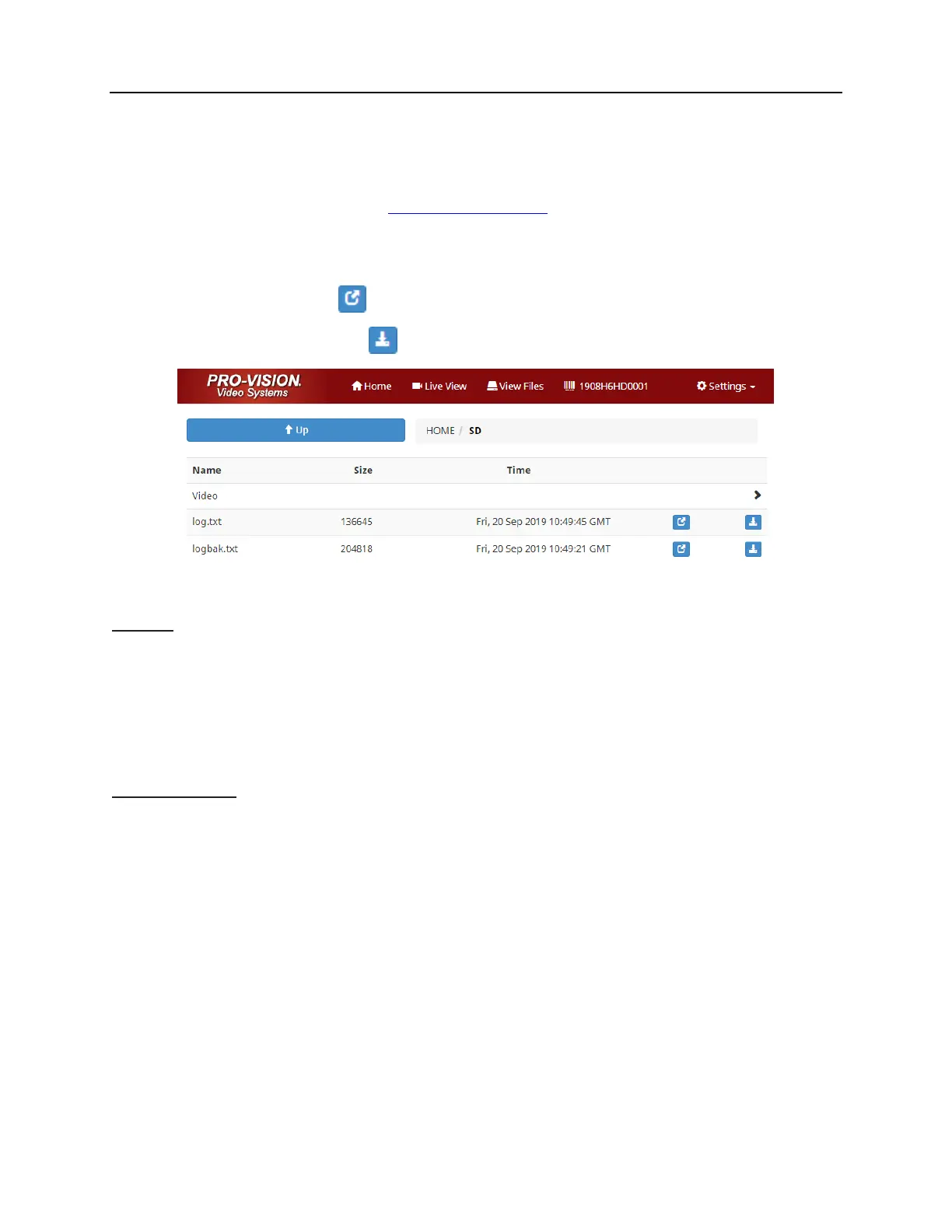
5. The “Home” page will open, then choose “View Files” from the top of the page.
6. Choose the disk (SD or SSD) and then choose the “Video” or “Alarm” folder to begin viewing files.
7. Press the “Open” button to open the file in your web browser (If supported).
8. Press the “Download” button to download the file to your device for local playback.
Accessing Stored Video Files
SD Card
If Wi-Fi connection is not possible. The SD Card may be removed from the DVR to transfer/view files
Press the STOP button on the front of the DVR.
When the STATUS light on the front of the DVR flashes green, you may remove the SD card.
Use a DVR-102 SD Card Reader to read the SD card in a laptop or tablet computer.
Use Windows Explorer to view the Removable Disk folder contents and copy or move files as
necessary.
Solid-State Drive
If Wi-Fi connection is not possible. The SSD may be removed from the DVR to transfer/view files.
Disconnect power to the DVR or press the STOP button on the front of the DVR to put the DVR in
standby mode.
When the STATUS light on the front of the DVR flashes green, you may remove the optional Solid-
State Drive (SSD). Note: The DVR will remain in standby mode for 30 seconds. If the STATUS light
becomes solid before the SSD has been removed, press STOP again.
Connect the DVR-802 Solid-State Drive Reader between the SATA connector on the SSD and a
USB port on a laptop, desktop or tablet.
The laptop, desktop or tablet should automatically recognize the SSD as an external disk drive. Due
to the large amount of data the SSD holds, it may take several minutes for the SSD to be fully
recognized.
See the Video Review Guide on your product disk for advanced playback details including instructions for
the PV Player software.



 To Next Page