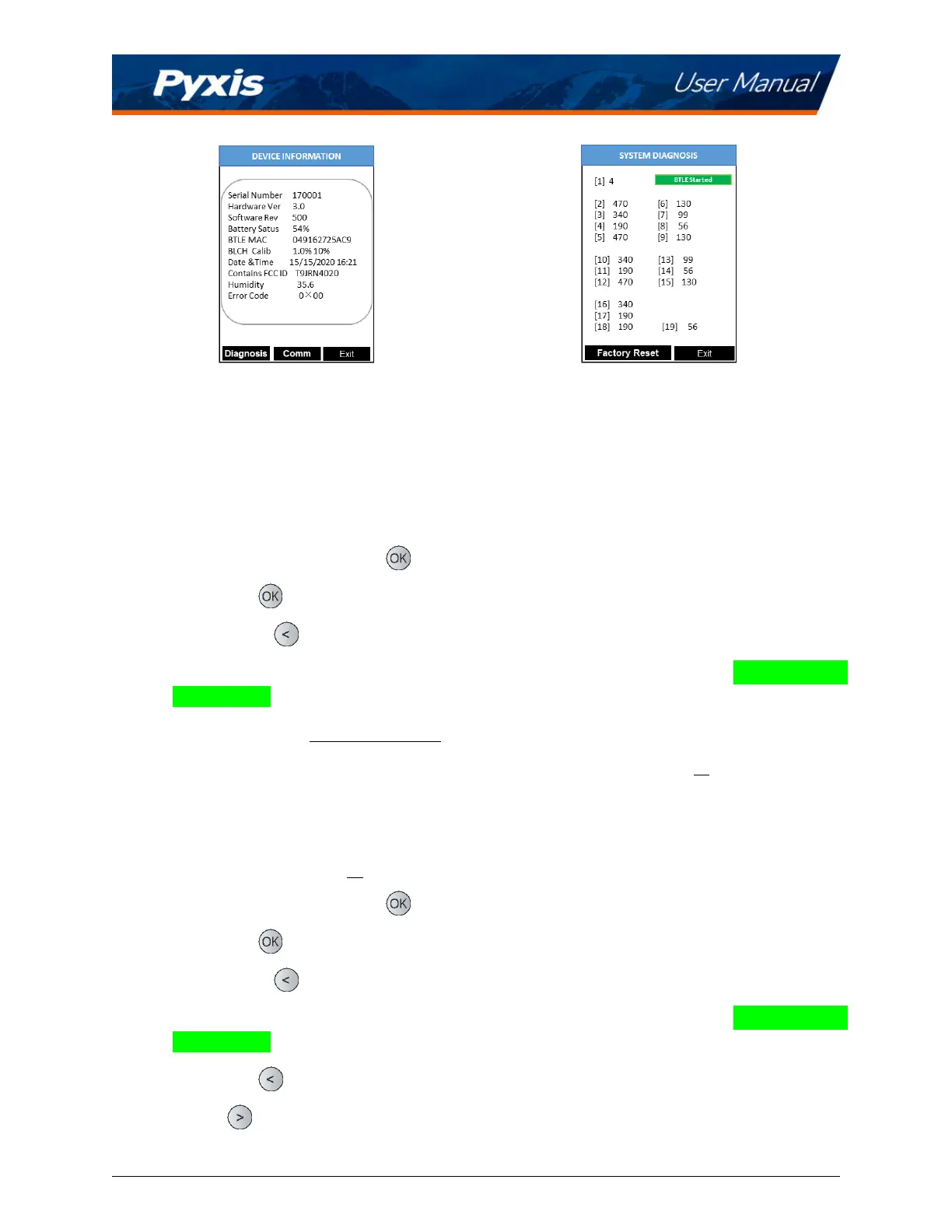
Figure 8. Figure 9.
8.1 Bluetooth Connecon to Devices
The SP-210 uses a built-in Bluetooth Low Energy Connecon (BTLE) to connect wirelessly to a smart phone
via the uPyxis® Mobile App or to a computer via the included Bluetooth Adapter (P/N: MA-NEB) and the
uPyxis® Desktop App. To allow the SP-210 to connect via Bluetooth with other devices follow the steps
below:
1. Power on the SP-210 by pressing
.
2. Press Sys/Cal (
) to launch the DEVICE INFORMATION screen.
3. Press Diagnosis (
) to launch the SYSTEM DIAGNOSIS screen.
4. Allow 5–10 seconds for the message in the top-right corner of the display change from
Starng BTLE...
to BTLE Started (Figure 9).
5. Choose to connect via
one of two opons:
(a) The uPyxis® Mobile App (see the Use with uPyxis® Mobile App secon),
or
(b) The uPyxis® Desktop App (see the Use with uPyxis® Desktop App secon).
8.2 Factory Reset
Use the following steps to restore all device parameters to factory default:
1. Power on the SP-210 by pressing .
2. Press Cal/Sys (
) to launch the DEVICE INFORMATION screen.
3. Press Diagnosis (
) to launch the SYSTEM DIAGNOSIS screen.
4. Allow 5–10 seconds for the message in the top-right corner of the display change from
Starng BTLE...
to BTLE Started .
5. Press Factory ( ). The display updates as shown in Figure 10.
6. Press OK ( ) to start the factory reset.
7. The message “Factory reset done.” will appear on the display.
SP-210 User Manual service@pyxis-lab.com | +1 (866) 203-8397 9


 To Next Page