—23—
Search and bind whiteboard
Tips: No need to search and bind software if you use USB or USB-COM connection.
If you use RF wireless connection, after finish software installation, you need search and
bind software.
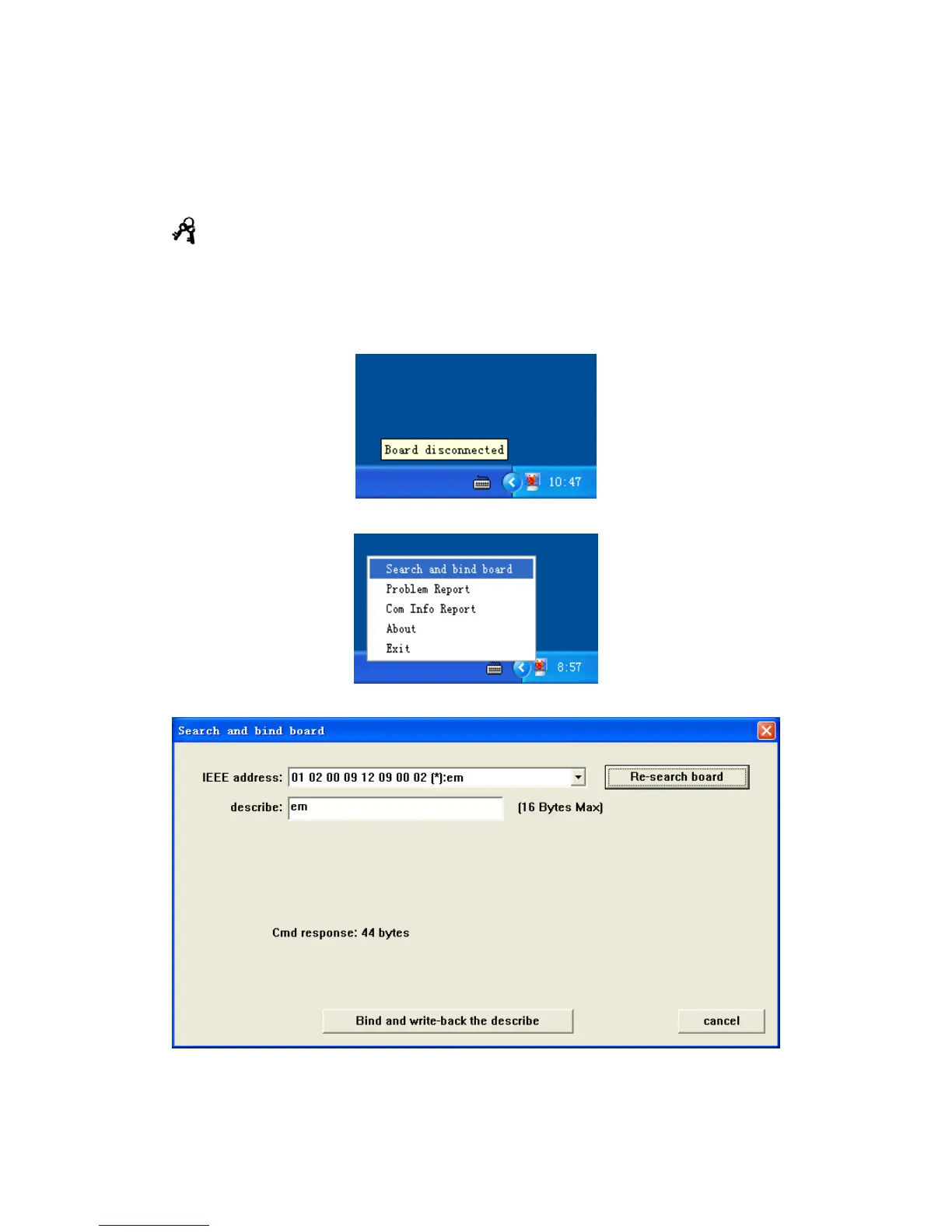
Step 1: Connect all hardware and whiteboard server program, the following prompt
appears at the lower right task bar.
Step 2: Single click server icon, click “Search and bind”, shown as below:
Step 3: Click “Re-search board” on dialog window:
Step 4: Wait a moment, until “IEEE address” appears the whiteboard found. If it does not
appear, please check if connection of hardware is good, then you can set a name of this
whiteboard.


 To Next Page