P1520 User Guide
Version 1.2 31 04/02/07
d. If that does not resolve the issue, replace the MSR or terminal.
e. If MSR is just intermittent, try cleaning the MSR by using a card wrapping in a cleaning cloth
with cleaning solution (ie. paper towel sprayed and then wrapped around a card)
Warning!
The OS on the P1520 is typically Windows XP. There is a known issue with Windows XP when
cold/hard booting which can make the P1520 inoperable and require replacement due to operating system
corruption. Use the On/Off button on the P1520 BEFORE unplugging the terminal. Only power down or
unplug the P1520 as a last resort.
Are the serial ports working?
Using Hyperterminal to test COM ports on Radiant Systems POS systems. Basic instructions:
1) Cabling: For Radiant Systems RJ-type ports, you can communicate between ports using any of the
standard RJ cables that ship with our products. These cables have a ‘half-twist’ so that all outbound signals will
automatically be routed to the appropriate inputs on the other side. (RJ ports are the ones using the standard
telecom modular plugs with the locking tabs).
For standard DB-9 ports, a null modem cable must be used. This is a cable that swaps all of the signal pairs
and has a female DB-9 connector on each end. Alternately, if you have a DB-9 to RJ adapter such as CN00322
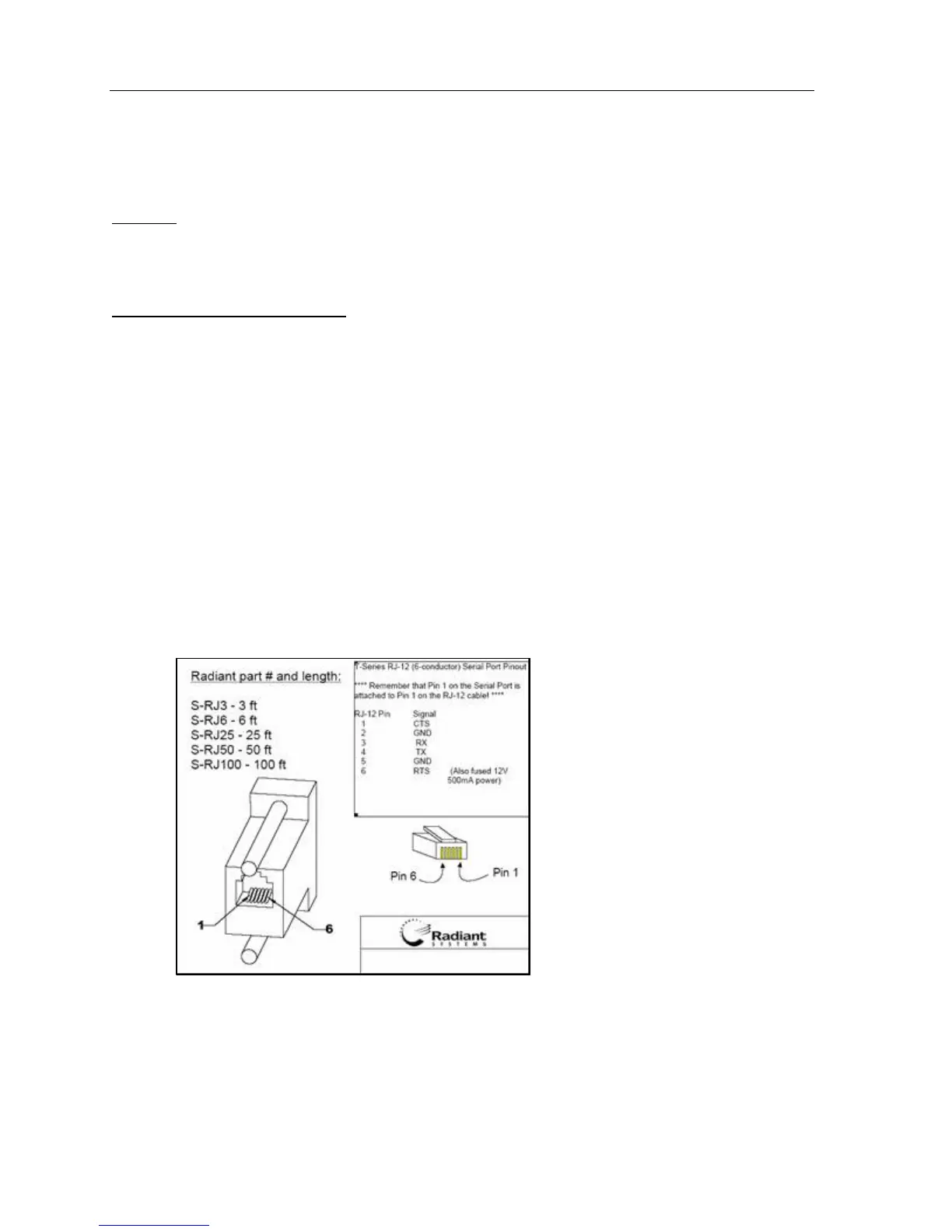
you can connect a DB-9 port to an RJ-type port or two DB-9 ports together. See RJ_End diagram for details on
pinouts.
Connect two serial ports together
a. For RJ12 ports use a twisted RJ12 cable
b. For DB9 use NULL Modem cable
RJ_End Diagram
2) Launch HyperTerminal
a. Either launch from Start > Programs > Accessories > Communications >
HyperTerminal or C:\Program Files\Windows NT\hypertrm.exe
b. Configure HyperTerminal with the COM port to test and set the Baud to 115200.
c. Launch two copies of HyperTerminal to communicate between the ports
3) The program will have several prompts, some will only appear the first time you run the program:


 To Next Page