Shenzhen Reader Technology Co., Ltd
8.6.3 Wireless panel
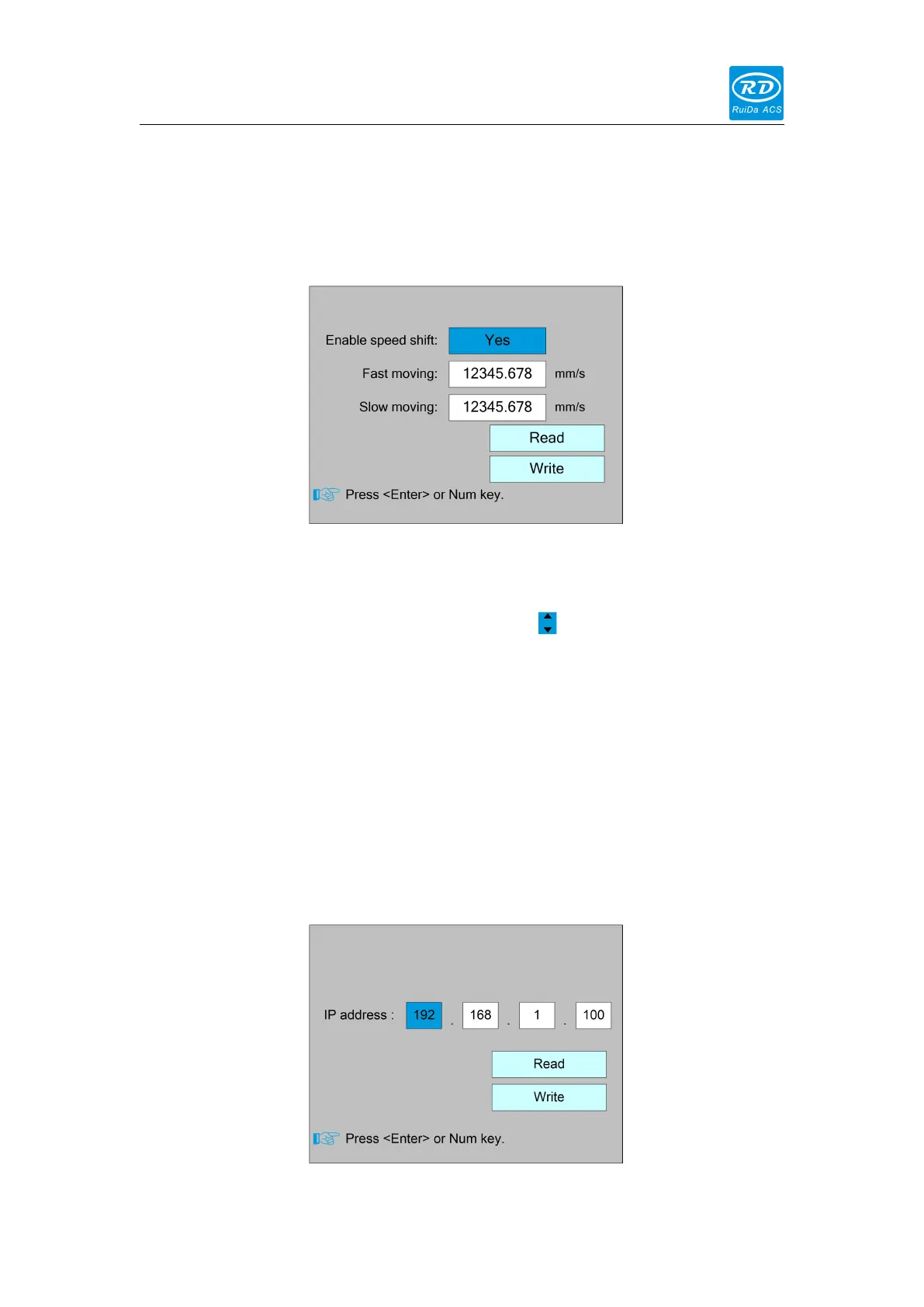
Select the "Wireless panel" entry under the controller setting interface, press the
<Enter> button, and then pop up the interface as follows:
When modifying the first parameter, press the <Enter> key to enter the modification
mode ("blue selection block" right side becomes ), press the "Up/Down" key to
modify, and then press the <Enter> key to exit the modification mode. Press the
direction key to select other parameters and press the number key to modify the
parameters. After the modification, move the "selection block" to the "Write " entry
and press the <Enter> key. The parameter setting takes effect. Press the <Esc> key
to return to the previous menu.
8.6.4 IP Setting
Select the "IP setting" entry under the controller setting interface, press the <Enter>
button, and then pop up the interface as follows:



 To Next Page