Shenzhen Reader Technology Co., Ltd
signal is triggered, the small box on the left side of the corresponding entry will show
red. Otherwise, it will show gray. Press the <Esc> key to return to the previous menu.
8.7.6 Laser power infomation
Note: laser power information function is effectively configured on PC software.
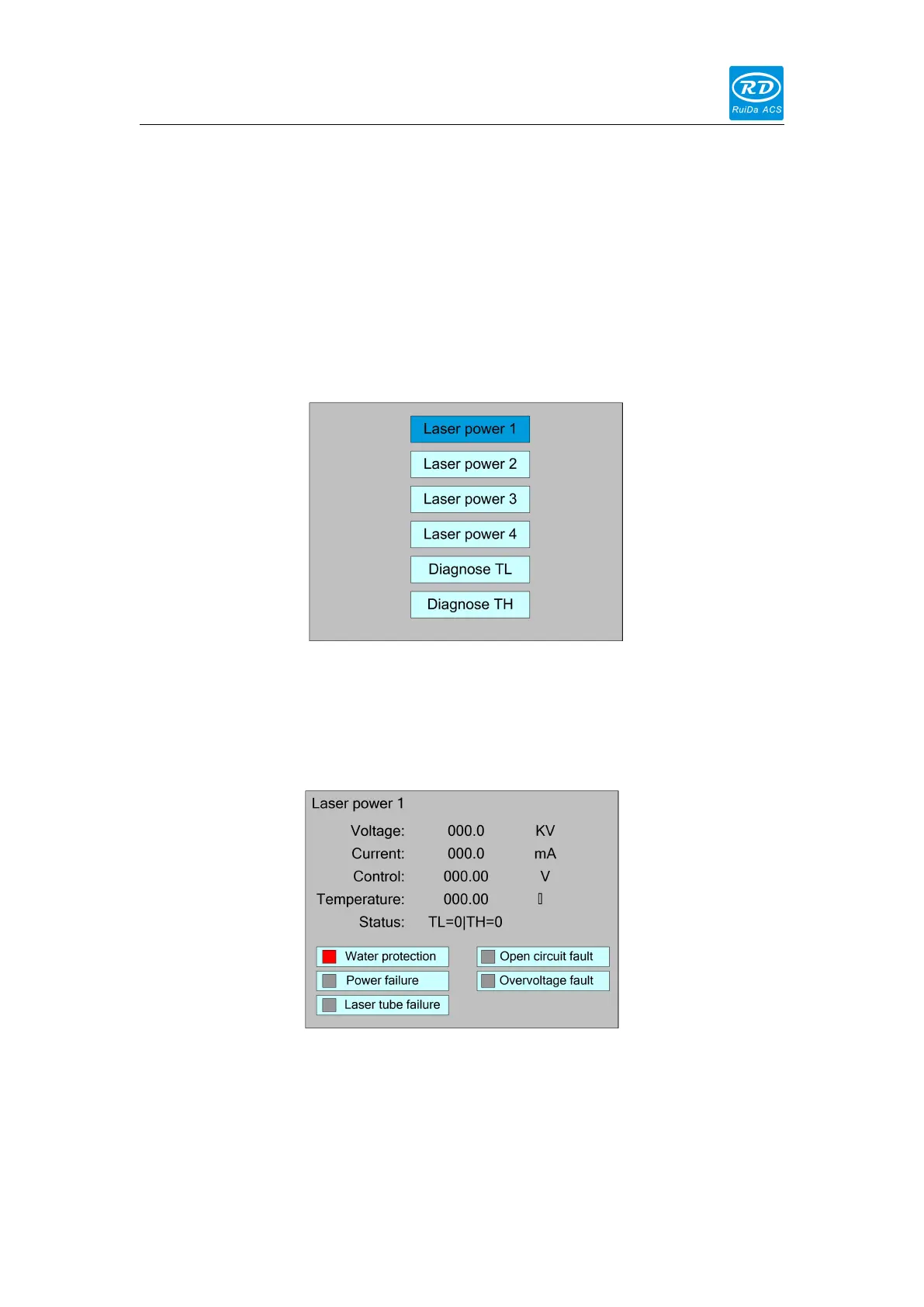
Select the "Laser power info" entry under the funtions interface, press the <Enter>
button, and then pop up the interface as follows:
When the "blue selection block" stops at the items 1, 2, 3 and 4 of the laser power
supply, press the <Enter> key to view the information of each power supply. The
interface is as follows:
When the "blue selection block" stops at the "diagnostic TL" and "diagnostic TH"
entries, press the <Enter> key to check whether the IO of the laser power supply is
abnormal, and if so, an alarm will be generated.



 To Next Page