8. Identify Barcode Type
This is to identify what type of the barcode is, follow the below steps to
confirm:
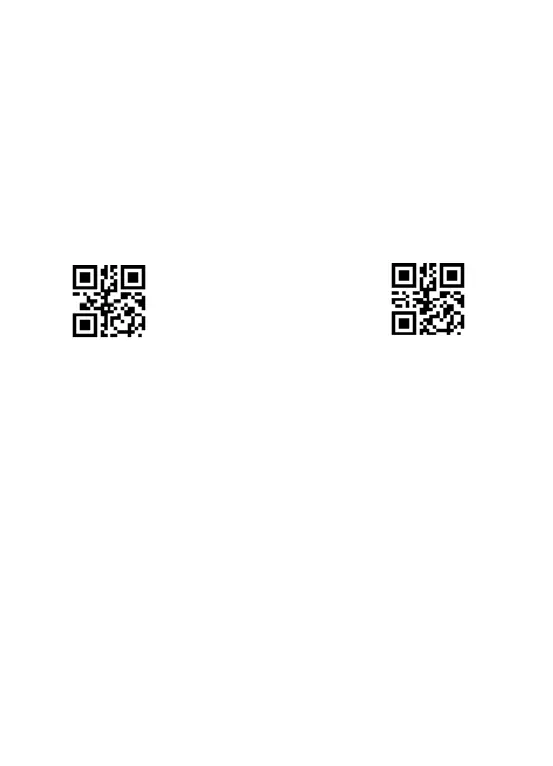
Scan code "Add Code ID " below, then scan your goal barcode, there will be a
character BEFORE the barcode you scanned, and this character states your
Barcode Type. After that, if you don't need this ID any more, scan the code
"Turn off ID (default)" to hide it.
UPC-A, UPC-E, EAN-8, EAN-13
GS1 DataBar-14, GS1 DataBar Limited, GS1 DataBar Expanded



 To Next Page