Set Up Step
The scanner has been paired with the base station, and set up already.
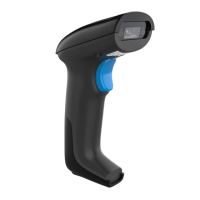
Step 1, Power on the scanner by pressing the button. The buzzer has a triple
beeps, the green light on the top of scanner will be on.
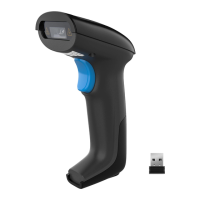
Step 2. Insert the USB base station into the USB port of computer. The USB
base station’s blue light will be on.
Step 3. Open notepad on computer and move cursor to the blank where
scanning output should be placed. Scanning results can be displayed on
computer then.
If the barcode does not displayed, please set up the scanner again according
to the following steps.
Step 1. Unplug the USB base station and plug it in again
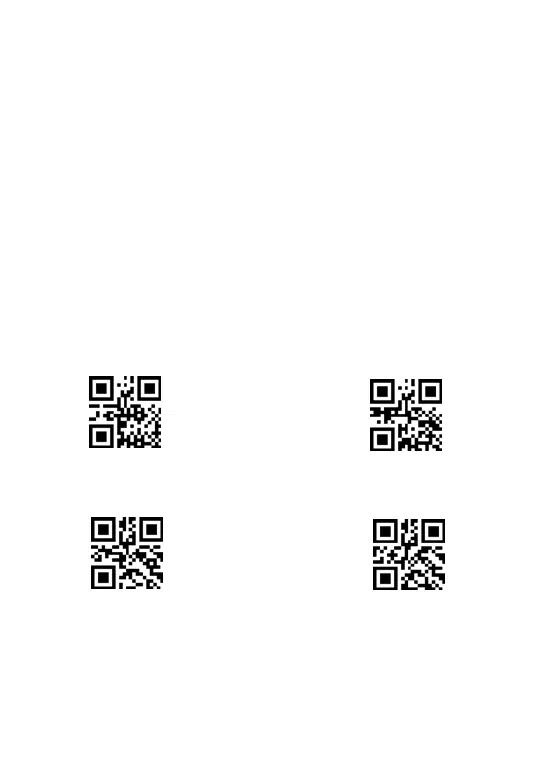
Step 2. Within 30 seconds, scan these codes in order.
Step 3. Open Word on computer, move cursor to the blank, scan a barcode to
see if it can be uploaded.



 To Next Page