Chapter 4. Locking Down the Desktop: Disabling GNOME Desktop Features 17
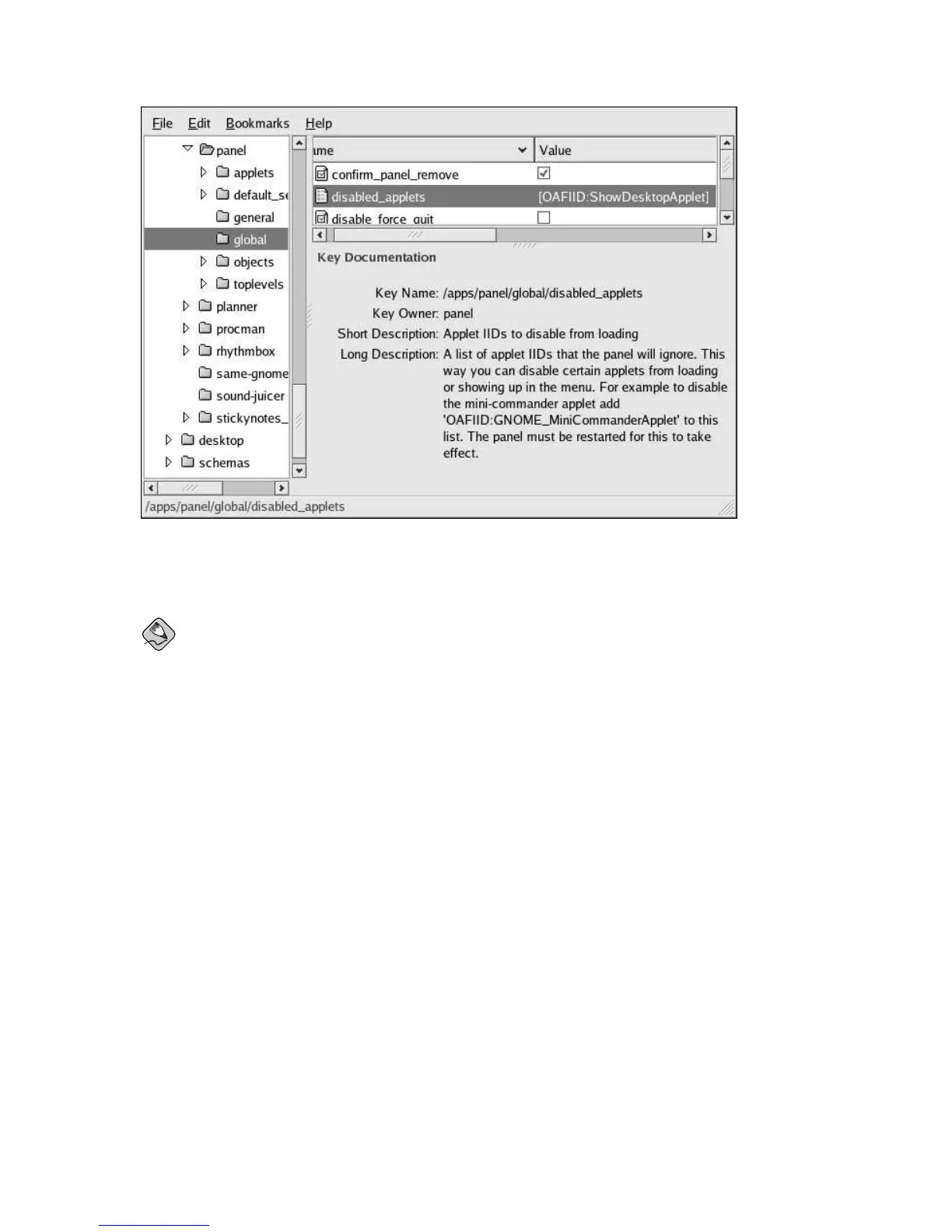
Figure 4-5. Disabling Panel Applets
Disabled applets may still appear in the dialog for adding applets, but will not be added to the panels.
Note
The panel must be restarted for disabled applet changes to take effect.
4.4. Disabling Command Line Access
To completely disable command line access, you will need to make configuration changes in a number
of different contexts:
• Set the disable_command_line gconf key, which prevents the user from accessing the terminal
or specifying a command line to be executed
• Disable the Command Line (Mini-Commander) applet
• Disable console switching by editing /etc/X11/xorg.conf
• Remove the Open Terminal menu item from the desktop background menu
These steps are described below.
Setting the disable_command_line gconf key
Set the /desktop/gnome/lockdown/disable_command_line key by using GConf editor
as shown in Figure 4-6. Setting this key also disables access to the Run Application panel dialog.



 To Next Page