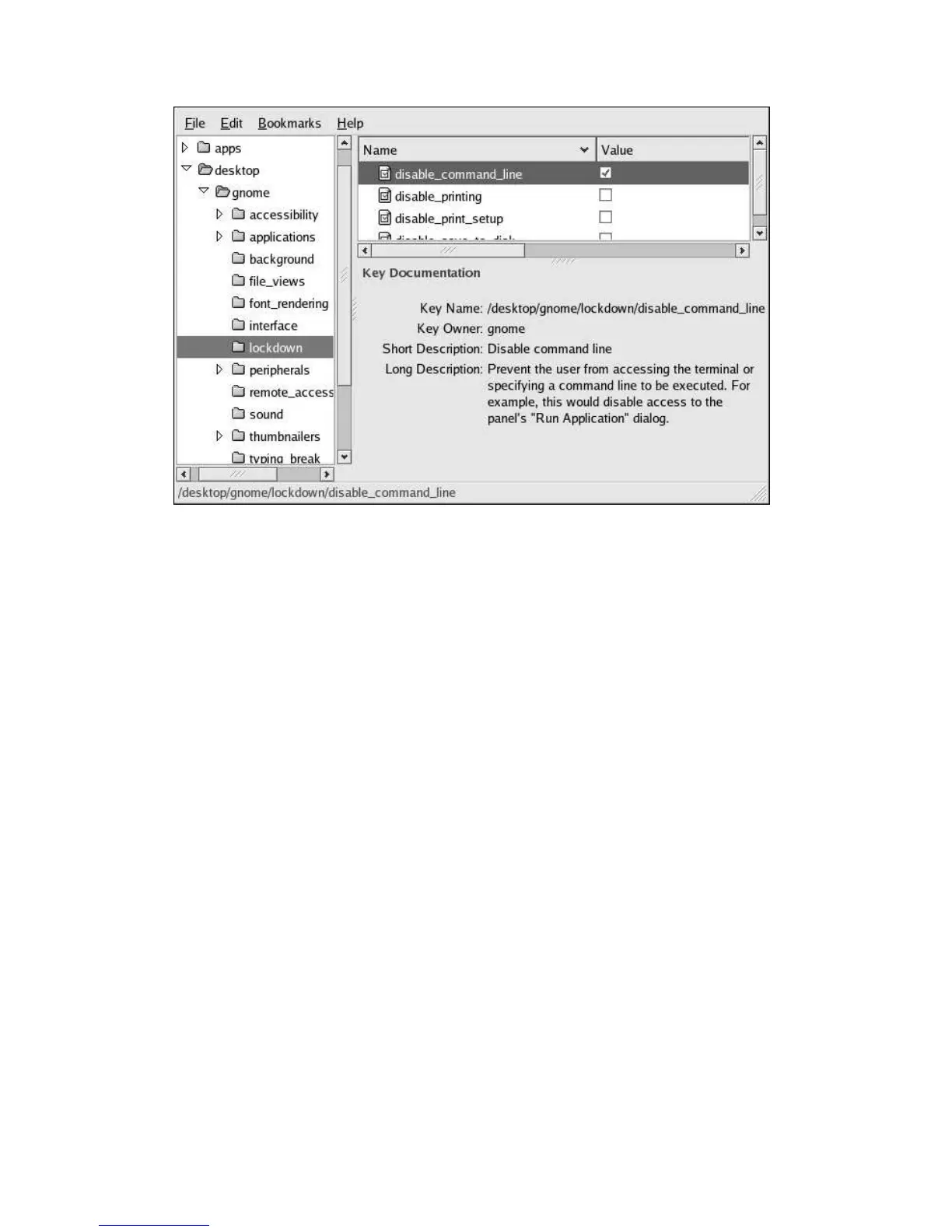
18 Chapter 4. Locking Down the Desktop: Disabling GNOME Desktop Features
Figure 4-6. Setting the disable_command_line GConf Key
Disabling the Command Line (Mini Commander) applet
To disable this applet, you will need to add the applet IID
OAFIID:GNOME_MiniCommanderApplet to the list of disabled applets. Refer to
Section 4.3.1 Disabling Applets for information on disabling applets.
Disabling Console Switching
Access to all virtual consoles can be disabled by adding a DontVTSwitch option to the
Serverflags section in the X configuration file /etc/X11/xorg.conf.
Section "Serverflags"
Option "DontVTSwitch" "yes"
EndSection
Removing the Open Terminal menu item from the desktop background menu
The menu containing the Open Terminal menu item will automatically be removed when all
desktop icons are removed by unsetting the /apps/nautilus/preferences/show_desktop
key. When this key is unset, Nautilus no longer controls the desktop. Refer to
Section 4.6 Removing Desktop Icons for instructions for unsetting this key.
4.5. Restricting the Number of Workspaces
To limit the display to one workspace, set the
/apps/metacity/general/num_workspaces
key using the GConf editor as shown in Figure 4-7.



 To Next Page