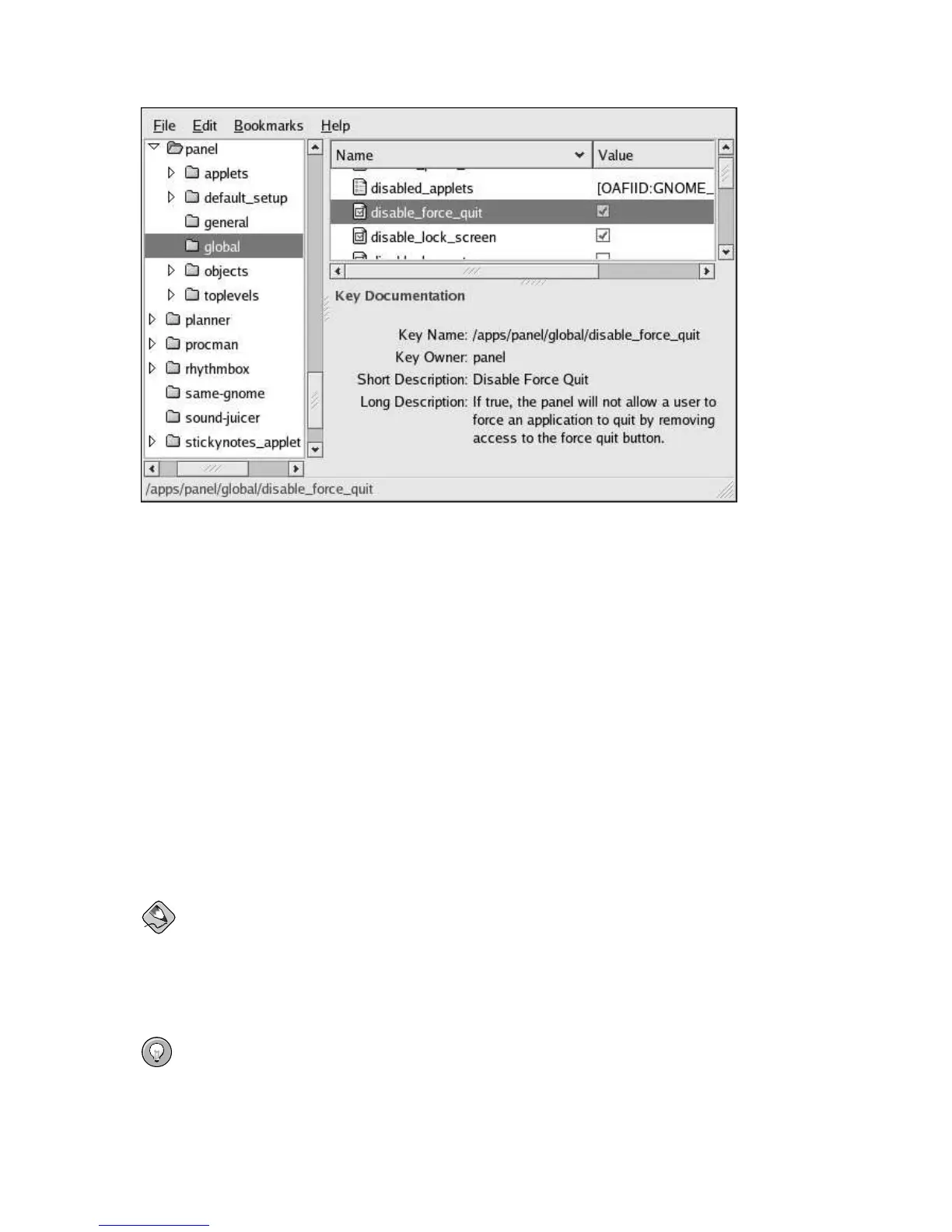
26 Chapter 4. Locking Down the Desktop: Disabling GNOME Desktop Features
Figure 4-14. Disabling Application Force Quit
4.7.5. Locking Down Preferences for the Firefox Web Browser
A complete, succinct guide to locking down preferences for the Firefox and Mozilla web browsers is
available on the web at http://togami.com/~warren/guides/mozlockdown.
4.7.6. Automatic Login for Public Kiosks
When using a machine as a public kiosk, it is recommended that the system be configured to skip the
login screen and to automatically start an X session.
The automatic login process is enabled through the configuration of gdm, the Gnome Display
Manager. Specifically, the automatic login functionality is set in the gdm configuration file,
/etc/X11/gdm/gdm.conf.
The automatic login process can be enabled by directly editing /etc/X11/gdm/gdm.conf, or by
using the graphical Login Screen Setup tool. Both techniques are described below.
Note
Configuring gdm requires administrative privileges.
Tip
For more detailed information regarding the configuration of gdm, the Gnome Display Manager, re-
fer to the Gnome Display Manager Reference Manual available within the online help system through
Applications (the main menu on the panel) => Help, in the Desktop Category.



 To Next Page