Chapter 4. Locking Down the Desktop: Disabling GNOME Desktop Features 27
4.7.6.1. Using the Login Screen Setup Tool
To enable automatic login using the graphical Login Screen Setup tool, start the application by either
• typing the command
gdmsetup
or via the menus through
• Applications (the main menu on the panel) => System Settings => Login Screen.
After typing in the administrative password, the Login Screen Setup tool will appear on your screen.
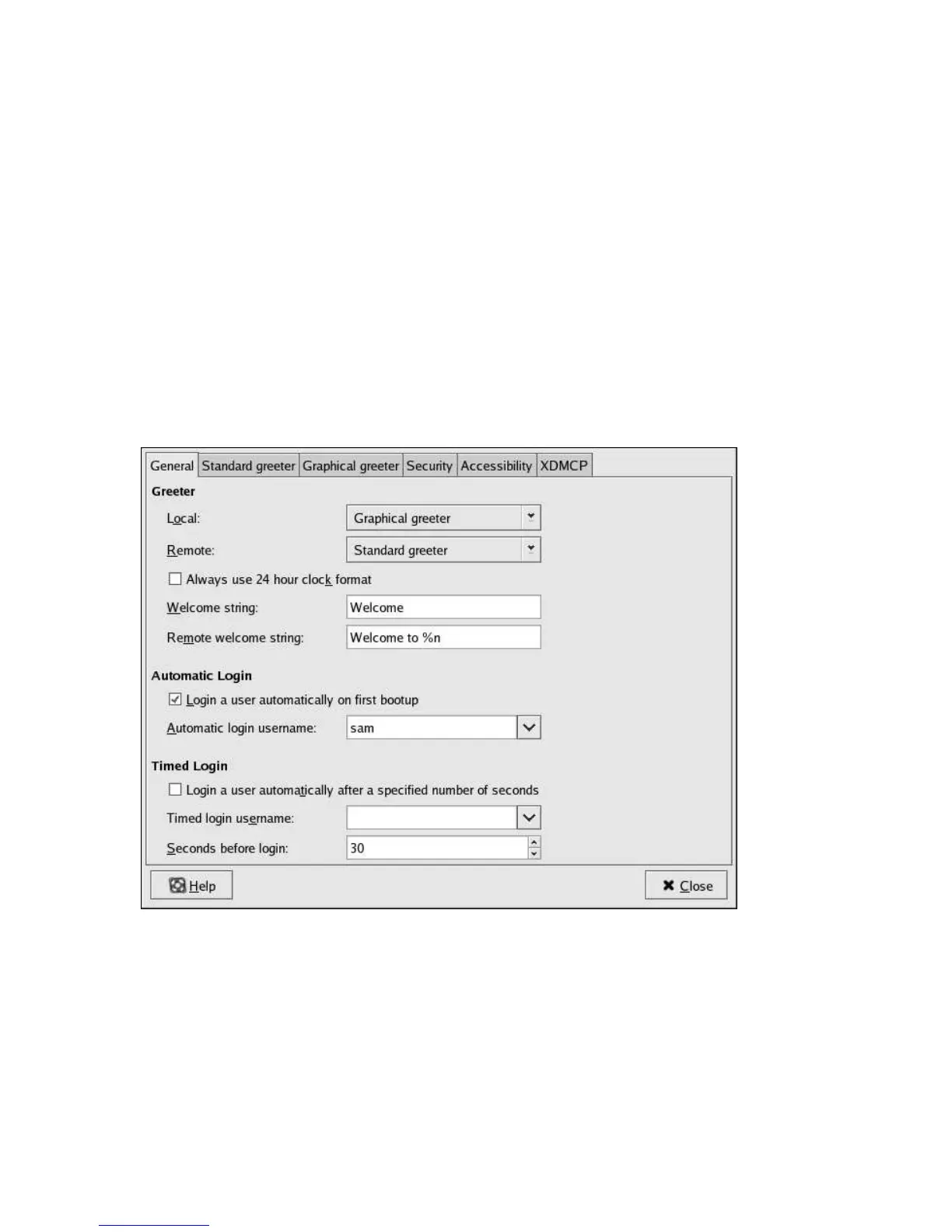
To enable automatic login, check the box labelled "Login a user automatically on first bootup"
and enter a valid system user name in the Automatic login username text entry box. Figure 4-15
demonstrates this configuration for a fictional user named "sam".
Figure 4-15. Enabling Automatic Login with the Login Screen Setup Tool
4.7.6.2. Editing the gdm.conf Configuration File
To enable automatic login, add (or change) the following directives to /etc/X11/gdm/gdm.conf:
AutomaticLoginEnable=true
AutomaticLogin=<valid_username>
where <valid_username> is a valid user on the system.



 To Next Page