EasyManua.ls Logo

REI CD-2000 - User Manual

REI CD-2000
11 pages
Print Icon
To Next Page IconTo Next Page
Loading...
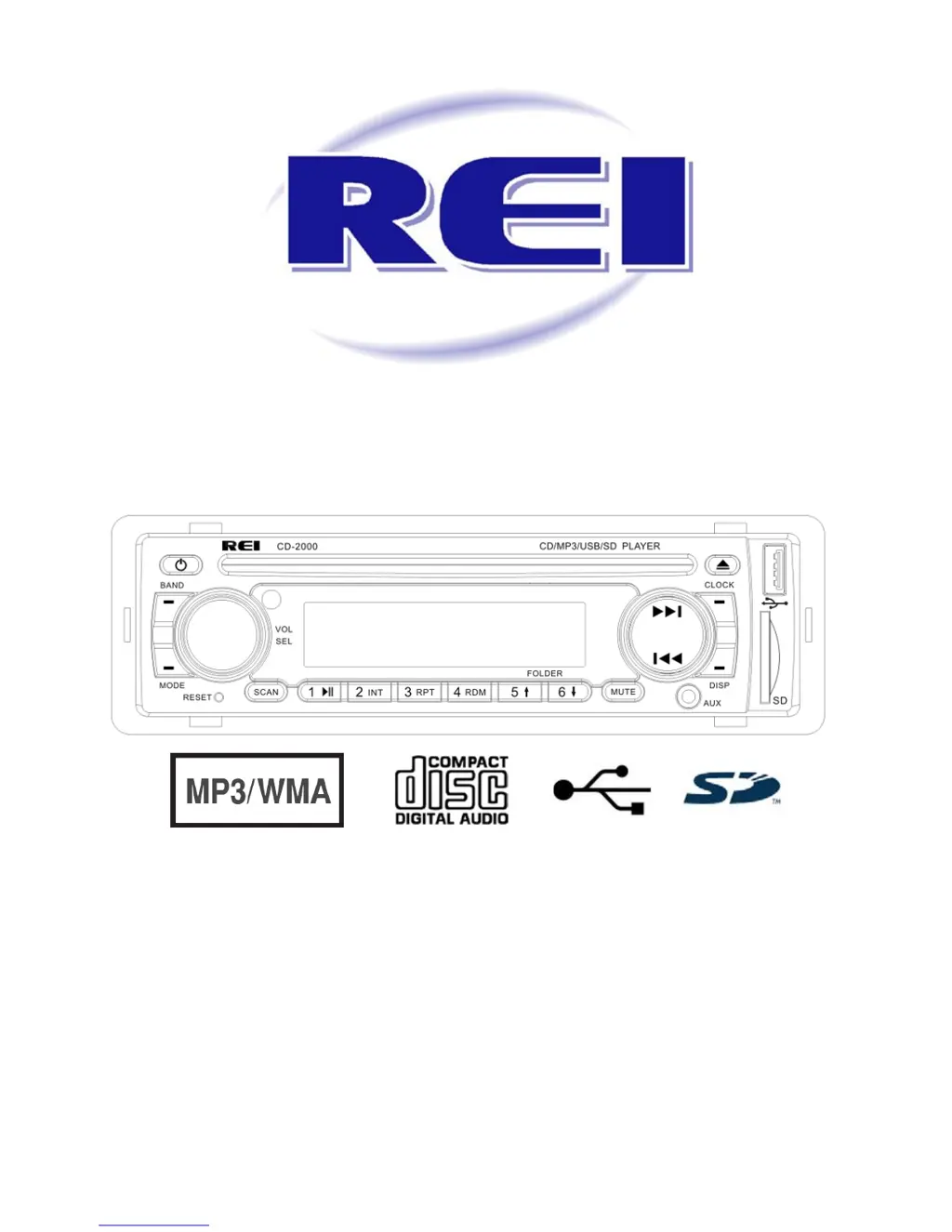
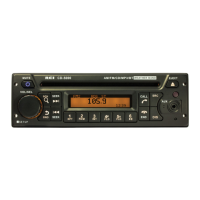
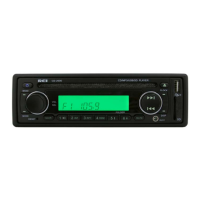
AM/FM/CD/MP3 Receiver with USB/SD & A u x iliary Input
3 Built-in Microphone inputs for P A Announcements
Installation/Operation Manual
50W x 4 CD-2000

Questions and Answers

  • T
    Tiffany ArmstrongAug 17, 2025
    Why do my REI CD-2000 Car Receiver speakers have no sound?
    • M
      Marissa CampbellAug 17, 2025
      If your REI Car Receiver speakers aren't producing sound, ensure they are correctly connected to the harness and that all spliced wires are properly connected. Check that the speakers aren't shorted to the chassis and that the total speaker impedance is within the 4-8?/ch range.
  • D
    davislindaAug 20, 2025
    What to do if the REI Car Receiver LCD Display says MIC /MIC 1/ or MIC 2 and front controls are locked?
    • A
      angela78Aug 20, 2025
      If the LCD Display of your REI Car Receiver says MIC /MIC 1/ or MIC 2 and the front controls are locked, it indicates that the PA system has been triggered. Disconnect the microphone connections, verify correct pinning, and if necessary, replace the microphone.
  • S
    steven01Aug 22, 2025
    How to fix an REI CD-2000 when the power light does not turn on?
    • K
      Kim PetersenAug 22, 2025
      If your REI Car Receiver's power light doesn't turn on, check for ACC/BATTERY voltage with a multi-meter and inspect the fuse. You can also try pressing the RESET button.
  • F
    Frederick WellsAug 26, 2025
    What to do if the public address is not heard over REI CD-2000 Car Receiver speakers?
    • A
      Andrew HillAug 26, 2025
      If the public address isn't being heard over the speakers of your REI Car Receiver, check that the microphone volume isn't set to “0” by turning the volume up when the LCD display’s MIC 1 or MIC 2. Also, make sure the correct microphone type is connected.
  • M
    Melissa BarrAug 28, 2025
    Why does my REI CD-2000 Car Receiver say “Unsupported Video” or won’t play digital media?
    • J
      Justin BatesAug 28, 2025
      If your REI Car Receiver displays “Unsupported Video” or won’t play digital media, it could be due to an unsupported file type. Try encoding the media with a supported file type, ensuring the disc has been finalized, or using different software.
  • T
    Taylor WilliamsAug 31, 2025
    Why is there no sound coming from my REI CD-2000 Car Receiver?
    • J
      John SmithAug 31, 2025
      If there's no sound, check that the speakers are correctly connected to the harness, and that all spliced wires are properly connected. Also, make sure the speakers aren't shorted to the chassis and that the total speaker impedance is within 4-8 Ohms per channel.
  • D
    Destiny SchneiderSep 2, 2025
    What to do if the power light does not turn on in my REI Car Receiver?
    • T
      Tracy LoganSep 2, 2025
      If the power light isn't turning on, it could be due to several reasons. Use a multi-meter to check for ACC/BATTERY voltage on the yellow and red wires. Also, check the fuse and press the RESET button.
  • A
    Angela BrownSep 5, 2025
    What to do if my REI CD-2000 Car Receiver LCD Display says MIC /MIC 1/ or MIC 2 and front controls are locked?
    • T
      Tyler RogersSep 5, 2025
      If the LCD Display shows MIC /MIC 1/ or MIC 2 and the front controls are locked, the PA system might be triggered. Try removing the microphone connections and verify the correct pinning, or replace the microphone.
  • J
    Julie Taylor DVMSep 8, 2025
    What to do if the Public Address can NOT be heard over speakers of my REI Car Receiver?
    • R
      Robert BondSep 8, 2025
      If you can't hear the Public Address over the speakers, check that the microphone volume isn't set to “0” and is displayed on the LCD as MIC 1 or MIC 2 when speaking into the microphone. Ensure the microphone is plugged into the correct input and that you are using the correct microphone type.
  • J
    James LaraSep 12, 2025
    Why does my REI Car Receiver say “ERROR” and skips to “AUX”?
    • S
      Sarah PatelSep 12, 2025
      If your digital media won’t play or shows an “ERROR” message and skips to “AUX”, the media file type might not be supported. Try encoding the media with a supported file type, ensure the disc has been finalized, or use different software.

Summary

Controls and Indicators Overview

Power Button

Describes the function of the power button to turn the unit on/off.

Volume;Select Knob

Explains how to adjust volume and select functions using the knob.

Band Button

Details how to change radio bands (FM1-FM3, AM1-AM2).

Mode Button

Explains how to select the audio source mode (RADIO, DISC, USB, etc.).

Reset Button

Describes using the reset button to clear system malfunctions.

Scan Button

Covers auto-programming stations and previewing stations.

Preset Memory;Playback Options

Explains selecting preset stations and playback controls like PAUSE/PLAY.

Mute Button

Function of the mute button to silence audio output.

Tune;Seek;Track Controls

Buttons for manual tuning, seeking stations, and track control.

Auxiliary Input Jacks

Describes front 3.5mm and rear RCA auxiliary inputs.

SD Card Input Slot

Location for inserting SD/SDHC cards for playback.

Display Button

Button to cycle through display information.

Clock Button

Button for displaying and setting the time.

USB Input Slot

Slot for connecting USB drives for audio playback.

Eject Button

Button to eject a CD disc.

Operation Guide

Power Button Operation

Instructions for turning the unit ON/OFF and status indicator lights.

Volume;Select Knob Operation

How to adjust volume and navigate through audio settings.

Band Button Operation

Step-by-step guide to changing radio bands.

Mode Button Operation

Selecting different audio source modes like RADIO, DISC, USB.

Reset Button Operation

Procedure for clearing system errors using the reset button.

Scan Button Operation

How to perform auto-scan programming and station preview.

Preset Memory;Recall Operation

Using buttons to select presets and advanced playback functions.

Mute Button Operation

How to temporarily silence the audio output.

Additional Operation Details

Tune;Seek;Track Operation

Manual tuning, seeking, and digital track navigation.

Auxiliary Input Jack Usage

Connecting and using external audio devices via AUX inputs.

SD Card Input Usage

Inserting and playing music from SD/SDHC cards.

Display Button Usage

Cycling through display information for source and status.

Clock Button Usage

How to display and set the current time.

USB Input Usage

Connecting USB drives for music playback.

Eject Button Usage

Instructions for ejecting a CD.

PA Operation

Microphone Input Priority

Explains priority of PA mics over audio and other mics.

Microphone Volume Adjustment

How to adjust volume levels for MIC 1 and MIC 2.

Carbon Microphone Specifics

Notes on carbon mic volume being adjusted on the mic itself.

Radio Connections

Wiring Diagram Overview

Visual guide for connecting the radio to power, speakers, and microphones.

Microphone Connection Types

Details on connecting Carbon, Dynamic MIC 1, and MIC 2.

Radio Installation

Required Radio Dimensions

Specifies the dash opening dimensions for proper fit.

Dash Mounting Procedure

Step-by-step guide for installing the radio into the dash.

Radio Removal

Removal Tools and Steps

Instructions and tools needed to safely remove the radio.

Troubleshooting Guide

Power Issues Troubleshooting

Solutions for when the power light does not turn on.

Audio Output Issues

Troubleshooting steps for no sound from speakers.

Public Address Problems

Solutions for PA system not being heard or incorrect mic input.

Media Playback Issues

Troubleshooting unsupported file types or disc errors.

Control Lock Issues

Resolving locked front controls or display messages.

Product Specifications

General Specifications

Details on operating voltage, current consumption, and power output.

FM Stereo Radio Specifications

Frequency range, sensitivity, and performance metrics for FM reception.

AM Radio Specifications

Frequency range and sensitivity for AM reception.

CD;Player Specifications

Performance metrics for CD playback, including audio quality and formats.

Interface and Input Specifications

USB Interface Details

Specifications for USB standard, current, file system, and decoding.

SD Card Interface Details

Performance metrics for SD card interface including frequency response and dynamic range.

Audio Pre-Amp Specifications

Details on max output level, output impedance, and subwoofer output.

Auxiliary Input Specification

Parameters for auxiliary inputs including frequency response and impedance.

REI CD-2000 Specifications

General IconGeneral
CD PlayerYes
Frequency Response20Hz - 20kHz
DisplayLCD
Tuner BandsFM/AM
Maximum Power Output50W x 4
Power Output22W x 4
CD CompatibilityCD-R/CD-RW
AUX InputYes

Related product manuals