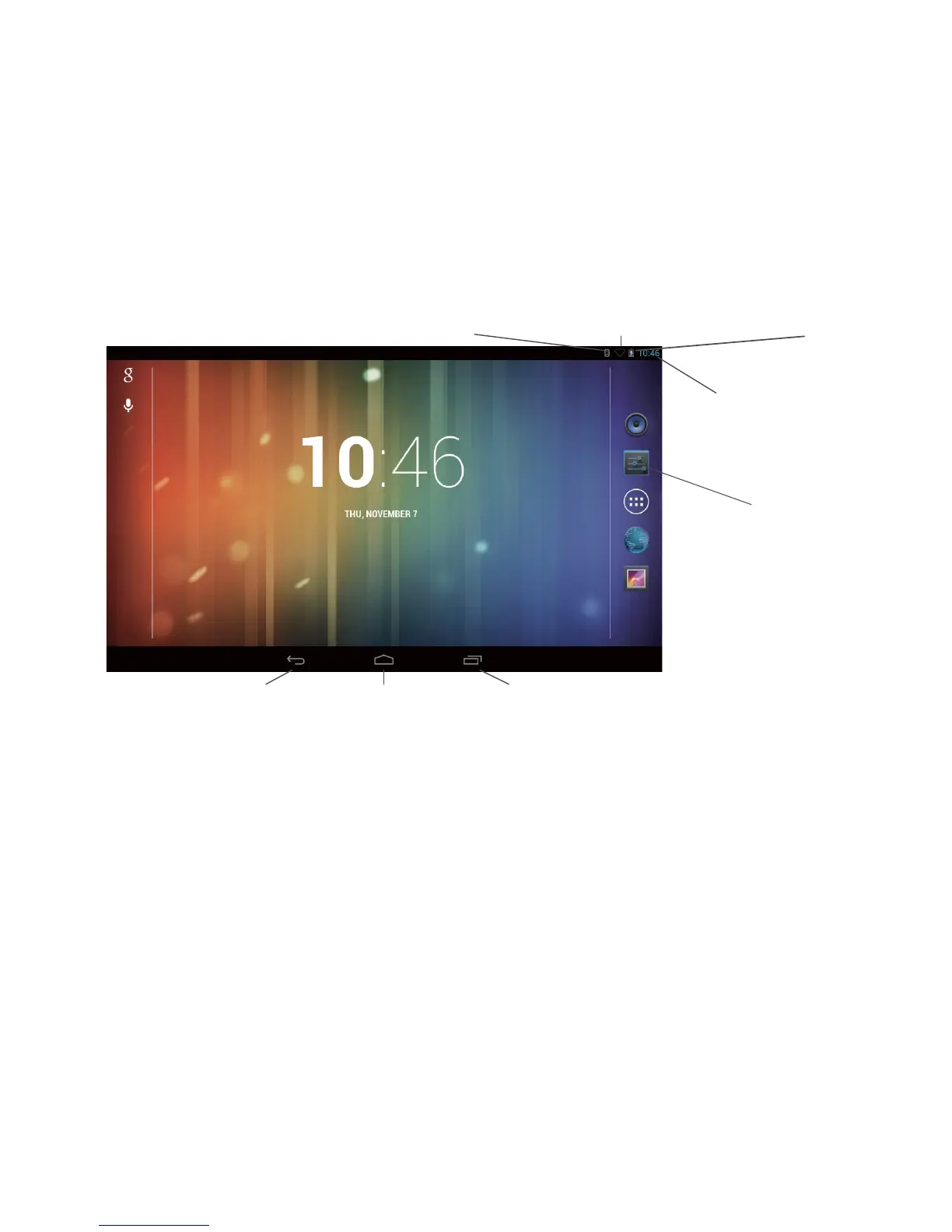
7.4 Desktop
The Tablet runs the latest version of the Android Operating System. Android Jelly Bean
has a similar user interface to previous versions, but has been updated
specifically for use with tablet devices.
The image below shows the layout of the desktop and where information can be found
and accessed.
Notification
Bar (slide down to see notifications) Wi-Fi status and signal strength
Battery Status
Quick Settings
Shortcut
(slide down to
access)
All Applications
Quick
Links
Bar
(slide to move
through
apps)
Back
Home Recent Apps
The All Applications Quick Links Bar can be scrolled up and down in order to access any
of the applications installed on the tablet.
In the top left hand corner is the Notifications Bar, which informs you of any activities
that the tablet is currently carrying out, or which have recently been completed. This
can be accessed by holding your finger on the bar and sliding your finger downwards.
Information shown in this bar will include downloads, application installations and
recently received messages etc.
In the top right hand corner is the Quick Settings Shortcut, which allows access to
shortcuts for brightness, settings, Wi-Fi, screen rotation, battery power, airplane mode
and bluetooth switching etc. This can be accessed by holding your finger on the Wi-Fi,
battery or clock icons and sliding your finger downwards.
At the bottom of the screen are the Back, Home and Recent App links. For more
information on these links see the following page.
To change the default image and to add and remove applications from the All
Applications Quick Links Bar, hold your finger down anywhere on the desktop for two
seconds. Untick any applications you don’t want to appear and select the back button.



 To Next Page