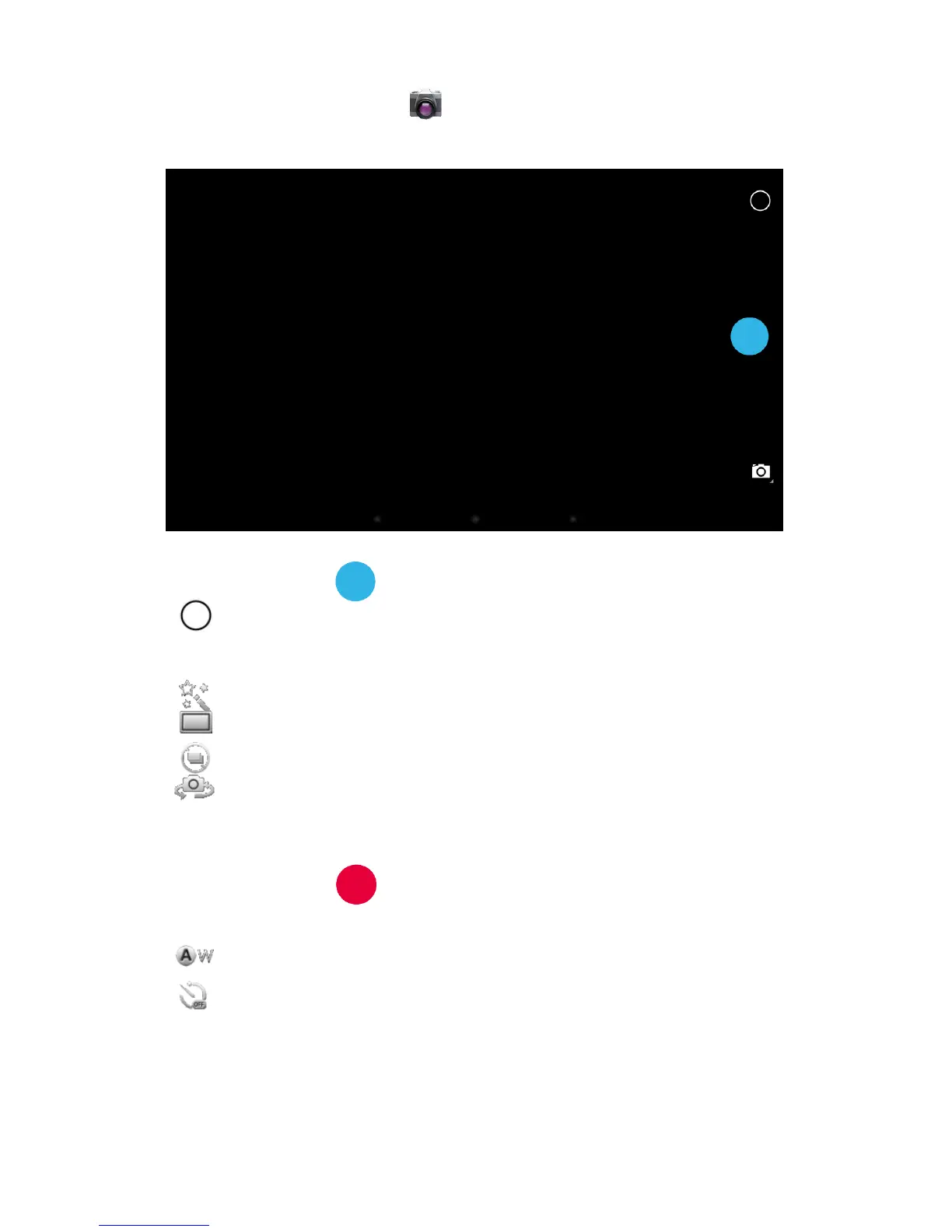
9.13 Camera
To access both Cameras, touch the
icon on the All Applications Quick Links Bar or
from within Applications Launcher.
Camera Mode
Touch the capture button
to take a picture.
Touch
to enter Camera settings, allowing Exposure, White balance, Picture
Quality, Face detection and other settings to be changed.
Touch to add colour effects to the picture.
Touch to change the Snap mode between Normal and Panorama.
Touch
to enable Continuous snap mode.
Touch
to switch between the front or rear cameras.
Video Mode
Touch the capture button
to start recording, touching the capture button a
second time will stop the recording and save the footage.
Touch to adjust the white balance of the image.
Touch
to set the time lapse interval.
Pictures and Movies taken with the camera are stored in the Camera folder which can
be found by opening Explorer and tapping on the DCIM folder, and then the Camera
folder.
Pictures and Movies taken via the camera are also available to play directly from the
V ideo Player. Just open the player and select the picture or movie you want to view.



 To Next Page