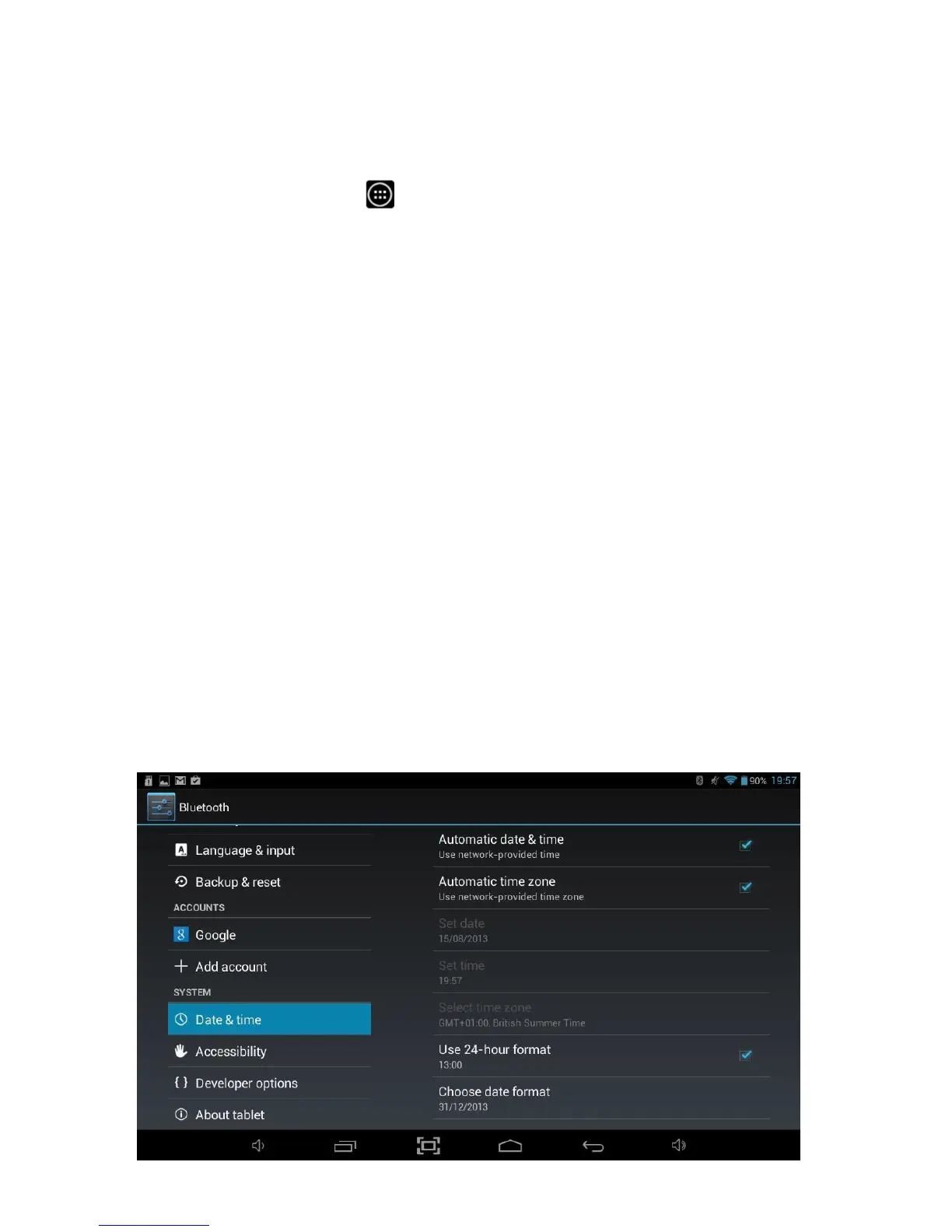
8.13 Date & T ime
The Date & time option allows you to configure the date and time settings for your
Tablet.
To access Date & time settings, you will need to access the settings menu. Tap the
Applications Launcher icon
at the bottom of the Home Screen. Tap on the
Settings icon from the Application Launcher page.
On the left hand side menu options scroll down by sliding your finger upwards until
you can see the Date & time option, and then tap on this.
The following options are available:
If enabled, the Tablet will
automatically
update the date and
time if connected to the Internet.
Allows the date to be set manually. This option is only available if
Automatic date & time is disabled.
Allows the time to be set manually. This option is only available if
Automatic date & time is disabled.
Allows your current time zone to be selected from the available
options.
Allows time format to be switched between 12 and 24 hour
formats.
Allows the format of the date to be changed.



 To Next Page