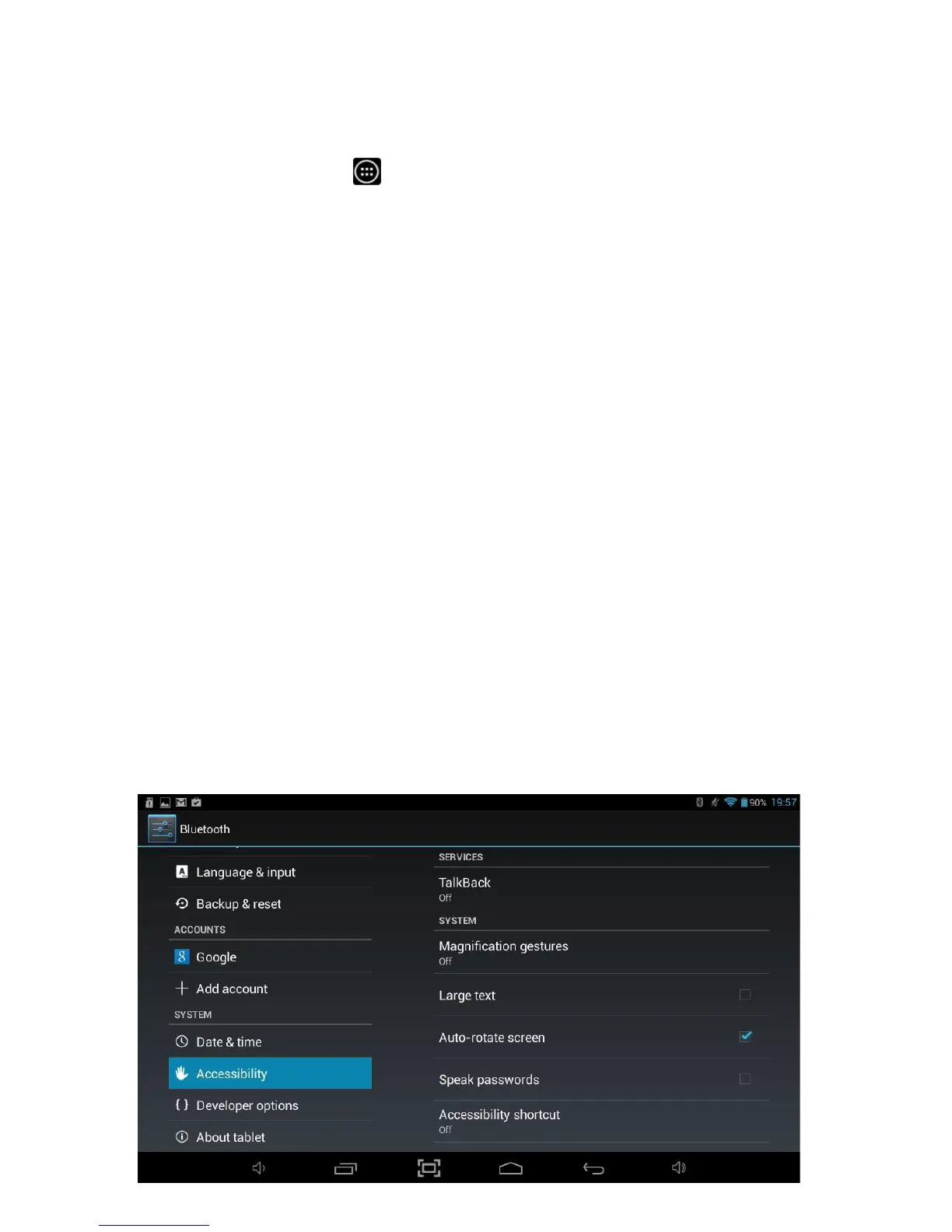
8.14 Accessibility
The Accessibility option allows the Tablet to be configured for use by anyone.
To access Accessibility settings, you will need to access the settings menu. Tap the
Applications Launcher icon
at bottom of the Home Screen. Tap on the Settings
icon from the Application Launcher page.
On the left hand side menu options scroll down by sliding your finger upwards until
you can see the Accessibility option, and then tap on this.
The following options are available:
The TalkBack option provides spoken feedback to help blind and
low-vision users by guiding their finger around the screen using
audio prompting. It describes what is being touched, selected and
activated.
Large text If enabled, will increase the text size used for all functions of the
Tablet.
Auto-rotate
screen
Enable or disable automatic screen rotation when the Tablet is
rotated.
Speak passwords Allows passwords to be entered using speech instead of the
keyboard.
Text-to speech
output
Allows configuration of the text to speech engine which is used by
default by the Tablet.
Touch & hold delay Allows the delay settings for gestures on the screen to be changed.
Install web scripts
Allows Apps to install scripts from Google that make their web
content more accessible.



 To Next Page