48
g) Media centre mode
Use the media centre to play back music that is on a shared device in your network.
The device to be used to play music must be connected to the same network as the pocket radio, and ac-
cess to the respective folders must be enabled.
1Playing
The device supports UPnP and is DLNA compatible.
This allows you to stream music from your network. However, this requires that there is a compatible device
in your network that acts as a media server. For example, this can be a network hard drive or a conventional
Windows
®
PC on which access to the public folders or media sharing is enabled. For more details, refer to
the help texts or relevant documentation for the corresponding device.
1. Press the button
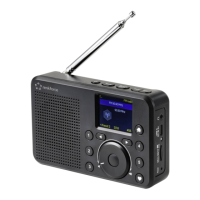
(8) and select the menu item “MEDIA CENTRE” using the rotary knob (11) or arrow buttons
and (9).
The menu item “MEDIA CENTRE” can also be accessed directly by pressing the Mode button (3).
2. Presstherotaryknob(11)toconrmtheselection.
3. Selectthemenuitem“UPnP”andpresstherotaryknob(11)toconrm.
4. The device automatically searches for compatible devices in the network and displays them in a list.
5. Selectthedesireddeviceandpresstherotaryknob(11)toconrm.
6. Now the media server menu is displayed. The folders and groupings displayed may vary depending on your server.
Navigate through the structure and start playback of the desired track by pressing the rotary knob (11).
7. The selected track will start playing.
8. Use the following playback controls:
Keep the arrow button
(9) pressed >> next track
Keep the arrow button
(9) pressed >> previous track
Press the rotary knob (11) >> Play/Pause
9. Pressing the
arrow button (9) will display more information about the track currently playing.
10. Brieypressthearrowbutton
(9) to return to the overview and select another title.
2Adding track to playlist
1. You can add the track that is being played to your playlist by pressing and holding the rotary knob (11) until a small
arrow appears at the top left of the display.
2. The track has been added to the playlist.
The saved track added to your playlist will appear at the end of the list.


 To Next Page