53
1Adding stations to the Favourites list
1. Set the station to be added to your Favourites list in the relevant mode.
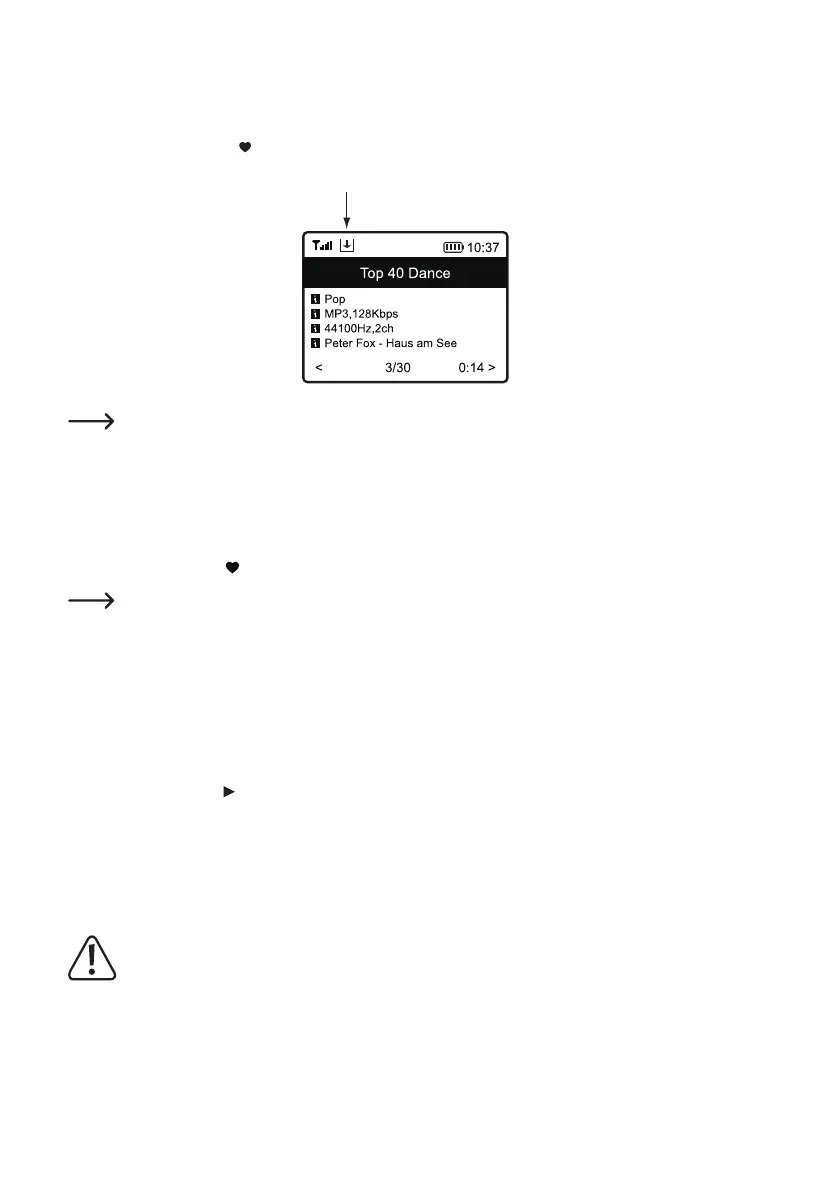
2. Press and hold the button
(12) until a small arrow appears at the top left of the display. The station is now saved
in the Favourites list.
The saved station added to your favourites list will appear at the end of the list. Up to 99 favourites can be
stored in the Favourites list. If more than 99 favourites are stored, the oldest favourites are deleted.
3. Or keep one of the number buttons 1-5 (10) pressed until a small arrow appears at the top left of the display. That
will assign the station directly to the pressed number button.
2Selecting stations from the Favourites list
1. Brieypressthebutton (12). The Favourites list will appear.
The Favourites list can also be called up via the menu item “MY FAVOURITES”.
2. Select the desired station using the rotary knob (11).
3. Presstherotaryknob(11)toconrmtheselectionandreceivethestation.
4. Orbrieypressoneofthenumberbuttons1-5(10)tocallupthestoredstationdirectly.
3Managing the Favourites list
1. Check the station to be edited in the favourites list.
2. Press the arrow button
(9).
3. Further options will appear in the menu with which the station can be moved or deleted.
4Managing favourites list with a computer or smartphone
You can also manage your favourites list using your computer or smartphone. Here you can edit, add, move or delete
stations.
The device used to manage the Favourites list must be in the same network as the Internet radio.


 To Next Page