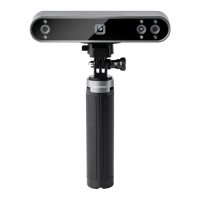
MINI Quick Start Guide
©2023 REVOPOINT 3D ALL RIGHTS RESERVED 15
soft, absorbent cloth. Operating a scanner that has fallen in water may
cause permanent component damage.
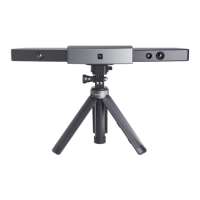
4. Keep the cameras (the two Depth cameras and one RGB camera) and
the projector clean. Use 95% isopropyl alcohol and a soft cloth to clean
them.
5. Handle the scanner with care to avoid hitting the cameras.
6. The operating temperature MINI of this product is 0°C to 40°C (32°F
to 104°F).
7. Do not take apart the scanner. If there are any problems or questions,
contact the Revopoint customer service team at
customer@revopoint3d.com.
Troubleshooting
1. What to do if you get a “check internet connection” error when
trying to download a firmware update?
Check your device's Firewall Settings and confirm Revo Scan is not
being blocked or the Firewall is off.
2. What to do if my MINI turns on but its LED never turns solid
green, indicating that it's ready to connect?
Connect your MINI to a power source, then press the MINI’s
Start/Pause scan button ten times to reset the MINI. If that doesn’t
resolve the issue, please get in touch with customer support.
3. What to do if the MINI always loses tracking when scanning?
Try using scanner spray, dry shampoo, or baby powder to lightly coat
any shiny or dark surfaces on the object. If the object has plain surfaces,
you’ll need to place Marker stickers (place them irregularly and ensure
that at least five will always be in the frame when you’re scanning) and
select Marker mode for the scan.
4. What to do if the object you want to scan isn't clear in the
preview window?


 To Next Page