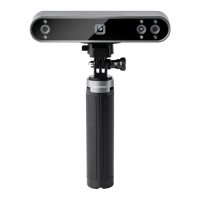
MINI Quick Start Guide
16 ©2023 REVOPOINT 3D ALL RIGHTS RESERVED
Increase the Brightness in Revo Scan till the object looks clearly defined
and has as few red and blue patches in the preview window as possible.
5. What to do if your scanned model’s surfaces lack detail or the
details are smeared?
Unfortunately, you’ll need to redo the scan, but be careful and ensure
you only scan an area once rather than multiple times. Basically, the
smaller the number of frames, the better the scan quality. Scanning the
same spot twice will only lower the detail.
6. What to do if you keep running out of memory when scanning?
The object you’re scanning is too large for your computer or
smartphone’s amount of RAM. If this happens, pause the scan, fuse the
model, and start a new scan from where you had to pause your
previous scan. These separate scans can be merged together in Revo
ScanV5.0 or you can download Revo Studio on Revopoint official
website to make a whole model once you’ve finished scanning the
object.
7. How do I reset the scanner?
Connect your MINI to a power source, then press the MINI’s
Start/Pause scan button ten times to reset the MINI.
Customer Service
If you need any assistance with your scanner, please don’t hesitate to
contact us at customer@revopoint3d.com or drop us a line at +1 (888)
807-3339 or chat with one of our customer service agents online on our
website www.revopoint3d.com. click the speech bubble on the bottom
right corner of the screen.


 To Next Page