
 To Next Page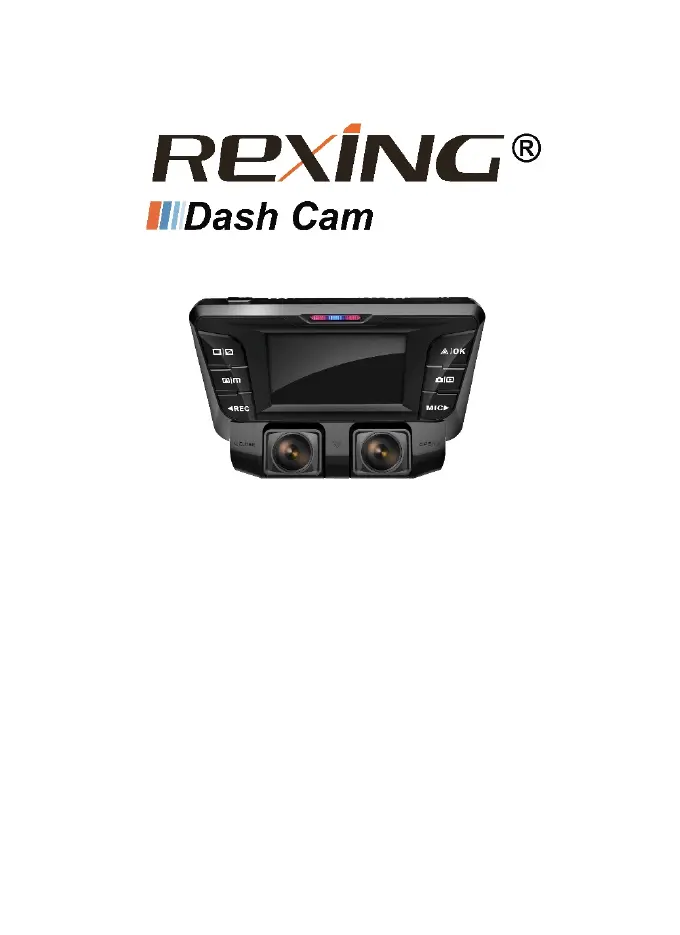
R
Randall HernandezSep 9, 2025
What to do if my Rexing Dash Camera screen is frozen?
- WWalter BryantSep 9, 2025
If your Rexing Dash Camera screen is frozen, the memory card may be defective. Try using a new memory card.

What to do if my Rexing Dash Camera screen is frozen?
If your Rexing Dash Camera screen is frozen, the memory card may be defective. Try using a new memory card.
What to do if the menu button on my Rexing Dash Camera is not responding?
If the menu button on your Rexing Dash Camera is not responding, the unit may be recording. Press the REC button to stop recording so you can access the menu.
What to do if my Rexing Dash Camera SD card is not recognized?
If your Rexing Dash Camera does not recognize the SD card, the SD card may need to be formatted. You can try to format the SD card or use a different SD card.
Why does my Rexing Dash Camera stop recording after 20-40 minutes?
If your Rexing Dash Camera stops recording after 20-40 minutes, Loop Recording may be off. Turn Loop Recording on to resolve this issue.
Why does my Rexing Dash Camera stop recording at random intervals?
Your Rexing Dash Camera may stop recording at random intervals because the SD card is not compatible. Try using a different SD card or restoring default settings.
What to do if my Rexing Dash Cameras SD card is full?
If your Rexing Dash Camera SD card is full, you need more space on the SD card. Make sure the G-sensor is on the lowest setting, clear some locked files, or format the SD card.
Why does my Rexing Dash Camera keep turning off?
Your Rexing Dash Camera might keep turning off because the SD card may not be compatible or it might not be getting continuous power. Try using a different SD card, restoring to default settings, or getting a replacement power cord.
What to do if all the buttons on my Rexing Dash Camera are not responding?
If all the buttons on your Rexing Dash Camera are not responding, it could be due to a processing error, faulty device operation, or errors on the memory card. First, press the RESET button to restart the camera. If that doesn't work, reformat or replace the memory card. Also, press the buttons firmly, or hold them in; they will not always respond to a quick hit.
Why does the screen of my Rexing Dash Camera power off unexpectedly?
The screen of your Rexing Dash Camera may be powering off unexpectedly because the Screen Saver feature is enabled or the battery is low. Try disabling the Screen Saver feature, charging the battery, or restoring the camera to default settings.
Why does my Rexing Dash Camera keep rebooting?
If your Rexing Dash Camera keeps rebooting, the battery may be depleted. To solve this, charge the battery for 3 hours, making sure the unit is off while charging.
Warnings related to injury or death from non-compliance with safety regulations.
Avoid using the device near other electronic devices or in smoky environments.
Stop using the device immediately if smoke, strange smells, or liquid leaks are observed.
Do not operate controls while driving and ensure unobstructed views.
Keep the camera lens clean and unblocked for optimal recording quality.
Do not store the device in extreme temperatures or humidity.
Securely mount devices and avoid airbag deployment areas for safety.
Avoid dropping or impacting the device to prevent malfunctions.
Device parts wear out; warranty covers defects, not damage from unapproved accessories.
Unauthorized modifications void warranty; seek authorized service.
Clean device with a towel/eraser; avoid chemicals/detergents.
Do not distribute copyrighted material without permission; manufacturer not liable.
Dispose of electronic products responsibly, separate from household waste.
Rexing disclaims warranties for third-party content and services.
Descriptions based on default settings; actual product may vary; check website for latest version.
Improper installation voids warranty and may cause malfunctions.
Default applications may be updated or discontinued; contact service for questions.
Identifies the physical buttons and ports on the V2 Dashboard Camera.
Explains the function of each physical button on the device.
Explains the meaning of various icons and LED indicators displayed on the device.
Lists all items included in the product box.
Instructions for mounting the camera and inserting a memory card.
Steps for charging the device using the car charger and formatting the memory card.
Information on SD card lifespan, compatibility, insertion, and reformatting.
Steps to safely remove the memory card from the device.
Step-by-step guide to format the memory card using the device or computer.
Instructions on how to power the device on and off, including auto functions.
Overview of core functionalities like automatic recording and locking files.
Instructions for connecting the dash cam to a mobile device via Wi-Fi using the Rexing Connect app.
Recommends 1080P FHD + 1080P FHD for dual-channel recording resolution.
Explains Loop Recording mode and its recommended setting of 3 Minutes.
Explains WDR feature for improving recording quality in varied lighting conditions.
How to adjust camera exposure for brighter or darker video recordings.
Option to record audio with video or mute the microphone for muted videos.
Option to display date and time on videos; cannot be removed if enabled.
Feature to stamp vehicle plate number on recorded videos.
Explains G-sensor for detecting forces and locking files automatically.
Procedure to set the device's time and date.
Option to automatically shut down the device when not recording.
Setting to enable or disable device button sound effects.
Procedure to change the device's language settings.
Sets the video output format (e.g., NTSC).
Setting for power supply frequency (e.g., 60Hz for US) to match region.
Operation to format the memory card, which erases all files.
Enable or disable Daylight Saving Time settings.
Sets the screen timeout duration or uses a hotkey to turn it off.
Setting for GPS speed unit (requires GPS Logger).
Feature requiring GPS Logger to enable automatic time updates.
Resets all device settings to their original values, losing customizations.
Displays the device firmware version information.
Setting for the pixel resolution of captured images.
Setting a timer for automatic image capture.
Captures a sequence of 3 quick photos with one button press.
Sets the quality level of captured images to manage memory space.
Adjusts the sharpness of captured images for clarity.
Adjusts lighting balance for different environmental conditions.
Allows choosing a color effect for captured images.
Adjusts camera sensitivity to light for photos.
Adjusts the brightness level of captured images.
Enables image stabilizer to reduce blur in captured images.
Allows immediate preview of captured images before the next photo.
Automatically applies a date and/or time stamp to captured images.
Step-by-step guide to update device firmware using the Rexing website.
Steps to play back recorded video files on the device, including fast forward/rewind.
Instructions for deleting specific video files or all files from the device.
Lists minimum software requirements for PC playback of video files.
How to access video files on a computer via SD card or USB connection.
Problems related to images not being stored.
Problems with unresponsive buttons or the device not turning on.
Issues related to battery charge, rebooting, and SD card compatibility.
Issues with the screen powering off, freezing, or general stability.
Problems with video recording, stopping, or loop recording functionality.
Issues related to full SD cards, file errors during playback, and hazy images.
Problems with image stripes, auto power, date resets, and GPS connectivity.
 General
| Viewing Angle | 170 degrees |
|---|---|
| Screen Size | 2.4 inches |
| Loop Recording | Yes |
| G-Sensor | Yes |
| Wi-Fi | No |
| Parking Mode | Yes |
| Frame Rate | 30 fps |
| GPS | No |
| Night Vision | Yes |
| Video Resolution | 1920x1080 (Full HD) |
| Storage | Supports up to 128GB |
| Battery | Built-in super capacitor (no battery) |