Getting Started
10
1
Panel Display
The panel display shows the status of the machine, error messages and function
menus. To select items shown on the display, lightly press the items with your
finger. When the item is selected, it is highlighted. Items that are not available
are shown grayed out.
Important
❒
Do not apply a strong shock or force of more than about 30N (about 3kgf) to
the panel display or it may be damaged.
Online and Offline
Press the {
Printer
} key on the control panel.
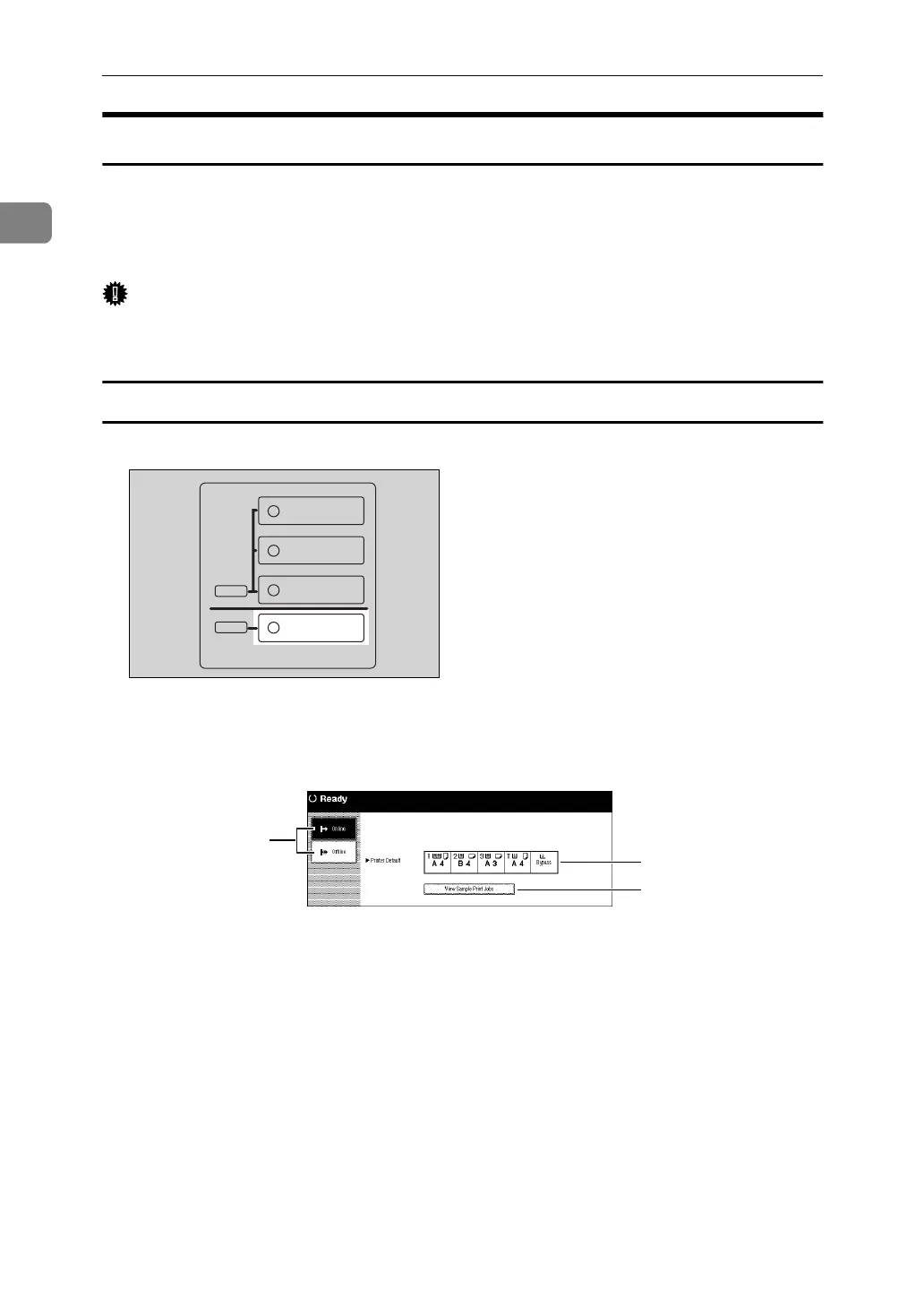
The following screen appears on the panel display.
1. Online/Offline
Shows the status of "Online" or "Offline".
2. Printer Default
Shows the default input tray and paper
size which is selected on the panel dis-
play. However, if "Auto" is selected, no
tray is highlighted.
3. View Sample Print Jobs
Press to show the list of "Sample Print
Jobs". You can also select each file to
print, to delete, to save and to change set-
tings.
ZBQS120N
Copy
New Job
Document Server
New Job
Job List
Printer
1
2
3



 To Next Page