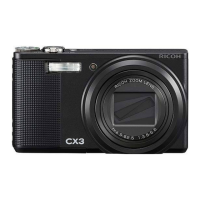
EasyManua.ls Logo

Ricoh CX6 - User Manual

Ricoh CX6
172 pages
Print Icon
To Next Page IconTo Next Page
Loading...
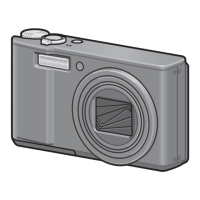
Camera User Guide
The serial number of this product
is given on the bottom face of the
camera.
Basic Operations
If you are using the camera for the first time, read this section.
This section provides a basic overview of how to turn on the camera, take
pictures and play back pictures.
Advanced Operations
Read this section when you want to learn more about the different camera
functions.
This section provides more detailed information about the functions used to
take pictures and play back pictures, as well as information on how to customize
the camera settings, print pictures, and use the camera with a computer.
The rechargeable battery needs to be charged before use. The battery is not
charged at the time of purchase.

Table of Contents

Questions and Answers

  • W
    wayne55Aug 19, 2025
    Why my Ricoh CX6 does not turn on?
    • E
      Emily MaynardAug 19, 2025
      If your Ricoh Digital Camera doesn't turn on, several factors could be at play. Ensure the rechargeable battery is correctly loaded and charged. Only use the dedicated rechargeable battery, as others are unacceptable. The camera might have been automatically turned off by the auto power-off feature; simply turn it back on. Also, check if the battery is loaded in the correct direction. Finally, if the camera overheated, allow it to cool down before attempting to use it again. Avoid sudden cooling methods.
  • M
    Mr. Justin CohenAug 21, 2025
    What to do if my Ricoh CX6 does not shoot?
    • M
      Matthew MontesAug 21, 2025
      If your Ricoh Digital Camera doesn't shoot when you press the shutter release button, there are several potential reasons. First, ensure the battery isn't exhausted by charging it. Make sure the camera is powered on and not in playback mode—switch to shooting mode. Press the shutter release button completely. Check if the SD memory card is formatted, not full, and not write-protected. If the card is old, try a new one. Wait for the flash to finish charging. Clean the SD card's contact surface with a soft, dry cloth.
  • Z
    zstewartAug 25, 2025
    Why does my Ricoh CX6 turn off during use?
    • J
      Jasmine ColonAug 25, 2025
      If your Ricoh Digital Camera turns off unexpectedly during use, it could be due to several reasons. The auto power-off feature might be activated if the camera is left unattended; simply turn it back on. Alternatively, the battery may be exhausted, so charge it. Ensure you are using the dedicated rechargeable battery, as other types are not suitable.
  • K
    Kathryn HudsonAug 26, 2025
    What does 'Card Error' mean on Ricoh CX6 Digital Camera?
    • J
      John TurnerAug 27, 2025
      A 'Card Error' message on your Ricoh Digital Camera indicates a problem with the memory card. If you're not using an SDXC card, try formatting the card using the camera. If the error persists, the card may be faulty and should be replaced.
  • N
    Nicholas McdonaldAug 28, 2025
    How to fix insufficient memory on Ricoh CX6?
    • J
      Jeffrey NelsonAug 28, 2025
      If your Ricoh Digital Camera displays 'Insufficient Memory', it means files cannot be stored. Ensure there is sufficient memory available or delete unwanted files. Additionally, if the image print number limit has been exceeded, select an image and set the number to 0.
  • C
    Colin MartinAug 30, 2025
    Why images do not appear on Ricoh Digital Camera?
    • D
      deborah93Aug 30, 2025
      If images do not appear on the picture display of your Ricoh Digital Camera, ensure the camera is turned on and the display brightness is properly adjusted. Disconnect any VIDEO/AV cables that are connected. Also, press the DISP. button to change the display if it is in synchro-monitor mode.
  • B
    Brett MilesSep 1, 2025
    How to fix auto focus on Ricoh Digital Camera?
    • T
      Tyrone NguyenSep 1, 2025
      If your Ricoh Digital Camera is unable to focus even when set to auto focus, the lens may be dirty; wipe it clean with a soft, dry cloth. Ensure the subject is in the center of the shooting range, or use focus lock. If the subject is hard to focus on, use focus lock or manual focus.
  • A
    Anthony GuerreroSep 3, 2025
    Why is Ricoh Digital Camera not focusing correctly?
    • J
      jamesbryanSep 3, 2025
      If your Ricoh Digital Camera displays a green frame in the center but is not in focus, it may be due to the camera being too close to the subject. Try shooting in macro mode or move further away. Additionally, ensure you are holding the camera steady; use both hands, press your elbows against your torso, use a tripod, or activate the camera shake correction function.
  • S
    Steven EdwardsSep 6, 2025
    What to do if Ricoh CX6 does not turn off?
    • P
      paulschultzSep 6, 2025
      If your Ricoh Digital Camera does not turn off, it may be experiencing a malfunction. Remove the battery and load it again to resolve the issue.
  • T
    Tracy FitzgeraldSep 7, 2025
    What to do if file number limit exceeded on Ricoh CX6 Digital Camera?
    • A
      Allison SaundersSep 7, 2025
      If your Ricoh Digital Camera displays 'The file number limit has been exceeded', use another card.

Summary

Basic Operations

Packing List

Lists items included in the camera package.

Optional Accessories

Details optional products available for the camera.

Dial and Button Operation

Explains how to use camera controls like the mode dial and buttons.

Names of Parts

Identifies and labels the camera's external components.

Picture Display

Describes the information shown on the camera's screen during shooting and playback.

Getting Ready

Covers initial setup steps like charging the battery and loading memory cards.

Basic Shooting

Guides users on fundamental shooting techniques and modes.

Playing Back Images

Explains how to view, manage, and interact with captured images.

Deleting Files

Details the process for removing unwanted photos or videos from the camera.

Changing the Display with the DISP. Button

Explains how to customize the information displayed on the screen.

Advanced Operations

Shooting Mode Types

Explores various shooting modes and their specific functions.

Shooting Menu

Details camera settings and options available in the shooting menu.

Shooting and Viewing Movies

Covers the procedures for recording and playing back video clips.

Playback Menu

Outlines options for managing and editing images after they have been captured.

Assigning Functions

Explains how to customize buttons and controls for frequently used features.

Setup Menu

Describes camera settings related to system configuration and preferences.

Direct Printing

Guides users on connecting the camera to a printer for direct photo printing.

Downloading Images to Your Computer

Provides instructions for transferring photos and videos from the camera to a computer.

Appendices

Contains supplementary information, including troubleshooting and specifications.

Ricoh CX6 Specifications

General IconGeneral
BrandRicoh
ModelCX6
CategoryDigital Camera
LanguageEnglish

Related product manuals