Specifying a Custom Size Paper Using the Control Panel
1. Press [Settings] on the [Home] screen.
2. Press [Tray Paper Settings].
3. Press [Printer Bypass Paper Size].
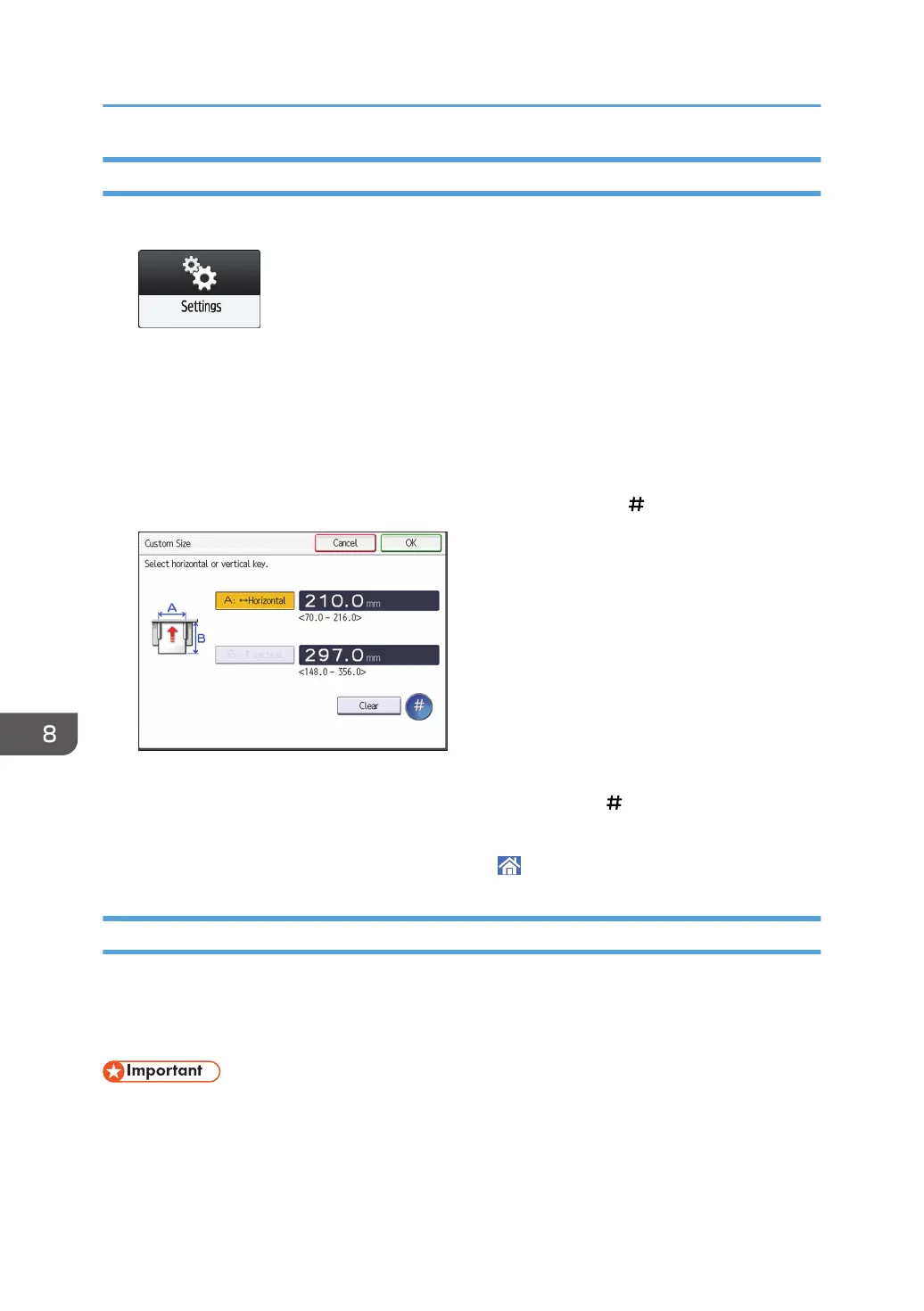
4. Press [Custom Size].
If a custom size is already specified, press [Change Size].
5. Press [Horizontal].
6. Enter the horizontal size using the number keys, and then press [ ].
7. Press [Vertical].
8. Enter the vertical size using the number keys, and then press [ ].
9. Press [OK] twice.
10. After completing the procedure, press [Home] ( ).
Specifying Paper Type and Thickness Settings
If the print settings and the loaded paper that are used for a print job do not match, a mismatch error
occurs.
Check and specify the paper settings before you start printing.
• Before you change the settings, confirm the priority of the paper settings for printing (priority to the
printer driver or to the control panel).
8. Adding Paper and Toner
188



 To Next Page