EasyManua.ls Logo

Ricoh PJ S2240 - User Manual

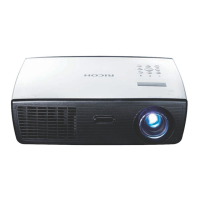
Ricoh PJ S2240
86 pages
Print Icon
To Next Page IconTo Next Page
Loading...
8. Appendices
Read this manual carefully before you use this machine and
keep it handy for future reference. For safe and correct use,
be sure to read the Precautions in this manual before using
the machine.
5. LAN Control
4. User Settings
2. Introduction
3. Basic Operations
1. Usage Notice
User’s Manual
7. Replacing the lamp
6. Troubleshooting

Table of Contents

Questions and Answers

  • T
    thomaswilsonSep 3, 2025
    Why does my Ricoh PJ S2240 show message reminders?
    • A
      Allen RobertsSep 4, 2025
      If your Ricoh Projector is showing message reminders, it indicates that the projector is overheating inside. Ensure that the air inlets and outlets are not blocked and that the environment temperature is under 40 degrees C.
  • D
    Daniel JacksonSep 18, 2025
    How do I correct a reversed image on my Ricoh PJ S2240?
    • R
      Richard AcevedoSep 18, 2025
      To correct a reversed image on your Ricoh Projector, select “SCREEN > Projection Mode” from the OSD menu to adjust the image.
  • N
    Nicholas RogersSep 16, 2025
    What does the temperature error message mean on my Ricoh Projector?
    • R
      Rebecca ScottSep 16, 2025
      If your Ricoh Projector shows a temperature error message, it means the projector is overheating inside. Check the environmental conditions to ensure proper ventilation and cooling.
  • K
    Kelly CookSep 14, 2025
    How to fix a stretched image when displaying a 16:9 DVD on the Ricoh PJ S2240?
    • A
      Angela LewisSep 14, 2025
      If the image is stretched when displaying a 16:9 DVD on your Ricoh Projector, change the aspect ratio by pressing the “Aspect” button on the remote control or select “SCREEN > Aspect Ratio” from the OSD menu to show the image with the proper aspect ratio.
  • M
    Megan Garcia MDSep 12, 2025
    What happens if the Ricoh PJ S2240 Projector lamp burns out or makes a popping sound?
    • R
      Rachel PetersonSep 12, 2025
      If the lamp in your Ricoh Projector burns out or makes a popping sound, it means the lamp has reached its end of life. If this happens, the projector will not turn on until the lamp module has been replaced. Follow the procedures in the “Replacing the Lamp” section to replace the lamp.
  • R
    Randy LittleSep 12, 2025
    Why is the screen of my Notebook computer not displaying a presentation on the Ricoh PJ S2240 Projector?
    • P
      Patrick PaceSep 12, 2025
      If the screen of your Notebook computer isn't displaying a presentation when connected to the Ricoh Projector, it might be because some Notebook PCs deactivate their own screens when a second display device is in use. Refer to your computer’s documentation for detailed information on how to reactivate it.
  • G
    grobinsonSep 9, 2025
    How to fix a Ricoh PJ S2240 Projector image when it is out of focus?
    • M
      Michael BarnettSep 9, 2025
      If the image from your Ricoh Projector is out of focus, adjust the Focus Ring on the projector lens. Also, make sure the projection screen is within the required distance.
  • T
    Teresa SimonSep 7, 2025
    What to do if the Ricoh Projector image is too small or too large?
    • J
      James GloverSep 7, 2025
      If your Ricoh Projector's image is too small or too large, you can try the following: Adjust the Zoom lever on the top of the projector. You can also move the projector closer to or further from the screen. Additionally, you can change the aspect ratio by pressing the “Aspect” button on the remote control or press the “Menu” button on the projector panel, go to “SCREEN > Aspect Ratio” and try the different settings.
  • L
    Lauren MartinSep 5, 2025
    Why is my Ricoh PJ S2240 Projector image unstable or flickering?
    • M
      michaelbowmanSep 5, 2025
      If the image from your Ricoh Projector is unstable or flickering, try these solutions: Adjust the “Phase” or “Clock” settings to correct it. Also, check and reconfigure the display mode of your graphic card to ensure it is compatible with the projector.
  • V
    Vincent FordAug 20, 2025
    What to do if Ricoh PJ S2240 Projector lamp burns out or makes a popping sound?
    • M
      Mackenzie TrujilloAug 20, 2025
      If the Ricoh Projector lamp burns out or makes a popping sound, this indicates it has reached the end of its life. The projector will not turn on until you replace the lamp module, following the procedures described in the “Replacing the Lamp” section.

Summary

Usage Notice

Precautions

Important safety warnings and precautions for safe and proper operation of the projector.

Introduction

Projector Connectivity and Controls

Details connection ports, control panel, and remote control functions.

Basic Operations

Connecting the Projector

Guides for connecting to computers and AV equipment for display.

Powering On;Off and Indicators

Procedures for powering the projector and understanding warning indicator lights.

LAN Control

Web Browser Control and Login

Connecting to the projector via web browser and logging in with user credentials.

Troubleshooting

Image Display Problems

Solutions for no image, partial, scrolling, flickering, focus, and aspect ratio problems.

Replacing the lamp

Lamp Replacement Procedure

Step-by-step guide for safely replacing the projector lamp.

Ricoh PJ S2240 Specifications

General IconGeneral
Weight2.6 kg
Zoom Ratio1.1x
Projection SystemDLP
Lamp TypeUHP
Image Size30 - 300 inches
Lamp Life5000 hours (Eco Mode)
ConnectivityHDMI, VGA, USB, Audio In/Out
Throw Ratio1.95 - 2.15:1
Keystone CorrectionVertical ±30°
Output ConnectorsAudio out
Noise Level29 dB (Eco Mode)
Operating Temperature5°C - 35°C
Storage Temperature-10°C - 60°C

Related product manuals