EasyManua.ls Logo

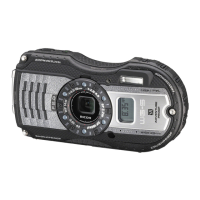
Ricoh WG-5 GPS - User Manual

Ricoh WG-5 GPS
244 pages
Print Icon
To Next Page IconTo Next Page
Loading...
Digital Camera
Operating Manual
Getting Started
Using the GPS
Connecting to a
Computer
Settings
Editing and Printing
Taking Pictures
Common Operations
1
3
2
6
7
8
Appendix
9
5
4
Playing Back and
Deleting Images
To ensure the best performance from your
camera, please read the Operating Manual
before using the camera.
RICOH IMAGING COMPANY, LTD.
2-35-7, Maeno-cho, Itabashi-ku, Tokyo 174-8639, JAPAN
(http://www.ricoh-imaging.co.jp)
RICOH IMAGING EUROPE
S.A.S
112 Quai de Bezons, B.P. 204, 95106 Argenteuil Cedex,
FRANCE
(http://www.ricoh-imaging.fr)
RICOH IMAGING
DEUTSCHLAND GmbH
Am Kaiserkai 1, 20457 Hamburg, GERMANY
(http://www.ricoh-imaging.de)
RICOH IMAGING UK LTD. PENTAX House, Heron Drive, Langley, Slough, Berks
SL3 8PN, U.K.
(http://www.ricoh-imaging.co.uk)
RICOH IMAGING
AMERICAS CORPORATION
633 17th Street, Suite 2600, Denver, Colorado 80202,
U.S.A.
(http://www.us.ricoh-imaging.com)
RICOH IMAGING CANADA
INC.
5520 Explorer Drive Suite 300, Mississauga, Ontario,
L4W 5L1, CANADA
(http://www.ricoh-imaging.ca)
RICOH IMAGING CHINA
CO., LTD.
23D, Jun Yao International Plaza, 789 Zhaojiabang
Road, Xu Hui District, Shanghai, 200032, CHINA
(http://www.ricoh-imaging.com.cn)
http://www.ricoh-imaging.co.jp/english
Specifications and external dimensions are subject to change without notice.
Copyright © RICOH IMAGING COMPANY, LTD. 2015
R01BAA15 Printed in Ja
p
an
e_kb572.book Page 1 Thursday, January 22, 2015 2:38 PM

Table of Contents

Other manuals for Ricoh WG-5 GPS

Questions and Answers

  • E
    Elizabeth SmithAug 12, 2025
    Why won't my Ricoh WG-5 GPS Digital Camera turn on?
    • J
      james98Aug 12, 2025
      Your Ricoh Digital Camera might not be turning on because the battery isn't installed, is installed incorrectly, or is exhausted. Check if a battery is installed and that it's oriented correctly according to the markings in the battery compartment. If the battery is exhausted, charge it.
  • E
    Edwin PetersonAug 15, 2025
    What to do if the shutter will not release on Ricoh Digital Camera?
    • K
      Kristin WebbAug 16, 2025
      If the shutter on your Ricoh Digital Camera isn't releasing, it could be due to several reasons: the flash is charging (wait until charging is finished), there's no available space on the SD Memory Card or in the built-in memory (insert an SD Memory Card with available space or delete unwanted images), or the camera is recording (wait until recording is finished).
  • H
    hardyjaimeAug 20, 2025
    Why is the picture dark when using the flash on my Ricoh WG-5 GPS Digital Camera?
    • T
      Tammy SmithAug 20, 2025
      If your pictures are coming out dark when using the flash on your Ricoh Digital Camera, it's likely because the subject is too far away in a dark environment. Ensure you are taking pictures within the specified flash range.
  • P
    Philip VargasAug 23, 2025
    How to fix a Ricoh Digital Camera when the subject is not in focus?
    • L
      Lauren ByrdAug 23, 2025
      If the subject in your Ricoh Digital Camera photos is not in focus, it could be because the subject is difficult to focus on with autofocus. Try locking the focus on an object at the same distance as your subject by pressing and holding the shutter release button halfway, then aim the camera at your subject and press the shutter release button fully. Alternatively, you can set the focus manually. Another reason could be that the subject is not in the focusing area. Locate the desired subject in the focus frame in the center of the display; if difficult, lock the focus first, then recompose.
  • T
    tyoungAug 27, 2025
    Why does the flash not discharge on my Ricoh Digital Camera?
    • M
      Misty WaltonAug 27, 2025
      The flash on your Ricoh Digital Camera might not be discharging because the flash mode is set to (Flash Off). Set it to (Auto) or (Flash On). Also, the flash does not discharge if the drive mode is set to (Continuous Shooting), (Burst Shooting), or (Auto Bracketing); the focus mode is set to (Infinity); or the shooting mode is set to (Handheld Night Snap), (Movie), (Digital Microscope), (Underwater Movie), (Interval Movie), (High Speed Movie), (Time-Lapse Movie), (1cm-Macro Movie) or (Fireworks).
  • M
    Michael WilliamsAug 31, 2025
    What to do if no image appears on the display of Ricoh WG-5 GPS?
    • K
      Katherine MirandaAug 31, 2025
      If no image appears on the display of your Ricoh Digital Camera, the camera might be connected to a computer or TV, which turns off the display. Also, the display might be set to off. Press the 4 button to turn the display on.
  • B
    Brenda BlairSep 3, 2025
    How to improve display visibility on Ricoh Digital Camera?
    • S
      Stephanie HallSep 3, 2025
      If the display on your Ricoh Digital Camera is hard to see, the brightness level might be set too dark. Adjust the brightness level in [Brightness Level] in the [W Setting] menu. Alternatively, the Power Saving function might be on, which automatically darkens the display after a certain amount of time. Press a button to return to the normal brightness level or select [Off] in [Power Saving] in the [W Setting] menu to turn the Power Saving function off.
  • Z
    zjonesSep 7, 2025
    What to do if static electricity causes my Ricoh Digital Camera to malfunction?
    • J
      johnjacksonSep 7, 2025
      If static electricity causes your Ricoh Digital Camera to malfunction, remove the battery and install it again. If the camera then works properly, you can continue using the camera.

Summary

Getting Started

Powering the Camera

Instructions on installing and removing the battery.

Installing an SD Memory Card

Steps for inserting and removing an SD memory card.

Initial Settings

Guide for setting initial camera options like language and date.

Common Operations

Taking Pictures

Taking Still Pictures

Basic steps for capturing still images.

Setting the Shooting Mode

Guide to selecting various shooting modes.

Recording Movies

Steps for recording videos and settings.

Playing Back and Deleting Images

Playing Back Still Pictures

How to view and navigate still images.

Protecting Images from Deletion (Protect)

How to prevent accidental deletion of images.

Settings

Formatting the Memory

How to erase data from memory cards/internal memory.

Changing the Date and Time

Instructions for setting the camera's date, time, and format.

Resetting to Default Settings (Reset)

Restores all camera settings to factory defaults.

Connecting to a Computer

Connecting the Camera and a Computer

Steps to physically connect the camera to a computer.

Using the GPS

Precautions for Using the GPS

Important warnings and limitations for GPS usage.

Appendix

Troubleshooting

Solutions for common camera problems and issues.

Ricoh WG-5 GPS Specifications

General IconGeneral
BrandRicoh
ModelWG-5 GPS
CategoryDigital Camera
LanguageEnglish

Related product manuals