12
CONFIGURING THE OPERATING MODE
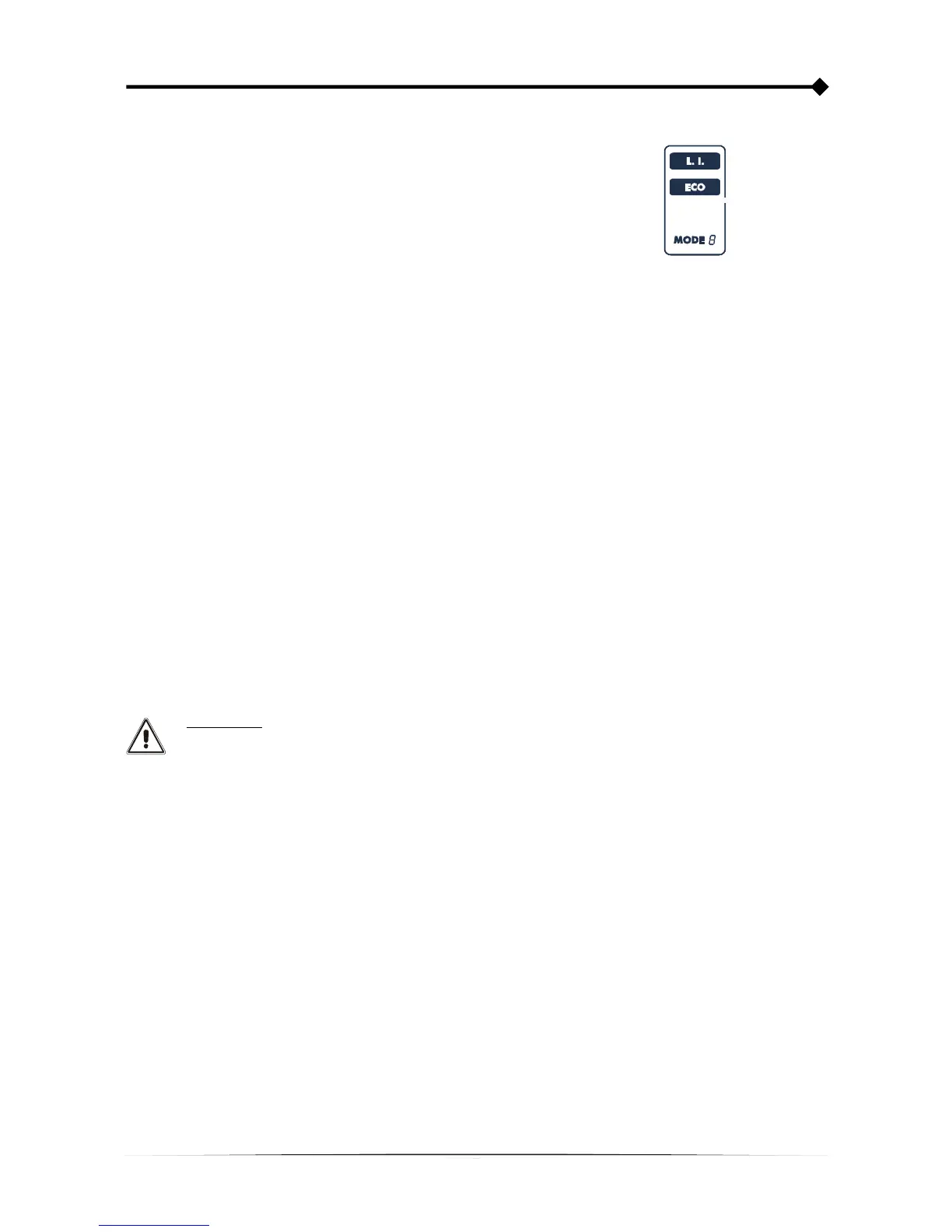
The area of the display shown in the figure displays the active operating
mode and allows the user to choose other modes directly from the
display panel.
HOW TO PROCEED:
• To access the configuration area, hold down the “SEL” button for at least 3 seconds.
• The icon corresponding to the mode currently set lights up.
• To change the mode, press the “ON” button.
• To confirm the mode chosen, hold down the “SEL” button for at least 3 seconds.
POSSIBLE SETTINGS
The UPS is designed to be configured in various operating modes:
• L.I. normal operating mode
• ECO is the mode with which the UPS consumes the least amount of power, and is therefore the most efficient
• MODE using the UPS Tools software it is possible to customise the UPS operational characteristics.
ADDITIONAL FUNCTIONS
MODE “BATTERY SWAP”
The “battery swap” mode ensures that the UPS remains in normal operation from the mains supply. In this condition the
load is powered directly by the input mains, any disruption in the mains directly affects the load.
ATTENTION:
PRIOR TO PERFORMING THE FOLLOWING PROCEDURE ENSURE THAT THE UPS IS NOT IN
BATTERY OPERATION MODE
Attention: even when the UPS is switched on, the load is disconnected in the event of a mains blackout.
If the input mains deviates from the established tolerances, the UPS automatically switches to Stdby mode and
disconnects the load.
To force the UPS into “battery swap” mode press and hold the ON and SEL keys at the same time for at least 4 sec.
The code "C02" appears on the display.
To return to the normal operation mode press the ON and SEL keys again for at least 4 sec.
PROGRAMMABLE AUXILIARY SOCKET (EnergyShare)
The EnergyShare sockets are outlets that allow for the automatic disconnection of the load applied to them in certain
operating conditions. The events that determine automatic disconnection of the EnergyShare sockets can be selected by
the user through the UPStools configuration software. For example, it is possible to select disconnection after a certain
period of battery operation; or when the pre-alarm threshold for battery discharge has been reached, or when an
overloading event occurs.
By default the Energyshare sockets are not configured and therefore function as other outlets.
The EnergyShare function is associated with an icon on the display whose meaning is explained in the paragraph
entitled “Display panel indications”
The presence and the number of these sockets depend on the UPS type, and they are distinguished by a different colour
with respect to other sockets.




 To Next Page