EasyManua.ls Logo

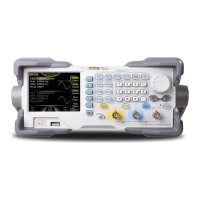
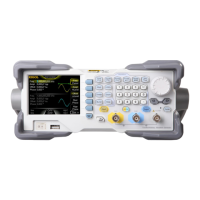
Rigol DG1032Z - User Manual

Rigol DG1032Z
180 pages
Print Icon
To Next Page IconTo Next Page
Loading...
RIGOL
Users Guide
DG1000Z Series Function/Arbitrary
Waveform Generator
Oct. 2016
RIGOL TECHNOLOGIES, INC.

Table of Contents

Other manuals for Rigol DG1032Z

Questions and Answers

  • E
    Elizabeth CruzAug 7, 2025
    What to do if my Rigol DG1032Z settings are correct but no waveform is generated?
    • M
      Melinda WatersAug 7, 2025
      If your Rigol Inverter's settings are correct but no waveform is being generated, verify the following: * Ensure the BNC cable is securely connected to the appropriate channel output terminal ([CH1] or [CH2]). * Inspect the BNC cable for any internal damage. * Confirm the BNC cable is tightly connected to the test instrument. * Check if the backlight of Output1 or Output2 is illuminated; if not, press the corresponding key. After these checks, select “Last” in Utility ? System ? Power On and restart the instrument.
  • D
    David StewartAug 11, 2025
    How to adjust screen brightness on Rigol DG1032Z?
    • D
      Dr. Ryan Johnson Jr.Aug 12, 2025
      If the screen of your Rigol Inverter is too dark, it might be due to low brightness and contrast settings. To adjust this, go to Utility ? System ? Display to access the display settings menu. From there, select Bright and contrast and use the numeric keyboard or direction keys and knob to increase the brightness and contrast to suitable levels.
  • S
    Susan ArnoldAug 17, 2025
    Why my Rigol DG1032Z Inverter does not recognize USB storage device?
    • M
      Manuel CherryAug 17, 2025
      If your Rigol Inverter's USB storage device isn't being recognized, first check if the USB device works correctly with other instruments or a PC. Ensure the USB storage device is formatted as FAT32 and is a flash type, as the generator does not support hardware USB storage devices. If problems persist, restart the instrument and reinsert the USB storage device.
  • T
    Tammy SandovalAug 21, 2025
    What to do if Rigol DG1032Z Inverter screen is dark after pressing the power key?
    • J
      Julie SloanAug 21, 2025
      If the screen of your Rigol Inverter remains dark after pressing the power key, ensure the power is correctly connected and that the power key is fully pressed. After checking these, restart the instrument.
  • R
    Robert MeltonAug 27, 2025
    How to unlock Rigol DG1032Z Inverter?
    • B
      Benjamin DavisAug 27, 2025
      If your Rigol Inverter is locked, it may be in remote mode, indicated by an icon in the status bar. To exit remote control mode and unlock the front panel, press Help. Alternatively, restarting the generator can also unlock it.
  • B
    Brittney SmithDec 1, 2025
    Why Rigol DG1032Z Inverter performance verification test is not passed?

    Summary

    Safety Information

    General Safety Summary

    Overview of essential safety precautions to prevent injury or damage to the instrument and connected devices.

    Safety Notices and Symbols

    Explains important safety warnings, cautions, and product symbols for user awareness.

    DG1000 Z Series Overview

    Main Features

    Highlights the key capabilities, performance, and cost-effectiveness of the DG1000Z series generators.

    Chapter 1 Quick Start

    General Inspection

    Steps to inspect packaging, instrument, and accessories upon receipt to ensure completeness and condition.

    Front Panel Overview

    Detailed description and illustration of the instrument's front panel controls, connectors, and indicators.

    User Interface

    Overview of the instrument's display modes (Parameters, Graph, Single View) and interface elements.

    Chapter 2 Front Panel Operations

    Output Basic Waveform

    Steps to configure and output standard Sine, Square, Ramp, Pulse, and Noise waveforms from channels.

    Modulation

    Explains various modulation types (AM, FM, PM, ASK, FSK, PSK, PWM) and their configuration settings.

    Utility and System Settings

    Covers system configurations like channel settings, display, I/O, language, and power-on behavior.

    Chapter 3 Remote Control

    Remote Control via USB

    Guide for connecting the instrument to a PC and controlling it remotely using the USB interface.

    Remote Control via LAN

    Instructions for setting up network parameters and controlling the instrument over a LAN.

    Chapter 4 Troubleshooting

    Troubleshooting Common Issues

    Lists common problems and their solutions, covering screen, waveform, USB, and verification issues.

    Chapter 5 Specifications

    Signal Characteristics

    Specific signal parameters for Square, Ramp, Pulse, Arb, and Harmonic waveforms, including jitter and rise/fall times.

    Output Characteristics

    Parameters related to signal output, impedance, range, and modulation types.

    Appendix A: Accessories and Options

    Standard Accessories

    Lists included standard accessories such as power cord, USB cable, BNC cable, and quick guide.

    Rigol DG1032Z Specifications

    General IconGeneral
    ModelDG1032Z
    CategoryFunction/Arbitrary Waveform Generator
    Output Channels2
    Frequency Range1 μHz to 30 MHz
    Modulation TypesAM, FM, PM, ASK, FSK, PSK, PWM
    Waveform TypesSine, Square, Ramp, Pulse, Noise, Arbitrary
    Amplitude Range2 mVpp to 10 Vpp (50 Ω load)
    Sweep ModesLinear, Log
    InterfaceUSB Host, USB Device, LAN
    Display4.3 inch TFT LCD

    Related product manuals