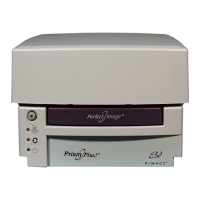
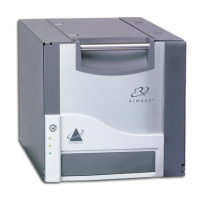
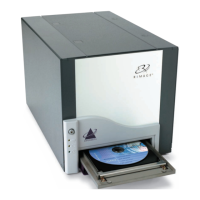
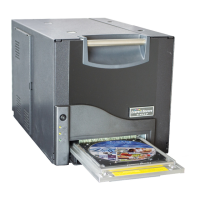
Operating the Prism Printer
Install the software
To install CD Designer, place the CD Designer disc in your PC disc drive and follow the prompts.
Install or update the printer driver
You must install the driver for the Prism before you can use the printer with any label editing software. You
may also need to update the driver if the version is outdated.
Information on the latest version of driver, including features and release date, is available at
www.rimage.com/support.html. Navigate: Support - Prism > Downloads > Release Notes for Prism Driver
Win2000/2003/XP.
This procedure describes how to install or update the Prism driver for Windows 2000, Windows XP, and
Windows Server 2003.
1. If CD Designer is open, close it.
2. If you are using Windows Server 2003, the Disallow installation of printers using kernel-mode
drivers setting must be disabled. Follow these steps to disable the setting:
Note: Skip to step 3 if you are using Windows 2000 or Windows XP.
iv. Policy Object wizard opens and Local Computer displays as the
v. izard, select Finish. The wizard closes and the Add Standalone Snap-In window
vi. se to close the Add Standalone Snap-In window. The Add/Remove Snap-In window
vii.
Console1 window displays with Local Computer Policy in the Name list and in the left
e.
The settings of the Printers display in the right pane.
f.
i. . The Disallow
ns.
bout the setting.
n button.
a. Navigate: Start > Run. The Run window opens.
b. Enter MMC (Microsoft Management Console).
c. Select OK. The Console1 window opens.
d. Add a Snap-In.
i. From the Console1 window, navigate: File > Add/Remove Snap-In. The Add/Remove Snap-In
window opens with Console Root as the default folder.
ii. From the Add/Remove Snap-In window, select Add. The Add Standalone Snap-In window
opens.
iii. Select the Group Policy Object Editor Snap-In.
Tip: Scroll down until you see the desired Snap-In.
Select Add. The Select Group
Group Policy Object default.
From the w
displays.
Select Clo
displays.
From the Add/Remove Snap-In window, select OK. The Add/Remove Snap-In window closes
and the
pane.
Navigate to the printers settings.
i. Expand Local Computer Policy.
ii. Expand Computer Configuration.
iii. Expand Administrative Templates.
iv. Select Printers.
Adjust the settings.
Double-click the Disallow installation of printers using kernel-mode drivers
installation of printers using kernel-mode drivers Properties dialog box ope
Tip: Selecting a setting opens an information pane a
ii. From the dialog box, select the Disabled optio
iii. Select OK. The Properties dialog box closes.
110635_I 5


 To Next Page