Home
ring
Security Camera
Stick Up Cam
Setup And Installation Guide
Page 10 (Stick Up Cam App Setup)
ring Stick Up Cam - Stick Up Cam App Setup; Download Ring App; Wi-Fi Password Required
20 pages
Manual
To Next Page
To Next Page
To Previous Page
To Previous Page
Loading...
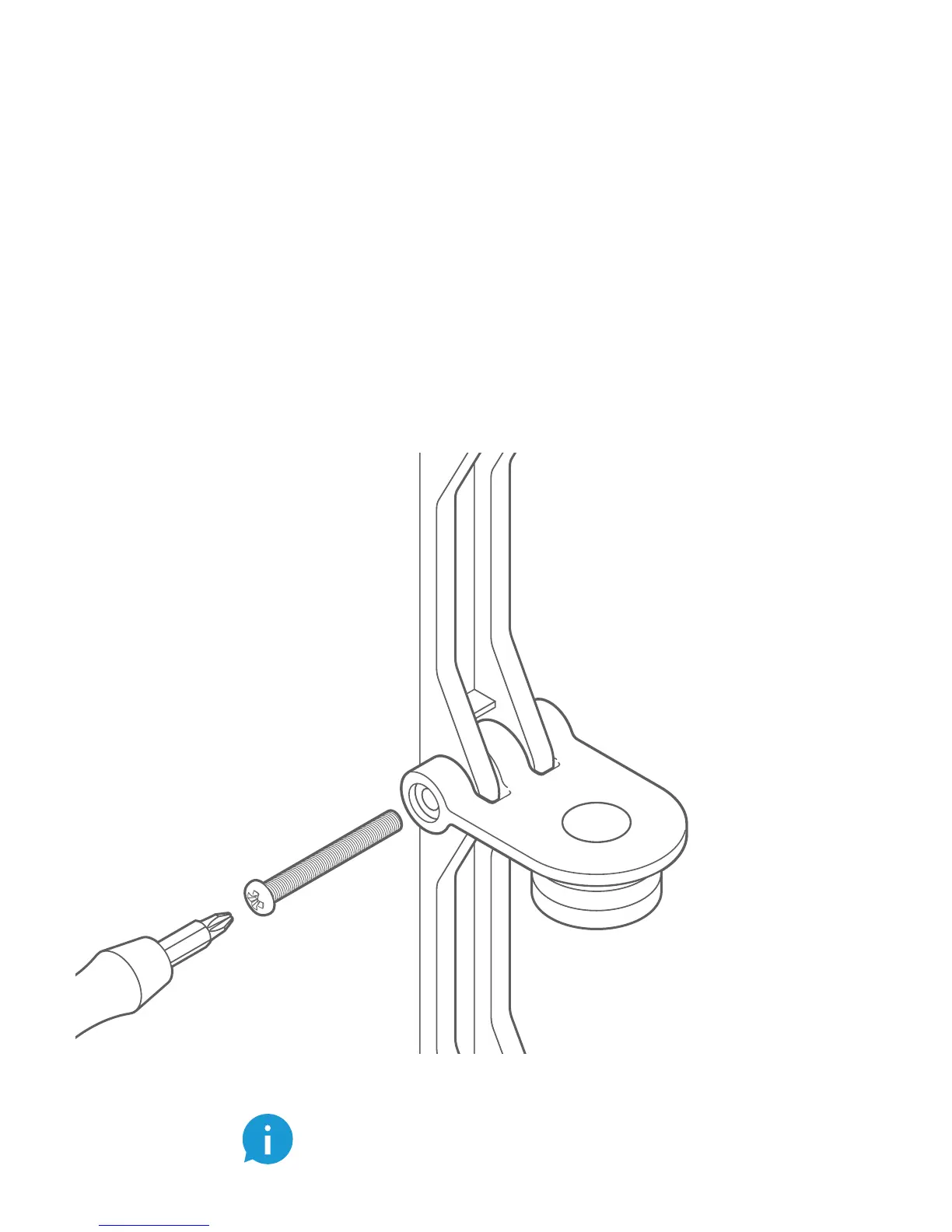
Screw the bolt into the s
wiv
el arm
on the side with the r
ec
ess
Step 9
A
ttach the Sw
iv
el Arm to your Stick U
p C
am
U
se the bolt that was pr
ovided in the
small bag to attach the s
wi
vel arm to
the mounting point you selected in the
pre
vious step
.
10
9
11
Table of Contents
Main Page
Download the Ring App
2
Meet the Back of Your Stick up Cam
3
Perform the In-App Setup
4
Test the Video Quality
5
Charge Your Stick up Cam
6
Select the Mount You’D Like to Use
7
Quick Release Mount
7
Security Mount
7
Remove the Swivel Arm from the Security Mount
8
Select the Mounting Point
9
Attach the Swivel Arm to Your Stick up Cam
10
Install the Mount
11
Attach Your Stick up Cam to the Security Mount
14
Snap Your Stick up Cam into the Quick Release Mount
15
Using Stick up Cam
17
Turning off Motion Alerts
17
Cloud Video Recording
18
Other manuals for ring Stick Up Cam
Manual
26 pages
Setup Guide
6 pages
Related product manuals
ring Stick Up Cam Pro
19 pages
ring Stick Up Cam Wired
16 pages
ring Stick Up Cam Elite
9 pages
ring Stick Up Cam Battery
7 pages
ring Spotlight Cam
52 pages
ring Spotlight Cam Wired
25 pages
ring Spotlight Cam Battery
19 pages
ring Stick Up Cam Plug-In
5 pages
ring Floodlight Cam
40 pages
ring Indoor Cam
9 pages
ring Wired Plus
7 pages
ring Indoor Cam 2nd gen
7 pages


 To Next Page
 Loading...