26
The printer driver must be installed on any computers you will print from.
The screens displayed vary depending on the operating system and applications used and the optional equipment connected.
Some items may not be displayed, depending on how the administrator has congured the settings. For details, ask your administrator.
•
•
•
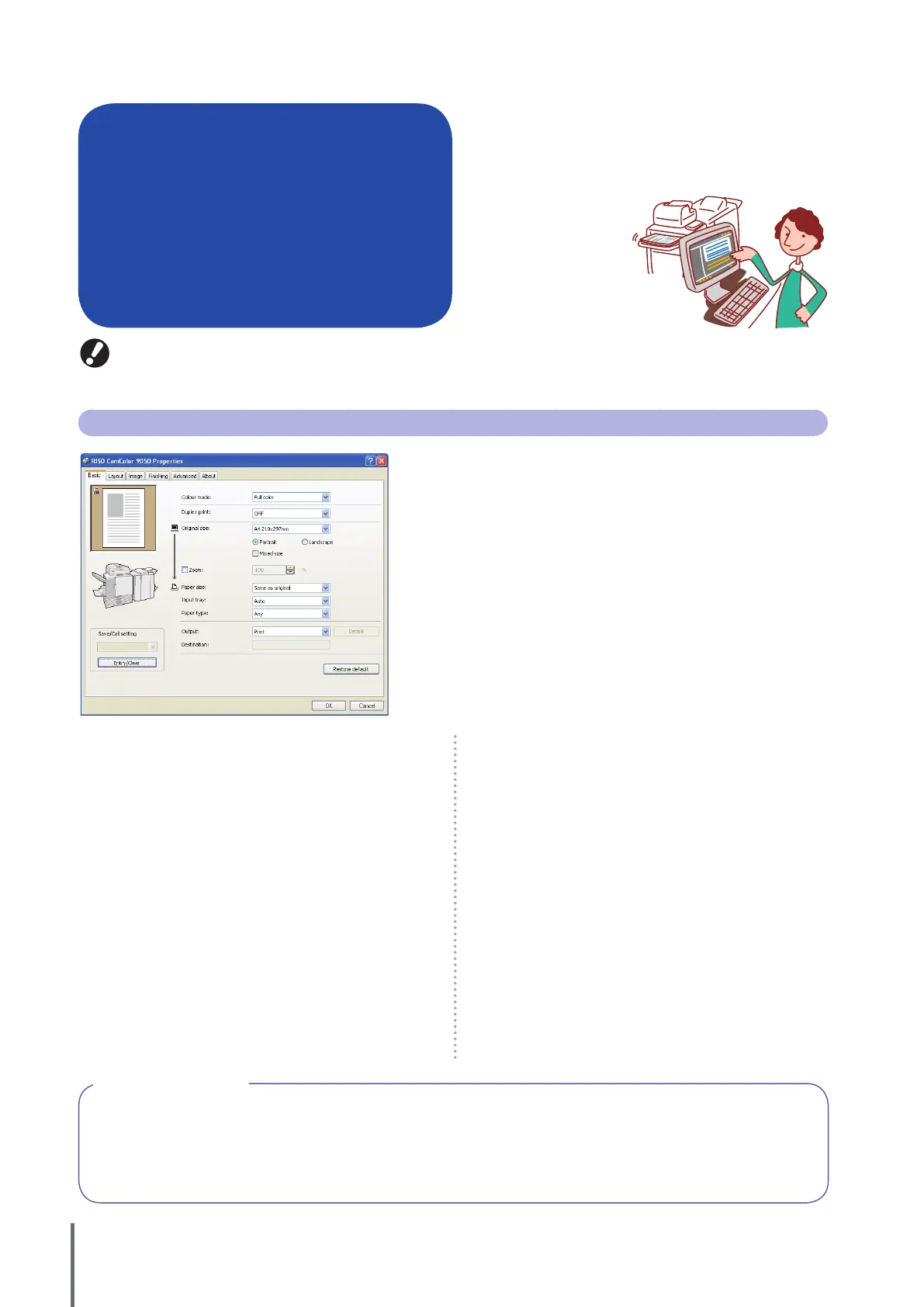
Basic Tab
Complete basic print settings on this tab, such as for the color mode
and paper used.
[Color mode]
Select color or monochrome printing.
[Duplex print]
Specify duplex printing, if desired.
[Original size]
Select the size of paper, as specied in the source application used to
create the original.
[Portrait], [Landscape]
Select the orientation of the original.
[Mixed size]
Select this option if not all pages of the original are the same size.
[Zoom]
Specify enlargement or reduction of original images before printing,
if needed.
[Paper size]
Select the size of paper for printing.
[Input tray]
Select the tray where paper for printing is loaded.
[Paper type]
Select the paper type.
[Output]
Select whether to print jobs or save them in job folders. When saving
jobs in folders, specify the directory and other conditions in [Details].
[Destination]
When you have selected [Print & Save to folder] or [Save to folder] in
[Output], this eld indicates the directory.
[Save/Call setting]
Save and recall frequently used settings.
[Entry/Clear]
Save or clear settings information in [Save/Call setting], as needed.
Up to ten settings proles can be saved.
[Restore default]
Restore settings to the default.
When printing data from a computer, you can perform
various settings with the printer driver.
Click [Properties] (or [Preferences]) in the printing dialog
box of each application to display the setting screen of the
printer driver.
Printer Driver Screens
Paper Type Setting
Printing is not possible unless the paper type selected in [Paper type] is loaded in the machine.
When the paper type and the printing quality are not important and you simply want to print, specify [Any] in [Paper type].
This machine adjusts the color balance and amount of ink used based on the paper type specied.
For this reason, the printing quality when [Any] is selected may be inferior to the quality when you have selected the
paper type loaded.
ComColor Series Basic Guide 02



 To Next Page