45
Copying >> Copy Mode Screens
3
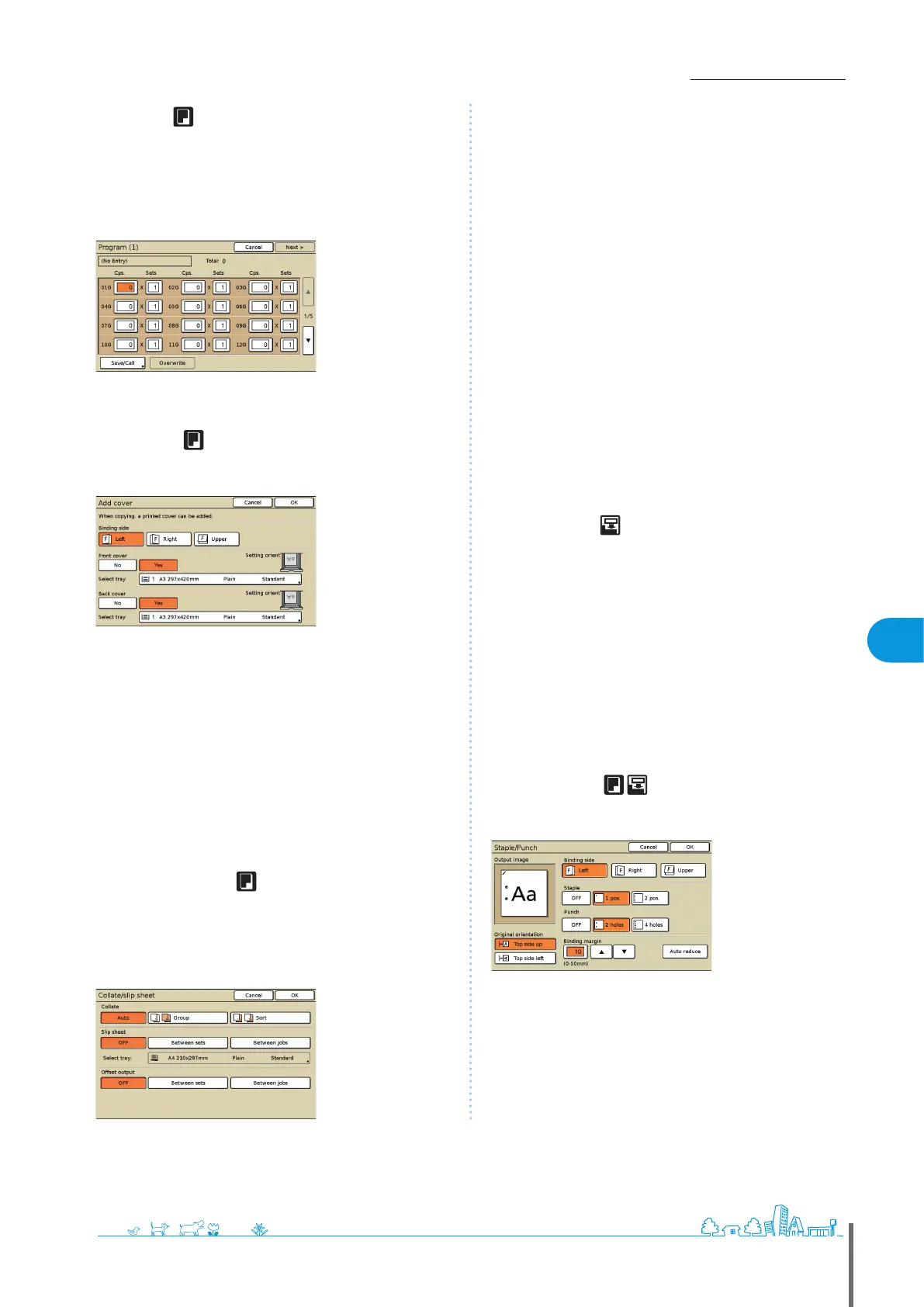
[Program]
Specify settings for the number of copies and sets, collating,
slip sheets, and other options for 60 groups. Quickly print
exactly the number of copies of the number of sets you
need. This feature is convenient when printing copies in
various quantities for distribution to several dierent groups,
such as corporate divisions or classes.
[Add cover]
Insert preprinted sheets or colored paper that has been
loaded in the tray as covers.
[Binding side]
Specify the position of the binding.
[Front cover]
Specify front cover settings.
To add a front cover, select [Yes] and specify the tray where paper for
the cover is loaded.
[Back cover]
Specify back cover settings.
To add a back cover, select [Yes] and specify the tray where paper for
the cover is loaded.
[Collate/slip sheet]
For several copies of multi-page originals, specify whether to
collate the copies into sets. Also, specify whether to insert a
slip sheet between copies. When you have connected an
optional multifunction nisher or face down oset tray, you
can also select whether to oset the copies.
[Collate]
Specify the type of collation.
[Auto]
[Sort] is automatically specied when originals are scanned with the
ADF. [Group] is specied when originals are scanned on the platen.
[Group]
Copy one page from the original in a specied quantity, then copy
the next page.
[Sort]
Copy complete sets of the original, with pages arranged in order.
[Slip sheet]
Specify whether to insert a slip sheet between sets of copies.
[OFF]
Do not insert a slip sheet.
[Between sets]*
Insert a slip sheet between sets, based on the unit specied in
[Collate].
[Between jobs]*
Insert a slip sheet between copy jobs.
*
When you have selected [Between sets] or [Between jobs], specify
the feed tray for these slip sheets.
[Oset output]
When you have connected an optional multifunction nisher
or face down oset tray, specify whether to move the output
position after each unit is printed.
[Auto-Rotate]
This option automatically rotates the image of originals 90° if
the size of the loaded original matches the size of paper in
the tray but the orientation does not match. Normally,
specify [ON] for this setting.
[Staple/Punch]
When you have connected an optional multifunction
nisher, staple or punch holes in copies.
●
●
●
ComColor Series Basic Guide 02 ComColor Series Basic Guide 02



 To Next Page