This machine can print at a higher speed than
conventional inkjet printers. It also has a wide range of
useful functions. For example, you can assign a PIN code
to a print job to prevent other people from seeing the
printout, or when printing many copies of the same
original, you can pause
after one copy and check
the output before
continuing. This section
describes how to use the
various functions in
combination, and in
accordance with your
objectives.
Printing Operations
Basic Workow
Access the printing
dialog box of the
source application
Select this
machine as the
printer
Complete the print
settings
Print the job
For instructions on canceling print jobs, see “Deleting Jobs” (p. 71).
The printer driver must be installed on any computers you will print from. (See p. 84.)
The screens displayed vary depending on the operating system and applications used and the optional equipment connected.
If there is a [Collate] check box in the printing dialog box of the source application, clear the check box. (S
ee p. 35.)
Some items may not be displayed, depending on how the administrator has congured the settings. For details, ask your
administrator.
•
•
•
•
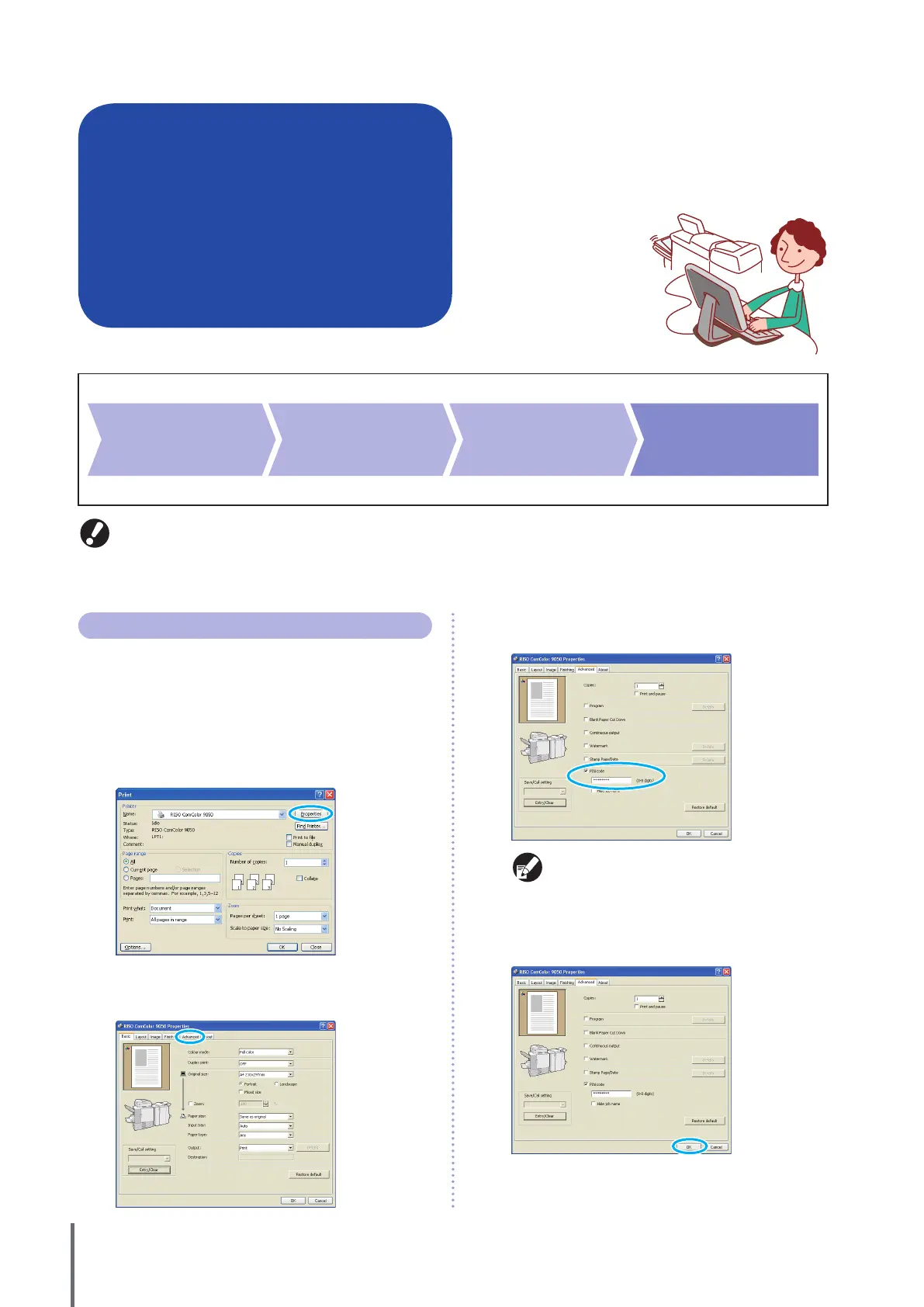
Printing with PIN Codes
Assigning PIN codes to print jobs enables privacy when
printing the jobs. After you have sent the print job to the
machine from a computer, you can simply enter the PIN
code on the touch panel to print the job.
1
Click [Properties] (or [Preferences]) in the printing
dialog box of the source application.
2
Click the [Advanced] tab.
3
Select [PIN code] and enter a PIN code.
As the PIN code, specify a number up to eight digits.
To hide the job names usually displayed on the
machine and in the RISO console, select [Hide job
name].
4
After input is nished, click [OK].
Complete other settings as needed.
ComColor Series Basic Guide 02



 To Next Page