201.028 REV 1 Date of Issue: 18 June 2018
6.4.2.2 Configuration
6.4.2.2.1 Use PC Software for Configuration
The free RMF-View software package is needed in order to initially configure the CMS. Once configured, the unit
can be left connected to the CAN-bus network.
The CMS was designed to be as flexible as possible. There are large number of options for setting operating
modes, test result formats, alarm settings, downloading stored data etc.
The easiest approach is to use RMF-View to configure the test parameters and result format. Then the customer
application only has to read the results.
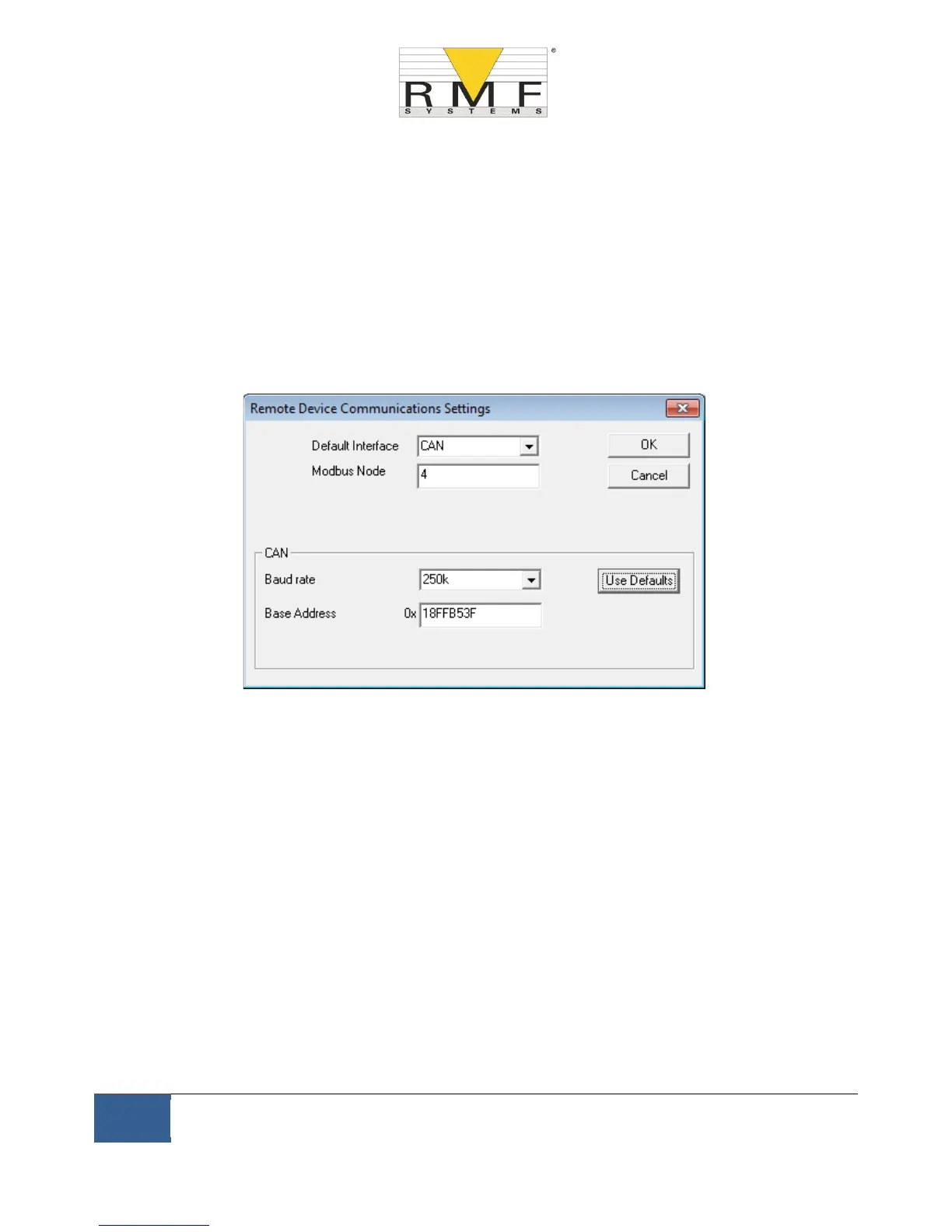
The CAN-bus parameters are configured from the Communication Settings dialogue, accessed from the CMS
Settings dialogue (see section 6.3.3).
Figure 6.30 Communication Settings Dialogue
The CMS can use either CAN 2.0A ``basic’’ format with 11 bit identifiers, or CAN2.0B ``extended frame’’ format
with 29 bit identifiers.
6.4.2.2.2 CAN2.0B and J1939
The default 29 bit format is designed to be compatible with the J1939 standard. It should also be possible to use
the CMS with any system that permits arbitrary raw CAN-bus 2.0B identifiers to be received.
The dialogue shows the default CAN-bus settings. The CMS transmits all data using a range of message identifiers
starting at that selected. If the ``Use Defaults’’ button is pressed, the program constructs an identifier suitable for
J1939 (i.e. this will use PGNs within the region allocated to proprietary applications, starting at 0x00FFB53F).
At the end of each test, the CMS will generate a ``test result codes’’ message using the selected CAN-bus
identifier.
On a J1939 network the test result will appear as PGN 0x00ff00. Users not using J1939 can simply listen for
messages with the identifier shown in the dialogue, e.g. 0x18FFB53F.



 To Next Page