4-8
VSM500 DeviceNet Option Board
Step 8. Click Close. The Scan List Editor dialog box reappears.
The data transmitted between the VSM500 unit and SLC scanner is now mapped to
the scanner.
4.3 Saving the Configuration
After creating a configuration, you should download it to the scanner.
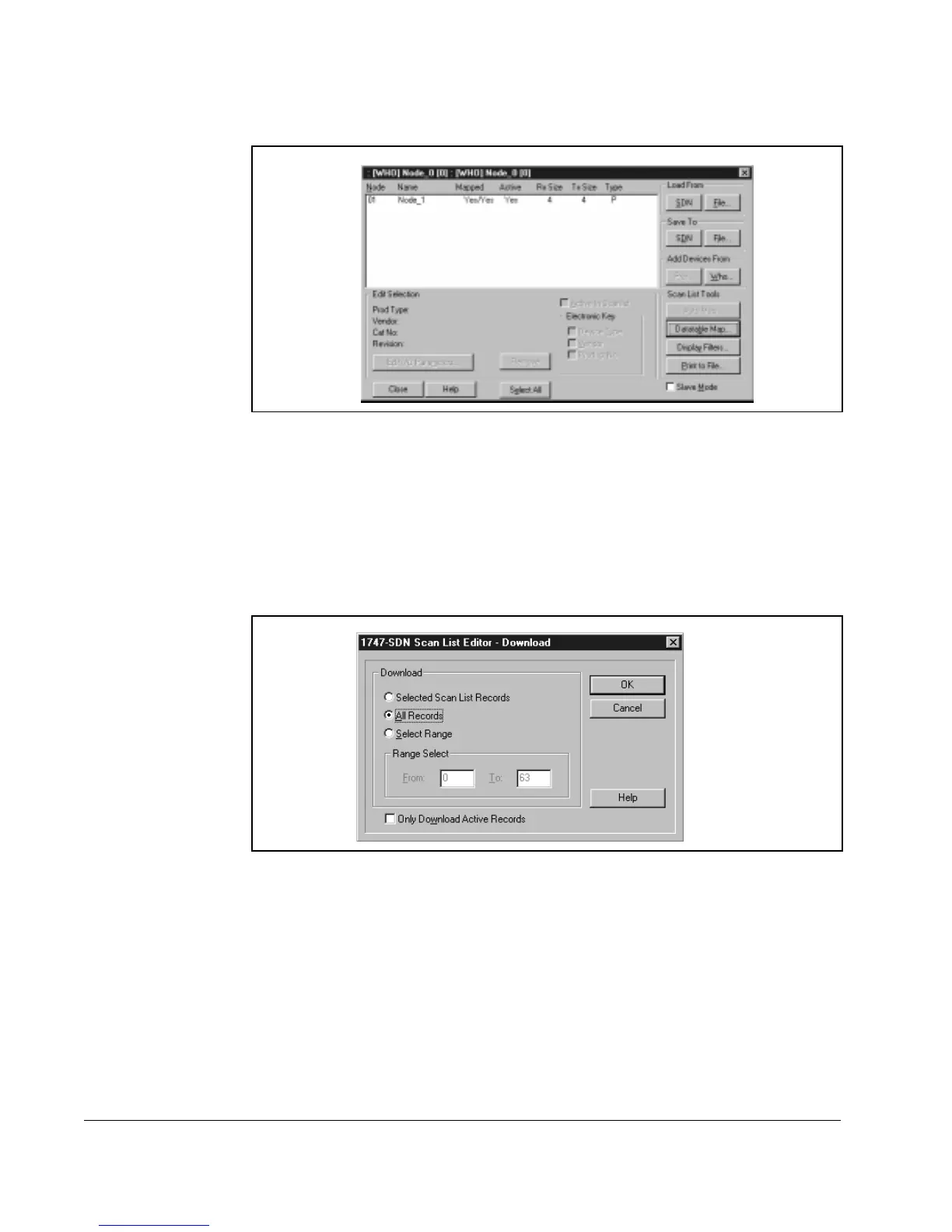
Step 1. In the Scan List Editor dialog box, click SDN under Save To. The Scan List
Editor - Download dialog box appears.
Step 2. Select All Records, and then click OK. A DeviceNet Manager message will
appear and inform you that the scanner will not be available for a period of
time.
Step 3. Click OK to download the new configuration to the SLC. The Scan List Editor
dialog box (see figure 4.14) reappears.
Step 4. Click Close to close the Scan List Editor dialog box. A message box appears
and prompts you to save the configuration to a file. If desired, save to a file.
The 1747-SDN dialog box (see figure 4.3) appears.
Step 5. Click Close to close the 1747-SDN dialog box. A message box appears and
prompts you to save the configuration to a file. If desired, save to a file. The
Network Who window (see figure 4.2) appears.
Figure 4.14 – Scan List Editor Dialog Box
Figure 4.15 – Scan List Editor - Download Dialog Box



 To Next Page